

Embedded AI is a rapidly developing area at ServiceTitan. For how the AI Mark fits into broader embedded AI and Atlas usage, see Embedded AI.
Anatomy
The AI Mark consists of a single element: the double-star shape that identifies AI-assisted or AI-generated content in product UI.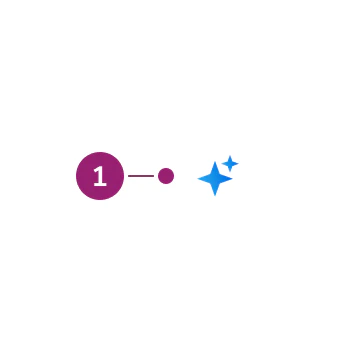
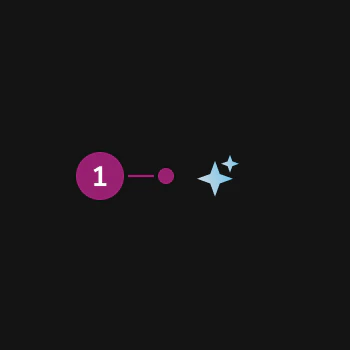
- Double-star shape — AI Mark
Options
The AI Mark supports the following configurations for color, size, and related presentation.Color
- Gradient: A blue gradient, used as the primary option for denoting something is AI.
- Default: A
currentColoroption, used against non-default backgrounds, such as within buttons.
Sizing
The mark comes in four sizes aligned with Anvil icon sizing.- small: 12×12
- medium: 16×16
- large: 24×24
- xlarge: 32×32
Behavior
Animation
The AI Mark has two animation modes:- Pulse: The default hover treatment for the mark.
- Spin: Used exclusively in situations that perform an action (such as buttons), also on hover.
Tooltips and popovers
The AI Mark responds to hover and focus, and it supports an optional tooltip or popover disclosure when users need more context than the icon alone. Pair the AI Mark with a tooltip or popover when short inline copy is not enough and users should be able to read more about how AI is used.- Tooltip: Use for a single line or short string of explanatory text on hover or keyboard focus. Reserve tooltips for lightweight context (for example, what “AI-assisted” means in that spot).
- Popover: Use when the disclosure needs richer layout or actions—longer explanations, multiple lines, or controls such as feedback. Popover opens on activation (for example, click), not only on hover.
Contrast-driven style choice
Use the gradient mark by default. Switch to the monochrome mark when the primary treatment fails contrast requirements—for example, primary Button and similar cases where the gradient does not meet contrast against the background.Editable states
The AI Mark responds to edits. When a user starts editing a cell, remove the AI Mark immediately. After editing begins, the value is no longer purely AI-generated, and keeping the mark would misrepresent the content.Usage Guidelines
Use the AI Mark when you need a clear, consistent visual that an experience or control is AI-related outside of the dedicated Atlas conversational UI.Placement on fields
The AI Mark can sit in the field label or in the body or description area. When a field has a visible label, prefer the label. When there is no label—for example, a Data Table cell—place the mark to the right of what AI has generated. If a group of items was generated with AI (for example, a Card), place the mark to the right of the group title.Avoid duplicate marks
If the AI Mark already appears on a triggering element (for example, a button that starts an AI action), do not show it again in the output that element produces. One clear association per action keeps the UI honest and avoids noisy repetition.Don’t use outdated marks
Content
Content within or next to the AI Mark should keep AI disclosure clear and scannable. Prefer plain language that states what the AI does or what the user should expect.- Pair the mark with labels or headings that describe the AI-assisted outcome, not the technology
- In complex workflows, add short explanatory text or follow-up disclosure as needed in the UI or via tooltip or popover when the mark alone does not carry enough context
- When both a label and description exist, align the mark with Placement on fields
Keyboard Interaction
Users can navigate the AI Mark using the same keyboard patterns as the surrounding control or container (for example, the button or field label that includes the mark).Embedded AI
Read more about embedded AI and how to use the AI Mark within larger workflows in the product.
Code
- Implementation
- AiMark Props
Common Examples
AiMark displays the ServiceTitan AI mark. When paired with a tooltip or popover via popoverOrTooltipConfig, the icon becomes interactive and animates on hover and focus. Without a configuration, it renders as a static inline icon.The component automatically respects the user’s prefers-reduced-motion system preference — animations are disabled when reduced motion is preferred.With Tooltip
Use the tooltip variant to show a brief text label when users hover or focus the icon.With Popover
Use the popover variant to show richer content — such as a title and description — when users click the icon.Force Animated
UseforceAnimate to control the pulsing animation from a parent component. This is intended for cases where AiMark is embedded inside an interactive element and the animation should respond to the parent’s hover or focus state rather than its own.Plain Icon
WithoutpopoverOrTooltipConfig, AiMark renders as a non-interactive icon. Use this when you only need the visual indicator without any overlay.React Accessibility
- When
popoverOrTooltipConfigis provided, the icon renders as a ghostButtonwith anaria-labelset fromtriggerLabel. This ensures screen readers announce a meaningful label rather than just “button”. - Pass a descriptive
triggerLabelthat communicates the purpose of the overlay — for example,"Learn about AI-powered suggestions"rather than"AI icon". - Animations are automatically suppressed when the user has
prefers-reduced-motion: reduceset in their system preferences. - The popover variant uses the internal beta
Popoverwithrole="dialog"; focus moves into the popover when it opens. - The popover variant calls
stopPropagationon click to prevent unintended event bubbling when the icon is nested inside other interactive elements.