

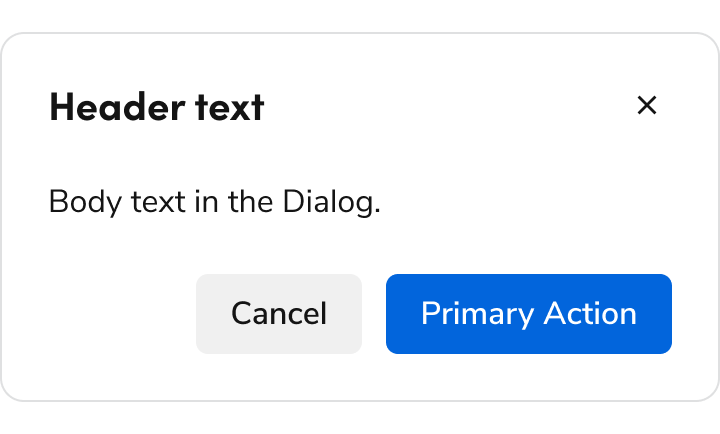
Anatomy
The Dialog consists of five primary elements that work together to temporarily block interactions within the main view.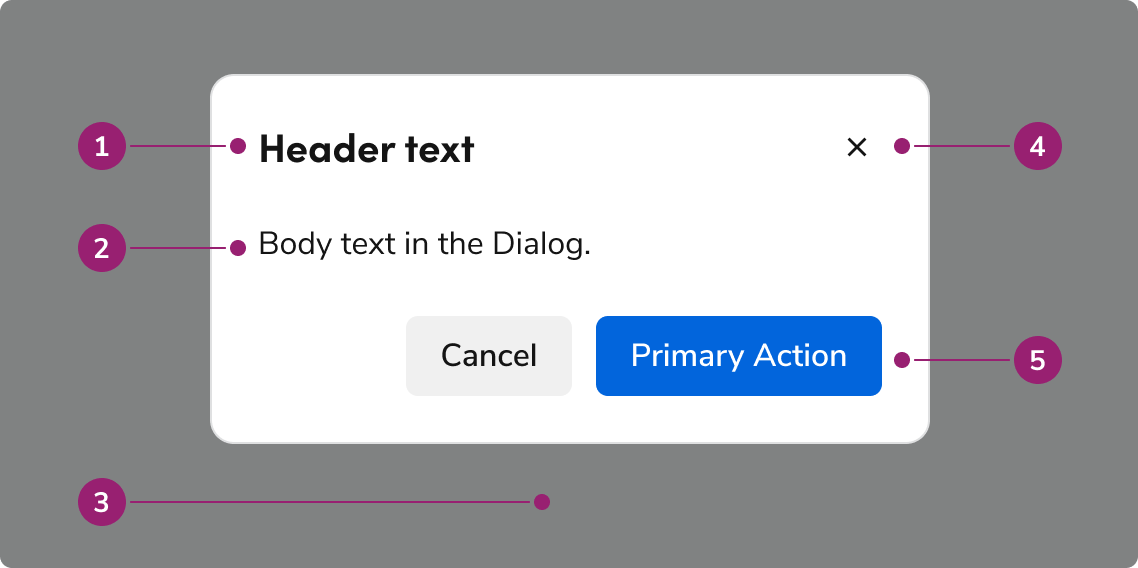
- Header
- Body content
- Backdrop
- Close action
- Footer actions
Options
The Dialog supports flexible content, footer actions, and sizing configurations to accommodate various modal scenarios.Body content
Add any type of content into the body of a Dialog.Footer actions
Sizing
The Dialog has 4 sizing options: medium (default), large, extra large, and fullscreen.Default
Large
Extra Large
Fullscreen
Sizing table
Behavior
The Dialog responds to content overflow and scrolling requirements while maintaining focus management.Overflow handling
Content in the Dialog will wrap, rather than truncate. Header content will avoid colliding with the close action, while footer actions will wrap to the right, with the right-most actions being at the bottom. Footer actions can have a custom overflow behavior if needed.Scrolling
The body region of the Dialog will scroll when space is not available. The Dialog’s height will fill the height of the browser window (minus 1 rem top and bottom margins), and scroll past that point.Usage Guidelines
Alternatives
Dialog vs Alert
Dialogs are interruptive by design, while an Alert is non-disruptive. Prefer using an Alert when information needs to be conveyed, only using a Dialog when there is a clear need to interrupt a flow, such as a confirmation of destructive or irreversible actions.Dialog vs Drawer
Dialog vs Popover
Both Dialogs and Popovers overlay elements on the page. Dialogs are preferable when a situation requires user attention and for more complicated flows.How to Use
Multi-step Dialogs
Dialogs of all sizes may involve multiple steps. We recommend using the footer arrangement shown for user navigation. Adjust the final step’s primary action copy as needed.Do
Do
Forms in Dialogs
A form can exist within a Dialog. Beyond the standard usage guidance to Forms, small Dialogs should especially keep form length low, and make use of multi-steps when needed. Fullscreen Dialogs may use forms as complex as an ordinary page.Do
Avoid stacking smaller Dialogs together
Don’t
Stacking a Dialog with a fullscreen Dialog
Since a fullscreen Dialog mimics a standard page, stack a smaller Dialog as needed.Do
Content
Content within the Dialog should be concise, actionable, and clearly communicate the task or information.Write titles as verbs
Titles should have a clear verb + noun question or statement.Do
Don’t
Make body content concise and actionable
Use imperative verbs when telling users what they need to know or do. Don’t use permissive language like “you can”.Do
Don’t
Buttons should be clear, predictable, and action-oriented
Users should be able to predict what will happen when they click a button. Lead with a strong verb that encourages action. Use a verb/noun pair on actions in most cases. Common actions like Save, Close, or Cancel do not require an accompanying noun.Do
Don’t
Keyboard Interaction
Users can navigate the Dialog using standard keyboard controls.Accessibility
Focus management
There are a few different things to keep in mind with the Dialog’s focus / keyboard behavior.Trap focus within the Dialog
By default, the Dialog will trap focus within itself. Elements outside of the Dialog would not be accessible by keyboard, unless another element itself took the focus.First focus management
What element the Dialog focuses on open is dependent on a few factors:- If the body content has a focus-able element, the Dialog will focus on the first of these elements.
- If the body does not have have an element, then the following is the preferred first-focus element:
- With no actions at all, focus first on the close action.
- When a primary action exists, focus first on the primary action.
- When a primary destructive action exists, focus first on the secondary cancel action.
Return focus on close
When a Dialog is closed and the original context that triggered the Dialog is still present, focus should return to the element that triggered the Dialog. For more guidance on focus management with dynamic content, see changing content best practices.Code
- Implementation
- Dialog Props
- Dialog.Header Props
- Dialog.Content Props
Common Examples
Opening dialogs
Dialogs should be shown and hidden using theopen prop, rather than conditionally rendering the entire component.This allows us to follow the HTML standard for dialog elements, which is what we render under-the-hood. This also prevents some other issues, such as skipping the exit animation or missing toast messages.Do
Don’t
Rendering content on open
By default, dialog content is rendered on page load, but hidden until the dialog is opened. In some cases, such as making heavy API calls or with content that may require large re-renders based on other user actions, it could be advantageous to wait to render the dialog content.To render dialog content only when it is opened, conditionally render thechildren based on the state used in the Dialog.open prop.Sticky Content
Use thesticky prop on Dialog.Content to keep important UI elements (like search fields or filters) visible while other content scrolls. This is useful for dialogs with long, scrollable content.Choosing initial focus
By default, theDialog focuses the first focusable element that is not the Dialog.CancelButton. To override this behavior, use the initialFocusResolver prop to specify which element receives focus when the dialog opens.The initialFocusResolver function receives an array of all focusable elements within the dialog and returns the one that should receive initial focus.Closing dialogs
Clicking aDialog.CancelButton or the close button inside of Dialog.Header will trigger the Dialog.onClose to run, where you can add a callback to control the open/close state of the dialog.Closing callbacks
In addition toonClose–which indicates a user has chosen to close a dialog–the component also offers two animation callbacks onCloseAnimationStart and onCloseAnimationComplete.You may use these callbacks to perform additional actions related to the presentation of the Dialog. For example, if you have a dialog containing a form, you may wish to reset the form state after the close animation has played so that the user doesn’t see an empty form briefly when closing the dialog.Dialogs and Toasts
Due to the way the HTMLdialog element renders in the browser’s top layer, the Dialog component includes an internal Toaster for rendering toast messages. This should be unnoticeable to implementors and users, but there may be edge cases the result in toasts not rendering as expected.Please reach out to us in the #ask-designsystem channel on Slack if any edge cases related to dialogs and toasts are found!Anti-Patterns
Conditional rendering
The openness should be controlled by theopen prop and not by conditional rendering — this is an anti-pattern for Dialog.Resetting content
HTML Dialog show/hide content but it doesn’t remove from the DOM which means the reset doesn’t happen automatically. To do the reset, usekey on <Dialog.Content> . Since <Dialog.Content> is always present in DOM, you can add conditional to, or in, the <Dialog.Content> as well.