

For development, import
DrillDown from @servicetitan/anvil2. For design, find it in the Anvil2 file.Anatomy
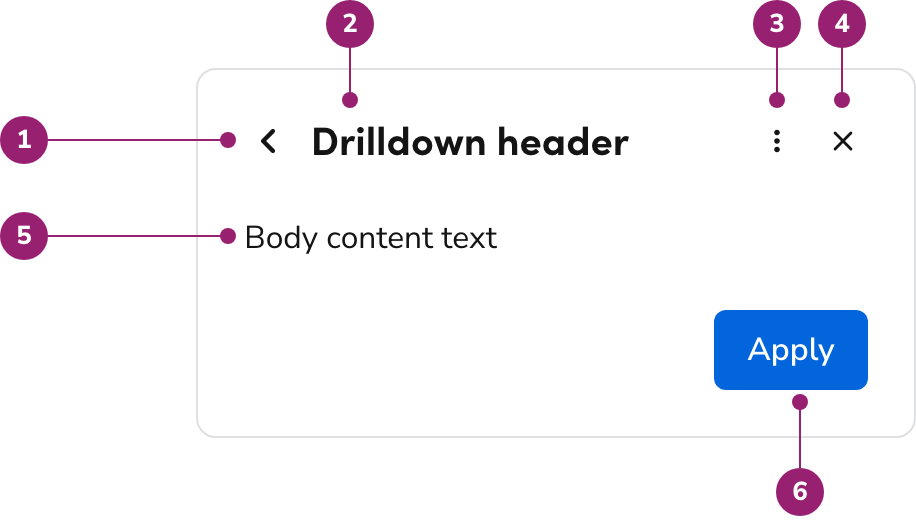
- Back action
- Drilldown header
- Header actions (optional, Drawer and Page Panel only)
- Close action (optional)
- Drilldown content
- Drilldown footer (optional)
- Close action (optional)
- Drilldown content
- Drilldown footer (optional)
Options
In a Dialog
In a Drawer
In a Page Panel
Header actions
Drilldown supports an optional overflow menu in the header for secondary operations related to the Drilldown content. Header actions appear to the left of the close action, or on their own when the Drilldown has no close action. Each Drilldown defines its own header actions. A Drilldown does not inherit the header actions of the Drawer it opens from.Behaviors
How the Drilldown gets opened
Drilldowns are opened by clicking on a trigger element within the parent UI.Dismissal
If the container is dismissed (e.g., clicking the backdrop or a close control), the entire UI closes. It does not step back; going back is reserved for the back action.Focus Management
Focus should mimic the corresponding UI which the Drilldown is present in. Refer to focus management documentation for Dialogs and Drawers for more information.Keyboard Interactions
Drilldown does not have any specific keyboard interactions. It should follow the keyboard conventions of the UI it is in.Usage Guidelines
An example of a Drilldown within a Drawer that allows the user to quickly edit individual values from the parent view.
Where Drilldown can be used
Drilldown is allowed in the following UIs:Where Drilldown cannot be used
Drilldown is explicitly not allowed in the following UIs: These are not allowed for a few reasons:- They are not easily accessible to implement in the component.
- They are an unstable place to interact with for users (e.g., accidental Popover closing, uncontrollable resizes that get cut off).
Fullscreen Drilldown + Dialog vs A1 Takeover
The A1 Takeover contained in its header a “back to” element. Open that reference from Visit Anvil1 after you request Vercel access. While on the surface this seems the same as a Drilldown in a fullscreen Dialog, there is a notable difference. An A1 Takeover can be triggered from any UI interaction. The Drilldown + Fullscreen Dialog can only be triggered from another fullscreen Dialog, consistent with how Drilldown works in all other scenarios. If looking for the closest approximation to the A1 Takeover, use the normal Fullscreen Dialog without a Drilldown.Keep Drilldown in its parent UI
Use the same container the Drilldown came from (e.g., a Drawer-triggered Drilldown remains in that Drawer).How to use
- Use the same container the Drilldown came from (e.g., a Drawer-triggered Drilldown remains in that Drawer).
- Avoid using the confirmation pattern when using the Drilldown. If the actions being taken are important enough to warrant a confirmation, consider using a different UI pattern besides the Drilldown.
- If the Drilldown context is closed in some way, such as clicking on an x or a Backdrop, the whole UI is closed. It should not go back, that action is reserved for the back action. You may optionally remove these close actions in a Drilldown.
- Do not use Breadcrumbs within a Drilldown. Breadcrumbs create a competing hierarchy with the Drilldown’s back action. Breadcrumbs are not traditionally used in Panels, Drawers, or Dialogs either.
Actions within a Drilldown
When using a Drilldown, it is recommended to adjust the actions to the following: Header- Always include the back action provided by Drilldown.
- Optionally remove the close action to reduce ambiguity.
- Optionally add header actions for secondary operations that apply to the current Drilldown, in a Drawer or Page Panel.
- Use Apply or similarly a named action when users modify content within the Drilldown.
- Omit Cancel, as its scope is ambiguous in this context.
Code
- Implementation
- DrillDown Props
- DrillDown.Header Props
- DrillDown.Content Props
- useDrillDown hook
Common Examples
Use as children of Dialog, Drawer, or Page.Panel
Any number of DrillDown components can be added as children of the Dialog, Drawer, or Page.Panel component. When a DrillDown is visible, it will cover the entire contents of the Dialog or Drawer.Each
DrillDown requires a unique indexDrillDown sibling components are identified by their index prop. Numbers used for the index prop are zero-based, and calling next or clicking the DrillDown.NextButton will display the next index in numerical order.Uncontrolled usage
SetdefaultDrillDownIndex on the host (Dialog, Drawer, or Page.Panel) to choose which DrillDown screen the first next() opens from a closed stack. The prop type is number and defaults to 0. The host starts with no active screen. Closing the host restores this index.Use defaultDrillDownIndex when that first next() should not open index 0—for example, skipping an intro screen.With
defaultDrillDownIndex={1}, the first next opens index 1. Index 0 stays in the tree for later setIndex(0) jumps but is not reached by Next/Prev alone—back from the start index closes the flow.Using DrillDown.NextButton and DrillDown.PrevButton
The DrillDown can be used with uncontrolled state by using the DrillDown.NextButton to move forward to each DrillDown index in ascending numerical order. The first next call opens defaultDrillDownIndex on the host. The DrillDown.PrevButton will similarly move backward in descending numerical order, and will close the DrillDown if there is no previous screen.Controlled usage
Controlled navigation still usesdefaultDrillDownIndex on the host for the first next() from a closed stack and for restore-on-close. Spread useDrillDown().drillDownProps onto the same host, then call next, back, or setIndex for programmatic moves. Omit the prop to restore to 0 (shown below), or pass a non-zero value when the first next() should open a later screen.Using the useDrillDown hook
The useDrillDown hook returns a next and back function to allow for programmatically navigating between DrillDown components in numerical index order. (The hook also returns a setIndex function to allow navigating to arbitrary index values.)To allow this hook to work, the drillDownProps return value also needs to be spread onto the parent component.Closing from within a DrillDown
By default, the DrillDown.Header does not display a close button. To display a close button in the DrillDown.Header, add an onClose handler to the DrillDown.Header actions
To add an overflow menu to theDrillDown.Header, pass an actions array. The menu appears to the left of the close button, or on its own when the DrillDown has no onClose.Actions belong to the screen that defines them. A DrillDown does not inherit the actions from Drawer.Header, so pass the commands that apply to each screen.