

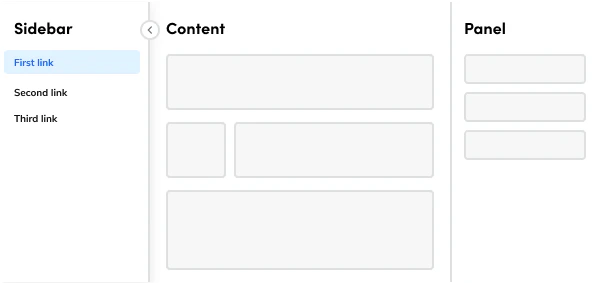
Anatomy
The Page consists of five primary elements that work together to create page layouts in Anvil2.
- Header - page title, and the optional description, breadcrumbs, status chips, and page actions
- Main content - primary page body, aligned with the header
- Footer (Optional) - sticky bar at the bottom of the main content for actions that stay in reach
- Panel (Optional) - supporting content beside the page, or stacked under it on smaller screens
- Sidebar (Optional) - in-page navigation that collapses on wide screens and becomes a menu on smaller screens
Options
The Page supports the following configurations to accommodate various page layout scenarios.Header
Title
With description
With breadcrumb
With chips
With actions
Main content
The main content area handles your primary content and, on its own, doesn’t have any specific options. You’ll always use it with a Layout component to get that consistent design you’re looking for. Plus, its padding dynamically adjusts based on available space for the best experience. A bare Flex or a lone table or Alert stretches past the header on wide screens. Wrap body content in a non-fluid Layout and Layout.Item, usingspan={12} for full width. Keep that Layout in sync with the header layout.
Place sections directly in the Layout Item. Introduce each section with a headline Text starting at h2 and separate sections with spacing. Do not wrap the main content, or each section, in a Card; reserve the Card for peer tiles, charts, and isolated groups without a section heading.
Footer
The Footer stays at the bottom of the main content so actions such as Save and Submit remain in reach while the page scrolls. It accepts the same layout utilities as other layout surfaces, which is how a row of actions is aligned.Panel
The Panel supports a persistent layout and a toggleable layout. Choose between them using the guidelines. Width is small, medium, or large, and medium is the default. Inner padding can be removed when the panel content supplies its own spacing. The panel also changes with screen size. The beta Page can divide a panel into a pinned header, one or more content regions, and a footer. A content region or the footer can stay pinned while the rest of the panel scrolls. Host a drill-down inside the panel when the supporting task has more than one step.Sidebar
The Sidebar houses SideNav and an optional heading. On wide screens it collapses, and the browser remembers that collapsed state between visits. On smaller screens the trigger shows the current page name, or Menu when no name is provided.Behavior
The Page responds to different screen sizes with responsive behaviors for header, panel, and sidebar while maintaining consistent layout structure.Header responsiveness
The Header is designed to conform to the width of your page content. By default, it uses the same fixedmax-width of 1280px as the Layout component; set it to fluid only when the content Layout is fluid. It will always fit within the padding provided by the Page component.
On larger screens, if content overflows, each section of the header will wrap as needed, but this happens after reaching a maximum of 6 columns.
Panel responsiveness
The Panel behaves differently in responsive mode depending on the option you choose. In persistent mode, the Panel moves below the main content, becoming a sequential part of the flow. However, in toggleable mode, its content shifts into a Dialog that appears on top of the page.Sidebar responsiveness
On smaller screens, the Sidebar adapts by transforming into a dropdown that appears at the top of the page. The trigger label is the current page name, or Menu when the page does not provide one. Choosing a link closes the dropdown.Scrolling
The Page scrolls with the window. At wide sizes, a scrollbar on the content stays aligned with that window scroll. The beta Page scrolls differently once the page is at least 1024px wide. Main content shares one scroll region inside the page, separate from the window. Below that width, the beta Page scrolls with the document.Usage Guidelines
How to Use
Sidebar
The Page sidebar is built to host navigation, specifically using a SideNav component, and can include a sidebar header for clear context. You aren’t strictly restricted from adding other content, but it’s highly recommended to keep it to navigation and titles only, to maintain a consistent experience and a recognizable purpose.Panel
The persistent panel is designed to be self-contained and doesn’t require any additional methods to be used. However, a toggleable panel must be opened through an action on the page’s main content, such as clicking a button or a specific item. This ensures the panel only appears when it’s directly relevant to the user’s task.Content
Content within the Page should name the page once, then put supporting detail in the region that owns it. Write the header title as a short noun phrase for the page. Keep the description to one or two lines of context, and keep primary actions in the header action area. Name those actions with verbs. Write sidebar link labels as destinations. On smaller screens, the menu trigger should name the current page so people can tell which section is open. Name a panel by the task it supports, such as Details or Activity. When the beta Page splits the panel into a header and footer, put the task name in the panel header and the commit actions in the panel footer.Keyboard Interaction
Users can navigate the Page using the keyboard.
The desktop sidebar toggle is named Open Sidebar or Close Sidebar. Collapsed navigation is removed from the tab order. Below 1024px, the sidebar trigger opens a menu, and choosing a link closes it.
A closed toggleable panel is hidden from assistive technology. Below 1024px, an open toggleable panel is a dialog and keeps focus inside itself. A persistent panel stays on screen. It is still marked hidden from assistive technology, so do not rely on it as the only place for required information until that is resolved.
On the beta Page at 1024px and wider, the main content region is a tab stop. Focus it, then use Page Up and Page Down to scroll.
Code
- Implementation
- Page Props
- Page.Header Props
- Page.Content Props
- Page.Panel Props
- Page.Panel.Header Props
- Page.Panel.Content Props
Common Examples
Page components
In Anvil2, thePage component is used to create full-page layouts, along with a few sub-components listed below. When implementing Page, ensure you are using the method defined by ST Platform.Page: the parent component to configure full-page layouts.Page.Sidebar: a collapsible section on the left side of the page. Below 1024px it becomes a popover opened from a trigger button.Page.SidebarHeader: used as the first child ofPage.Sidebarto format a header using a Text component. The heading is hidden from assistive technology while the sidebar is collapsed.Page.Header: top section of the page where page actions and title go. The title renders as anh1.Page.Content: wraps the primary content of the page, and renders as an HTMLsectionelement. InsidePageit portals into the shell’smainlandmark. OutsidePageit renders in place. Use it with aLayoutcomponent so the content width matchesPage.Header.Page.Panel: an optional section on the right side of the page. The root is adiv. Omitopenfor a persistent panel. Passopento show and hide it. Below 1024px, a controlled panel renders inside a Dialog.Page.Panel.Header,Page.Panel.Content, andPage.Panel.Footer: panel regions on the betaPageimported from@servicetitan/anvil2/beta. The header stays pinned. Content and footer can pin withsticky.Page.Footer: an optional footer inside the page. It renders an HTMLfooter, portals into the shell’s footer slot, and supports layout utility props. OutsidePageit renders in place.
Adding side bars to the page
ThePage.Sidebar component is usually the first child of a Page, and adds a collapsible section to the left of the rest of the page content.The Page.Sidebar should generally have a Page.SidebarHeader and SideNav as its children to create a consistent, responsive, and user-friendly in-page navigation experience.The sidebar can be omitted if the current page does not require a secondary navigation.Sidebar collapsed state in local storage
In order to maintain the collapsed state of the page sidebar after refreshing or navigating to another page, a local storage value is saved to the"sidebar-collapsed" key. The key name can be overridden using the localStorageKey prop.Adding the header to the page
ThePage.Header component should go right above the Page.Content section to ensure proper placement. It houses the page title, breadcrumb navigation, page classifications via chips, page actions, page description, and the page preference/setting action trigger.The Page.Header is responsive in nature and has the Layout component built into it. It accepts the same properties you would set on your Page.Content layout via its own layout property, and it is recommended that you keep these values in sync to ensure constraints for the sections remain the same. Both default to a fixed layout with a 1280px max width; omit layout unless the content Layout is fluid or uses a non-default variant.The title in the Page.Header will always be an h1 to adhere to SEO and accessibility best practices.While the page description is a ReactNode, it is recommended to keep the descriptions simple by using Text and Link components. If a page action needs to be made for the page, use the actions property and not the description area.User-editing for the header title text
To enable editing the page title, assign an object with anonChange handler to the title prop. This handler will be passed the updated title as a string, which can be used to manage the state for the title.For accessibility, it is recommended to announce that the editing of the page title was successful, which can be accomplished by using a toast.Adding panels to the page
PlacePage.Panel as a child of Page, usually after the sidebar and content.Omit open when the panel is always present. Pass open when the page shows and hides it. Below 1024px, a panel with open set renders inside a dialog instead of beside the content. A panel that omits open stays in the page flow and stacks under the main content at that width.size sets the desktop width: "small" (16rem), "medium" (24rem, the default), or "large" (30rem). Panels pad their inner content. Set noPadding to remove that padding.Drill-down inside a panel
Page.Panel hosts DrillDown the same way Dialog and Drawer do. The stack starts closed. defaultDrillDownIndex is the screen the first next() opens from that closed stack, and the index restored when the panel closes. It defaults to 0. When a parent needs setIndex, back, or next, spread drillDownProps from useDrillDown() onto the panel.Panel regions on the beta Page
The betaPage from @servicetitan/anvil2/beta adds Page.Panel.Header, Page.Panel.Content, and Page.Panel.Footer. The header is pinned above the scrolling regions. Set sticky on a content region to pin it under the header, and on the footer to pin it to the bottom of the panel. Footer actions wrap and align to the end.Scrolling
Page from @servicetitan/anvil2 scrolls with the window. At 1024px and wider, a virtual scrollbar on the content stays in sync with that window scroll.Beta Page from @servicetitan/anvil2/beta uses one scroll region for every Page.Content at 1024px and wider. Those sections portal into a single main landmark, and that landmark scrolls on its own. It is a tab stop: focus it, then use Page Up and Page Down. Below 1024px, the beta page scrolls with the document and the landmark is not a tab stop.Adding a footer to the page
ThePage.Footer component renders a semantic footer element within the page content area. It can be placed as a child of Page after the content or panel to add supplemental information or secondary actions.Best Practices
Use with Layout, Grid, and Flex components
ThePage component is the first step in creating consistent and responsive page layouts using Anvil2. Three other components are available to configure dynamic layouts on a page:- Layout: define content max-width and column structure (usually the direct descendant of
Page.Content) that matchesPage.Header. - Grid: easily use CSS Grid to create dynamic content areas.
- Flex: create CSS Flexbox containers for simple to moderate content layout.
Handling horizontal scrolling
The Page component does not allow horizontal scrolling at the page level by default. This prevents usability and accessibility issues, as users expect vertical scrolling and horizontal scrolling disrupts this mental model.Migrating legacy pages
When migrating legacy pages that aren’t responsive to the A2 Page layout, the recommended approach is to make the page responsive so it works well on all screen sizes. However, if making the page fully responsive is not possible, you can add horizontal scroll handling at the component level for wide content. Wrap specific components that need more horizontal space in a container withoverflow: auto:React Accessibility
Page.Header renders the title as an h1. Use one header per page.The desktop sidebar toggle is a button named “Open Sidebar” or “Close Sidebar”. Collapsed sidebar content uses display: none and aria-hidden, so keyboard focus stays on the toggle. Below 1024px the sidebar is a button named with currentPageTitle, or “Menu” when that prop is omitted. Activating it opens a popover, and choosing a link inside the popover closes it.Title editing replaces the heading with a text field. Escape cancels and restores the previous title. Enter confirms the edit unless onChange returns false. The edit, confirm, and cancel controls have accessible names. Override them with editButtonLabel, editFieldLabel, confirmButtonLabel, and cancelButtonLabel.Secondary actions that collapse into the overflow control use a button named “More actions”. A primary action that passes items is a menu trigger. Both follow Menu keyboard behavior.A panel with open={false} sets aria-hidden and aria-disabled. Below 1024px, a controlled panel renders in a dialog and uses that dialog’s focus trap. On large screens, an open controlled panel sets tabIndex={0} on its scroll region so Page Up and Page Down can scroll it. Omitting open keeps the panel visible in the layout, and the panel still sets aria-hidden because that attribute is !open. Persistent panel content is visible and removed from the accessibility tree.On the beta Page, the main landmark is a tab stop at 1024px and wider. Focus it, then use Page Up and Page Down to scroll the content.