

For development, import
OverflowText from @servicetitan/anvil2. For design, find it in the Anvil2 file.
Anatomy
The OverflowText consists of two primary elements that work together to manage text content with row-based truncation.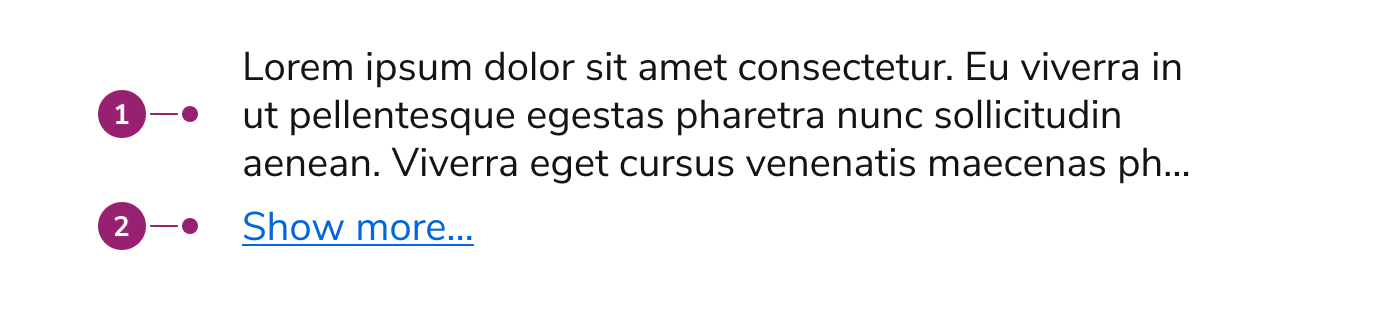
- Content area - The text container that holds the content with row-based truncation
- Expand button (Optional) - A button that appears when expandable is enabled and content exceeds the specified row limit
Options
The OverflowText supports the following configurations to accommodate various text truncation scenarios.Rows
OverflowText limits text content to a specified number of rows, defaulting to one row. Set the rows prop to control how many lines of text are visible before truncation. Use “unlimited” to display all content without row restrictions. When expandable is enabled, content exceeding the row limit displays an expand button.Expandable
When expandable is enabled, OverflowText displays a “Show more…” button when content exceeds the specified row limit. Users can expand to view full content or collapse to return to the truncated view. Custom expand and collapse text can be configured, along with optional callbacks for expand and collapse events.Usage Guidelines
Alternatives
Simple single-line text truncation may not require the full OverflowText component.OverflowText vs Overflow
OverflowText provides row-based truncation specifically for text content, while Overflow provides scrollable areas for any content type with height or width-based constraints. Use OverflowText when you need precise control over text line limits and row-based expansion. Use Overflow for complex content, horizontal scrolling, or when you need shadow indicators.Content
OverflowText works best with text content wrapped in Text components. The component automatically handles line breaks and text wrapping based on the specified row limit. Ensure that important information appears in the first few rows when expandable is enabled, as users may not expand to view all content.Keyboard Interaction
Users can navigate the OverflowText using standard keyboard controls.Code
- Implementation
- OverflowText Props
Live Component Playground
Common Examples
Overflow text
To handle the overflow of text content, you can use theOverflow.Text component. By default, it will limit the text to a single line:Adjusting rows of overflow text
You can increase the number of visible rows by setting therows prop:Truncating overflow text
To display a “Show more…” button on overflow text, you can use theexpandable prop. For more custom use cases, you can also use the expandText/collapseText and onExpand/onCollapse props to customize the displayed text and event handlers:React Accessibility
- The component automatically disables keyboard-focusable elements when they are not visible in the truncated view
- The expand/collapse button is keyboard accessible
- Content is properly structured for screen readers