

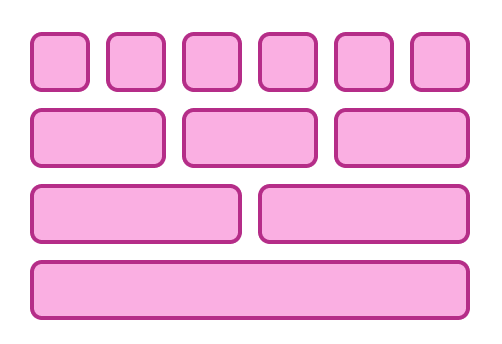
Anatomy
The Layout consists of two primary elements that work together to define page structure and columns.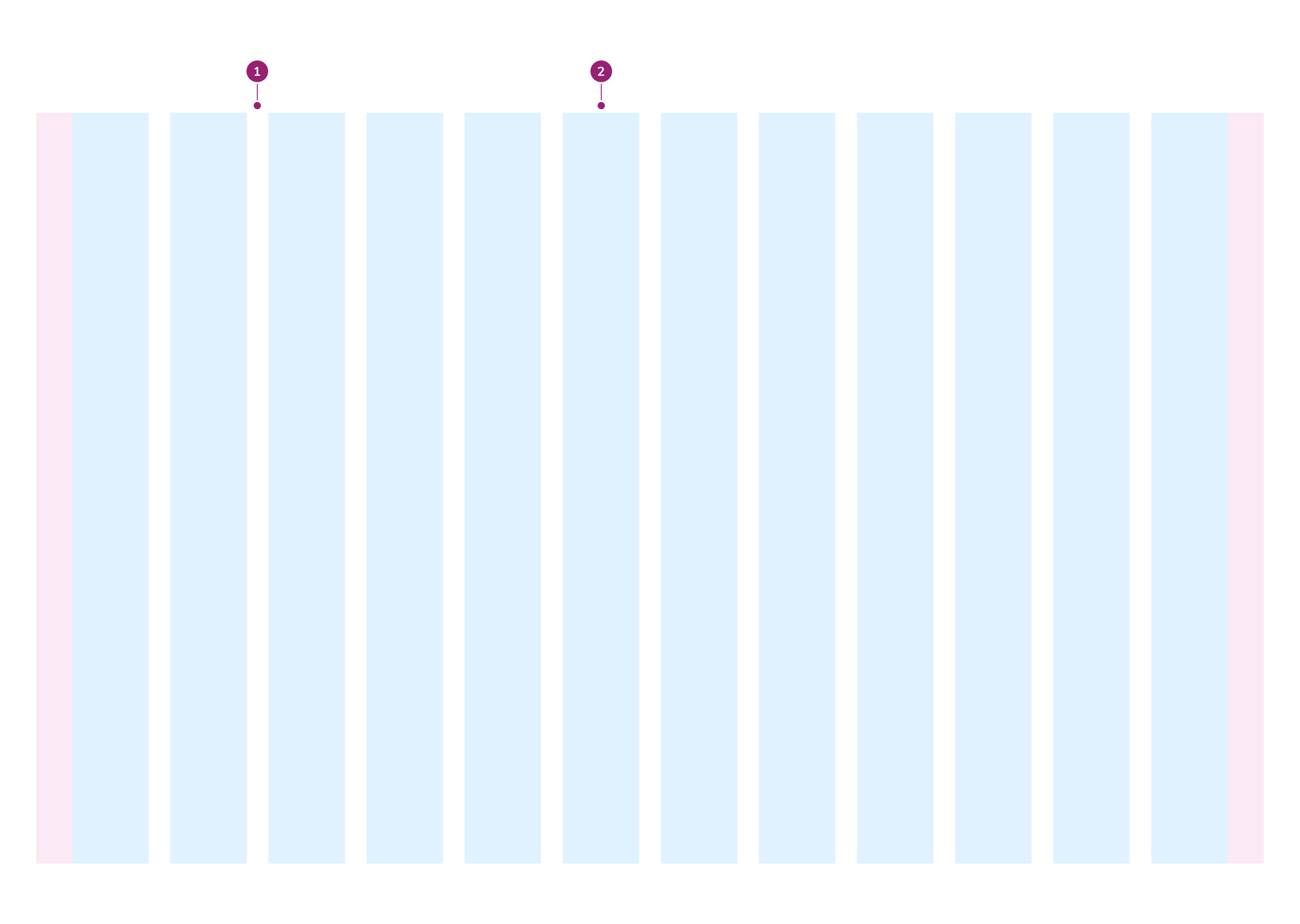
- Gutter
- Column
Options
The Layout supports responsive column configurations, width options, and gutter variants to accommodate various page structure scenarios.Columns per breakpoint
| Breakpoint | # of columns | | -------------- | ------------ | | SM>=640px | 4 |
| MD >=768px | 6 |
| LG >=1024px | 12 |
| XL >=1280px | 12 |
| XXL >=1536px | 12 |
Width
There are two width options available: Default (fixed) and Fluid.Default
By default, Layout is fixed: it has a max width of 1280px and centers on the page. Below 1280px, it fills the available width.Fluid
When Layout is fluid, Layout removes the 1280px max width and fills the available area at every screen size.Variants
There are three variants of Layout: Default, Wide, and Narrow. Each variant has different gutter values. Gutters are the spacing between columns.Default
Wide
Narrow
Behavior
The Layout responds to different breakpoints and content requirements while maintaining consistent column structure.Usage Guidelines
| Standard | Requirement |Content
Content within the Layout should be organized using the column structure to create clear visual hierarchy.Keyboard Interaction
Users can navigate the Layout using standard keyboard controls.Code
- Implementation
- Layout Props
- Layout.Item Props
Common Examples
Using layouts in pages
In general, theLayout component is intended to be used as the child of a Page.Content component. Using these components together creates the foundation of page layouts in Anvil2.Fixed and fluid layouts
By default, layouts are fixed, meaning that they have a maximum width of1280px and are centered on the page. On smaller screens, they become fluid and fill the width of the page.fluid prop to true when the primary content needs more than 1280px on large screens. See Layout usage guidelines to decide.Responsive layouts
Layout items come with responsive styles baked-in. As the parent layout becomes more narrow, the layout items will adjust accordingly based on the number of columns available in that breakpoint.For example, aLayout.Item with span={4} will take up a third of the width on breakpoints lg, xl, and xxl, two-thirds on the md breakpoint, and full-width on sm breakpoint and below.Note – these breakpoints correspond to the size of the layout rather than the screen, using container queries. Sidebars and panels may also affect the number of columns displayed.The Layout.Item also features responsive props, which can be used to override the span value at specific breakpoints. See the Layout.Item Props for details.Layout density variants
Use thevariant prop of the Layout component to control the gap between the layout items. Note that the gap will also change based on the width of the layout.Narrow
Default
Wide
Best Practices
- Use the
Layoutcomponent as the first child of the Page.Content component. - Use layouts to appropriately divide a page into columns, then use the Grid and Flex components to create smaller UI layouts within the content of the page.
- Place content directly in
Layout.Item. The span and variant examples above useCardonly to visualize columns. See Card usage guidelines.