


Anatomy
The Card consists of two primary elements that work together to group related content together.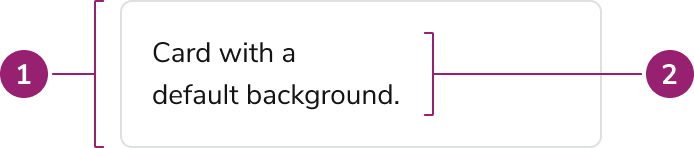
- Container
- Content
Options
The Card supports flexible content, padding, and background configurations to accommodate various grouping scenarios.Content
Padding
AI Mark
Use the AI Mark withText variant="headline" when the card title should indicate AI-generated content.
Backgrounds
Behavior
The Card responds to interactivity requirements while maintaining consistent content grouping.Usage Guidelines
Use the Card when a self-contained group needs its own surface to stand apart from the rest of the page: a metric tile in a row of peer tiles, a chart, or a group with no section heading above it. Most page content does not need a Card. Structure pages with a Layout, section headings, and spacing, and leave the Card out of page sections, whole content areas, a lone Data Table, and other Cards.Alternatives
Section headings vs Card
Use a headline Text with spacing to group page content. This is the default way to structure a page: inside a Page, section headings start ath2 because the Page Header renders the h1. Use a Card only when the group must stand apart on its own surface.
Divider vs Card
Use a Divider to separate adjacent sections when whitespace alone does not provide enough grouping, such as in high-density layouts and lists.Details vs Card
Use Details to show or hide supplementary information in a collapsible section instead of placing it in a Card.Page Panel vs Card
Use a Page Panel for content that sits beside the main content, such as details for a selected item or a live activity feed, instead of a column of Cards.Edit Card vs Card
Use an Edit Card when a summary of grouped settings needs a toggleable editing state.Interactive Card vs Card
Use Interactive Card when the card itself needs an interaction. If no interaction is needed, or only an inner element needs an interaction, use Card instead.How to Use
Structure page sections with headings, not Cards
Introduce each page section with a heading and separate sections with spacing. Do not wrap each section in a Card.Do
Don’t
Group related content
Group related content and actions within a single container. Don’t add unrelated content to a card.Do
Nesting cards within cards
Don’t nest cards within cards. Use headings, body text, and actions to provide structure to your layout.Don’t
Adding interactive elements to a Card
Inner content of a Card can add interactive elements. Do not make the Card itself interactive, use the Interactive Card component instead.Content
Content within the Card should be clearly organized and focused on a single purpose.- Place a heading inside the Card to make its purpose clear, following the heading structure of the page. Do not repeat the same heading as a section heading above the Card.
- Avoid too many call-to-actions in a single card.
- Cards should have an intentional focus, avoid overloading a single card with too much or unrelated information.
- Cards of similar importance should be structured in the same way.
Code
- Implementation
- Card Props
Common Examples
See Usage Guidelines for when to use aCard. For a clickable card, use InteractiveCard.Page sections without a Card
Place page sections directly in aLayout.Item, with a Text headline per section and gap between them. See When not to use.Tiling cards
Use oneCard per tile. Place tiles in a Layout with a Layout.Item per Card and equal span values. Use span={3} for four tiles per row. Never wrap the row in one Card. Each tile is a Card with flexDirection="column", an eyebrow Text, and a large value Text. See When to Use.Background Color
Use thebackground prop to control the background color of the card.Padding
Anvil provides five options to pass to thepadding prop to determine the spacing between the card border and content.Flex Direction
Use theflexDirection prop to determine which direction the children are displayed. The parent div of an Anvil Card uses display: inline-flex, so note that the orientation of the children could vary based on the user’s locale and settings.Creating sections with Divider
To create sections within aCard, use a padding of 0 along with the Divider, then give each child element its own padding as needed.AI Mark
Place the AI Mark inline with a card title by settingaiMark on Text with variant="headline". Use true for the sparkle only, or pass tooltip or popover configuration for more detail.When a card is wrapped in
ButtonCompound, avoid interactive AI Mark configurations (tooltip or popover triggers) inside the card if that would nest interactive elements incorrectly. For clickable cards that need an interactive mark, use the Interactive Card pattern and validate with accessibility testing.Interactive Cards
If the card needs to have an action applied to it, please use the InteractiveCard component instead.React Accessibility
- Since the
Cardcomponent can accept any valid HTMLdivprops, all relevantaria-*props are supported. - When creating an interactive card, the
ButtonCompoundcomponent wraps the rendered card in abuttonelement, and will use the content of the card to determine its label. If the card includes complex content, it may be helpful to usearia-labelledbyoraria-label. Always test using a screenreader to ensure the label makes sense and doesn’t repeat information.