

Anatomy
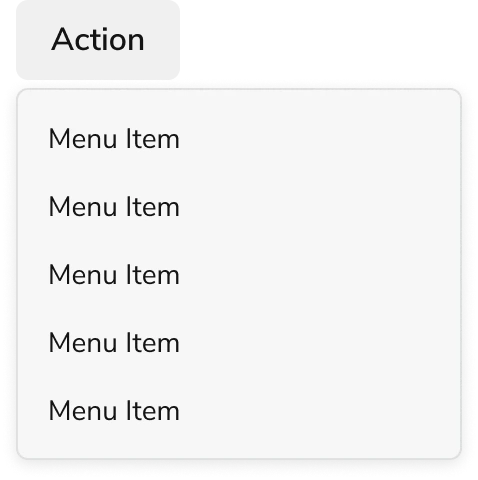
The Menu consists of four primary elements that work together to provide users with an actionable list of options.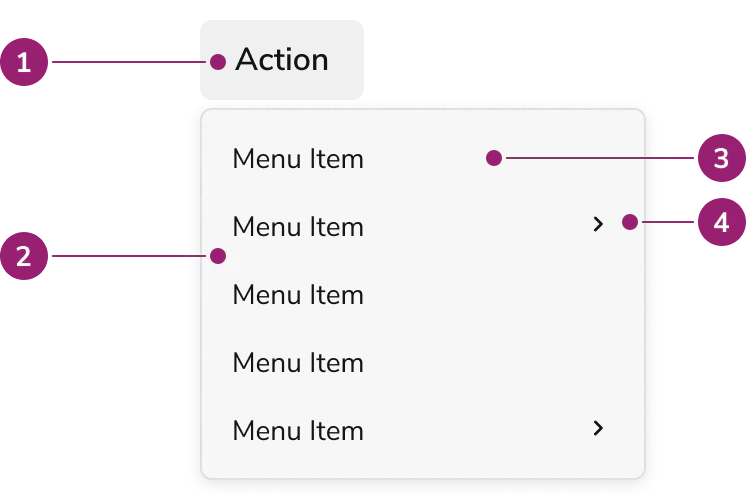
- Trigger
- Popover
- Menu item
- Nested Menu item
Options
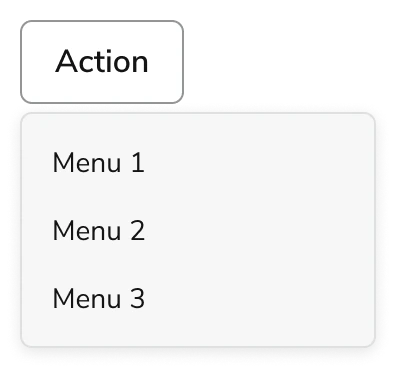
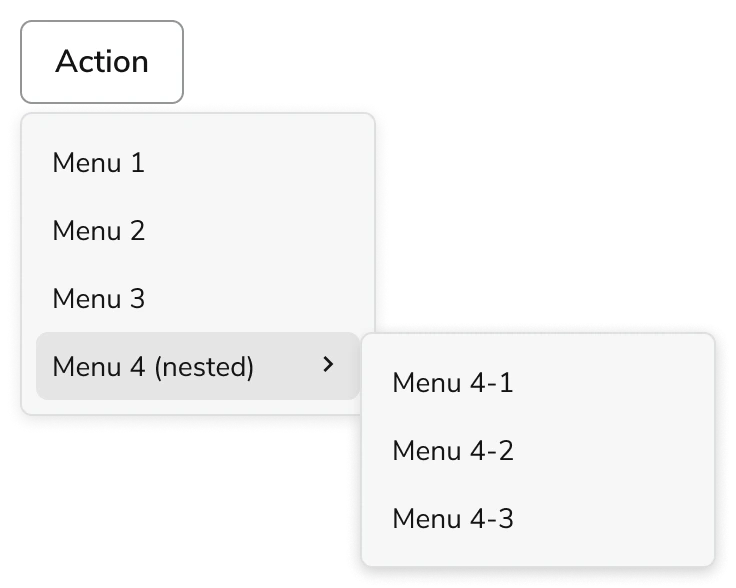
The Menu supports flat and nested configurations to accommodate various action list scenarios.Flat
Nested
Behavior
The Menu responds to user interaction with distinct visual states and synchronized focus and hover behaviors.Visual States
Default
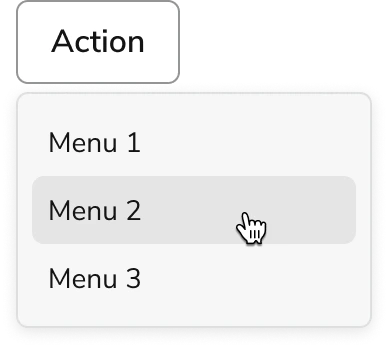
Hover
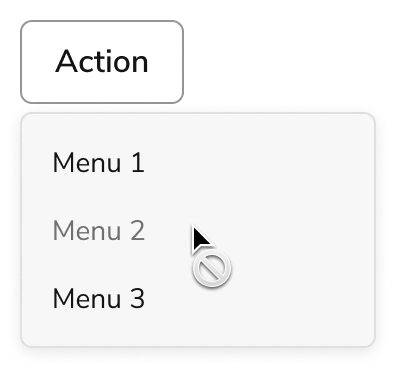
Disabled
Focusing
Focus and hover states are synchronized. Moving the mouse over a menu item will automatically set focus to that item. Similarly, navigating through the menu with keyboard focus will trigger the hover state on the focused item.Usage Guidelines
Alternatives
Menu vs Combobox
The Menu is used to perform actions on the page, and sometimes also a navigational context. The Combobox is used for choosing an option amongst a list, usually in the context of a Form.Menu vs Popover
When a list of actions need to take place, the Menu should be used. It is not recommended to recreate menu-like interactions through a Popover.How to Use
Parent and Children
Menu trigger should have direct relationship to its children. This also applies to the nested version of the Menu.

Disabled Handling
- When an action is temporarily unavailable, use disabled state
- When a user does not have the credentials to take action, do not display these unavailable actions to them. This avoids cluttering the UI and confusing the user when they are unable to take action. When a component is disabled, it is not interactive, meaning tooltips are not available to inform more.
Grouping
Menu does not allow for grouping. To group elements, use the Nested Menu.Content
Content within the Menu should clearly communicate each action through descriptive labels. For content guidance, refer to the content guidance provided in the Button.Keyboard Interaction
Users can navigate the Menu using standard keyboard controls.Trigger
Menu Item
Code
- Implementation
- Custom Trigger Props
- TriggerReturnProps
Common Examples
Creating simple dropdown menus
TheMenu and Menu.Item components can be used to compose basic dropdown menus.Nesting menus in dropdowns
To create nested dropdown menus, simply add aMenu as a child of another Menu.Creating custom menu triggers
To use a custom trigger element, use thetrigger prop of the Menu, and omit the label prop (and any other prop meant to be passed to the default Button trigger).Creating custom nested menu triggers
Nested menus support thetrigger prop the same way root menus do. Spread all props onto your trigger element, including ref, className, and data-anv, so the nested item receives menu styling and participates in keyboard navigation. A custom trigger replaces the default nested button, including the submenu chevron — include that icon in your markup.React Accessibility
When using a custom trigger, make sure that the trigger:- Can receive focus via keyboard when tabbing.
- Opens the menu when the user presses enter.
- Closes the menu and returns focus to the trigger when the user presses escape.
role,data-anv, andtabIndexspread onto the element so the parent menu’s focus query includes them.- ArrowRight to open the submenu.
- ArrowLeft to close the submenu and return focus to the nested trigger.