

Anatomy
The Button consists of three primary elements that work together to trigger actions or events.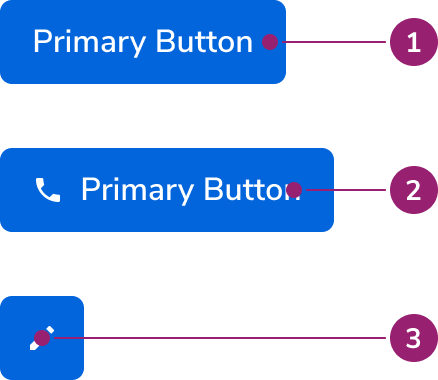
- Container
- Text label
- Icon
Options
The Button supports multiple appearances, sizes, and icon configurations to accommodate various action scenarios.Appearances
Sizes
Extra small buttons should only be used on desktop devices, as they do not meet the 44x44px tap target required for mobile.
Icons
Icons can be placed both before and after the Button’s text label, and can even replace the text label as an Icon Button. See the Button Icon usage guidelines on when to use icons, and accessibility considerations when using icons.Button Compound
A Button Compound is a standalone component that provides button interactivity to another component. This can be useful for components such as anAvatar, which by themselves lack interactivity.Button Compound Option Circular
The shape of the Button Compound can be changed to conform to the shape of the component it’s overlaying, such as an Avatar.Button Link
The Button Link is a specialized Button component that uses an<a> tag under the hood. It gives you the visual style of a button with the correct HTML semantics of a link, making it ideal for actions that navigate to a new page.
The Link Button is its reverse: a Button component styled to look like a simple text link. Use it when an action doesn’t involve navigation but you need a link’s visual appearance, such as for triggering a modal.
Behavior
The Button responds to user interaction with distinct visual states and flexible layout behaviors.Visual States
Primary
Danger Secondary
Secondary
Ghost
Danger Primary
Disabled
The disabled style is consistent across each button variant. This style is useful when preventing user clicks when an action isn’t available or when a submission of some kind is taking place.Text wrap
Buttons fill all available space, wrapping only when no space remains. Text is center-aligned when wrapping.Widths
In general, Buttons should match the width of their text. Container width works well when aligning with specific layout elements. Button Icon width always equals its height.Left-aligned Text
Button text is typically centered. Use left-aligned text when aligning with specific layout elements or when stacking multiple buttons vertically.Usage Guidelines
Avoid using the Button Compound for:
- Clickable cards – A whole card needs to be clickable; use the Interactive Card instead.
- Standard actions – The control only needs a text label or icon; use the Button instead.
- Most navigation – Links are the preferred choice for navigating; use the Link instead.
- Actions that don’t navigate – The control runs an action in place; use the Button instead.
- Non-navigating actions that need a link’s appearance – Use the Link Button instead.
Alternatives
Button vs Link
In general, Buttons are used to denote an action, while a Link is used to denote navigation. This distinction in practice can be blurry.When navigating
In general, Links are the preferred choice for navigating. There are a few scenarios when a Button may be used however:- Use a Button when emphasis is needed. Sometimes a page’s call to action is navigating somewhere else.
- Use a Button when navigation is mixed with actions.
With Actions
In general, Buttons are the preferred choice for actions. A Link however may be used when the action priority is low and space is tight.With triggering overlays
Triggering an overlay UI can be treated like navigation.How to Use
Button Pairing
There are 3 levels of emphasis in our Buttons: primary, secondary, and ghost. This corresponds to an emphasis scheme of high, medium, and low emphasis.Recommended pairings
Do
- Be consistent within a product area.
- There should never be more than 1 Primary action. There is no upper limit to how many Secondary or Ghost actions could exist.
- Some components, such as Dialogs, Drawers, and Alerts have Button pairing standards already, and those should be used when possible.
- Icon-only actions are frequently represented as Ghost actions.
- A Cancel action is generally a Secondary action.
Caution when pairing
While these pairings are allowed, caution should be used with them. Three levels of Button hierarchy in one grouping is usually excessive, consider simplifying it to two levels.Don’t use these pairings
Don’t
Icons in Buttons
In general, icons should only be used in Buttons when a user can easily associate the icon with the action.Use caution with Icon-only Buttons
While icon-only buttons can save space on the page, the meaning behind icons is not universally understood. Often, this requires users to explore and later recall what each icon does to understand the action.Always include a Tooltip with Icon-only Buttons
All Icon-only buttons should include a Tooltip that appears on hover and focus, describing what the Button would do.Button Alignment
Refer to the Button alignment guidance from the Form pattern.Left-aligned Buttons
In scenarios where you have several Buttons stacked vertically, use the Secondary variant and left-align the text. Each button should have the same width.Do
Don’t
Content
Content within the Button should clearly communicate the action it will perform.Button name should describe what it does
A user should be able to use the button name to predict what will happen when they click it. Buttons should be action-oriented, pairing a verb and a supporting noun, and be 2 to 3 words long. Common actions like “Save”, “Close”, “Cancel,” or “OK” don’t require a supporting noun.Do
Don’t
Be concise and consistent
Avoid unnecessary words and articles such as the, an, or a. Never include punctuation in button text and avoid button text that requires punctuation. Always write button text in title case. Capitalize the first word, the last word, and all major words in between. Never use emoji or exclamation points.Do
Don’t
Button name should match destination
When a button opens a modal or takeover, the destination’s title should match the button text.Keyboard Interaction
Users can navigate the Button using standard keyboard controls.
Buttons using an href will also use this keyboard combination.
Accessibility
Anvil provides most of the accessibility needs for buttons out of the box, and only needs some additional considerations for library users.Provide labels for Icon Buttons
Regardless of whether or not a label is visible on the page, a label should be provided to describe the action for both screen readers and for users who focus on the element. For more guidance on button labels and accessibility, see button accessibility best practices.Code
- Implementation
Common Examples
Button component can be used in the same way that you would use an HTML button element, while the ButtonLink component can be used in the same way that you would use an HTML a element.Form Submit
Thetype prop can be used to alter the default functionality of the button. A common use case is to use type="submit" in order to submit the content of a form.Button links
In general, Links should be used for navigating to other pages or website. To create a link that is styled like a button, use theButtonLink component.Using button compounds to make components interactive
To add interactivity to components that are usually static, such as avatars, use the
ButtonCompound component.Interactive cards
To make cards clickable, use theInteractiveCard component. It supports nested interactive elements without accessibility violations.AI Mark
Use theaiMark prop to display an AI indicator. aiMark accepts a boolean, or one of:"mark""chat""edit""form""mic""search"
aiMark prop cannot be used together with a before icon (a single icon Svg or icon={{ before: Svg }}).With children:
Minimum width for buttons
If aButton component has any children, it will have a 5rem minimum width. This is not applied in icon-only buttons using the icon prop. In some cases, such as when adding a Badge as a child of a Button component without any text, this can lead to unexpected width changes.Either override the width and minWidth of the Button component, or make the Badge a sibling of the Button inside of a div with relative positioning.React Accessibility
Icon-only buttons
Do
Don’t