

For development, import
MultiSelectField from @servicetitan/anvil2. For design, find it in the Anvil2 file.Anatomy
The Multi Select Field consists of eight elements that work together to allow users to search and select multiple values from a list of options.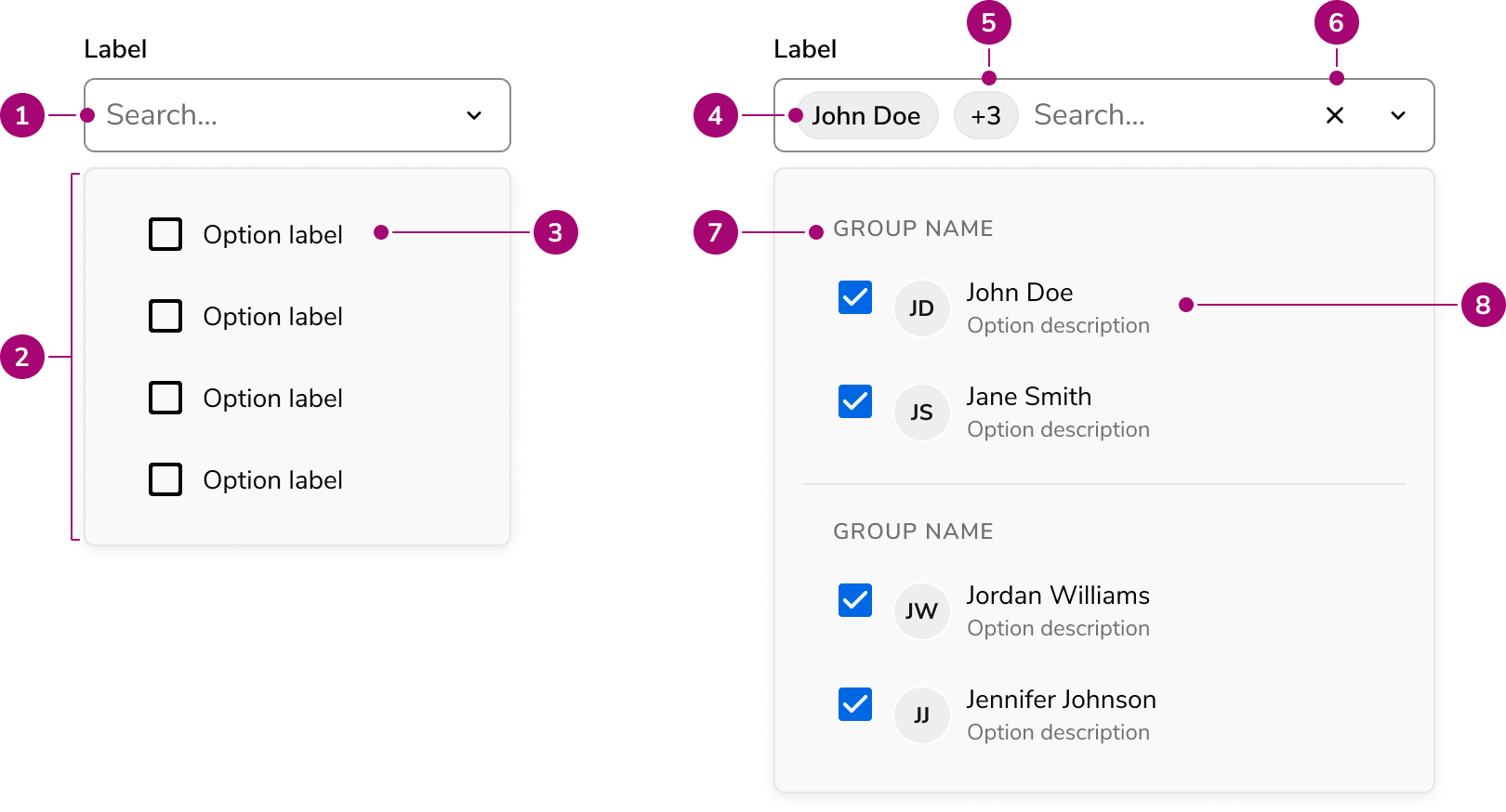
- Placeholder text
- Popover
- Option
- Selected value
- Clear button (Optional)
- Section header
- Selected optio
- Rich content option
Options
The Multi Select Field supports the following configurations to accommodate a wide range of selection scenarios.Selection options
Search
By default, Multi Select Field provides a searchable text input that filters options as users type.Select-only
When search adds no value — such as with short, well-known option lists — disable it to present a simpler select-only trigger. The select-only mode uses the listbox ARIA pattern instead of combobox.Menu display options
Multi Select Field displays options in a popover by default on desktop and a dialog on mobile. Override this adaptive behavior by setting the display mode explicitly to always use a popover or always use a dialog.In a Popover
In a Dialog
Sections
Sections divide options into labeled groups, helping users scan and identify related items. Every section requires a label.Pinned sections
Sections can be pinned to the top of the list. Pinned sections are useful for surfacing frequently used options, recent selections, or AI-powered suggestions without requiring the user to search for them.Rich content
Options support rich content including titles, descriptions, avatars, icons, and chips. Rich content helps users distinguish between similarly named items or convey additional metadata at a glance.Icons
An icon appears on the right side of the option, after the title, description, and chips. Icons work alongside every other content type, so an option can show an avatar on the left and an icon on the right.Lazy loading options
For large datasets, options load on demand as users scroll through the list. Three pagination strategies are supported: page-based, offset-based, and group-based. Results are cached by default to avoid redundant requests.Select All
Multi Select Field can include a Select All action at the top of the options list, allowing users to toggle all options at once. When combined with search filtering, the Select Filtered action selects only the currently visible results.Field Options
Sizes
Three sizes are available: small, medium, and large. Choose a size that aligns with the surrounding form layout and density.Prefix and suffix
Add content before or after the input to provide additional context, such as currency symbols or units.Behavior
The Multi Select Field responds to user interaction with search filtering and distinct visual states.Visual states
Multi Select Field supports standard form field states. Disabled prevents all interaction. Read-only allows viewing selected options without changing the selection. Error highlights validation issues with a message.Max rows
The Select Field can grow in size to fit many selected options. A max row configuration limits how large the field can grow. Set a low max row count when space is tight, and a larger max row when displaying all the options is prioritized.Usage Guidelines
Alternatives
When there are only a few items to choose from, a checkbox group may be more appropriate. When a particularly complex selection interaction is needed, a Listbox in a special layout may be preferred.Multi Select Field vs Combobox
Multi Select Field is the eventual replacement for the Combobox component. Use Select Field when looking for features such as Dialog viewing, standardized content display, secondary actions, sectioning, or lazy loading. Consider using the Combobox if needing a stable component in your application.Multi Select Field vs Select Trigger
MultiSelect Field displays options in a built-in Popover or Dialog with integrated search and filtering. Select Trigger opens a custom overlay — typically a Dialog — that the implementor fully controls.How to Use
Labels and help
For guidance on labels, placeholders, and help text, refer to the Form pattern.Sorting options
Multi Select Field does not prescribe how options are sorted. Common sorting strategies include alphabetical, time-based, and categorical. Choose a sort order that matches user expectations for the data.Content
Content within the Multi Select Field should clearly communicate available options and help users identify the correct selections.- Use clear, concise option labels that users recognize immediately
- Add descriptions to rich content options when labels alone are insufficient to distinguish items
- Use pinned sections to surface frequently used or contextually relevant options
Keyboard Interaction
Users can navigate the Multi Select Field using standard keyboard controls. Keyboard behavior differs between combobox mode (search enabled) and select mode (search disabled).Search enabled
Text field
Popup
Search disabled
Accessibility
Anvil provides accessibility support for Multi Select Field out of the box. In combobox mode, the component follows the combobox ARIA pattern. In select mode, it follows the listbox ARIA pattern. For more guidance on building accessible form controls, see custom component best practices.Code
- Implementation
- MultiSelectField Props
- MultiSelectFieldSync Props
- MultiSelectFieldOption Type
Overview
The multi-select field family includes two components for different use cases:MultiSelectField— For async data loading with support for pagination (page-based, offset-based, or group-based lazy loading)- Includes automatic debouncing of the search input (configurable via the
debounceMsprop) - Includes automatic caching of the search input (configurable via the
cacheprop)
- Includes automatic debouncing of the search input (configurable via the
MultiSelectFieldSync— For client-side filtering of static option arrays
MultiSelectFieldSync (Static Options)
UseMultiSelectFieldSync when you have a static list of options that can be filtered client-side.Filtering and Sorting
By default,MultiSelectFieldSync uses match-sorter to filter options by their label and searchText fields. Results are also ranked by match quality, so the best matches appear first. Before any search is performed, options appear in the order they are supplied.
You can customize this behavior in two ways:Using match-sorter options
Pass a match-sorter options object to customize the default filtering and sorting behavior (e.g., change which keys are matched or adjust ranking):Using a custom filter function
Pass a function for full control over both filtering and sort order. The returned array determines the exact order options appear in the dropdown:MultiSelectField (Async Loading)
UseMultiSelectField when options need to be fetched from an API or when dealing with large datasets that require server-side filtering.Basic Usage
Lazy Loading Modes
MultiSelectField supports three lazy loading modes for paginated data:Page-based Pagination
Offset-based Pagination
Group-based Loading
For loading grouped options incrementally:Select All
Enable bulk selection with theselectAll prop.Select All is shown only when the search input is empty.
MultiSelectField
WithMultiSelectField, the parent component is responsible for handling the select/deselect logic via onClick and managing the checkState:checkState also accepts a function of the current selection, which the field resolves for you. This keeps the checkbox in sync with the selection without recomputing it at the call site:MultiSelectFieldSync
MultiSelectFieldSync provides a simplified selectAll prop. Click handling and check state are managed automatically:Select Filtered
Enable selection of options matching the current search term with theselectFiltered prop. Select All and Select Filtered are mutually exclusive: Select All is shown when the search input is empty, and Select Filtered is shown when a search term is active. The default label dynamically includes the search term (e.g., Select items matching "appl").MultiSelectField
WithMultiSelectField, provide a function that receives the current searchValue and returns a config object with onClick, checkState, and an optional label. Since the function receives the search value, you can use it to filter options and compute the checked state inline:MultiSelectFieldSync
MultiSelectFieldSync provides a simplified selectFiltered prop. Click handling and check state are managed automatically based on the filtered options and current selection:Chip Display Options
Control how selected options are displayed as chips:Single Row Mode
Restrict the field to a single row height. Overflow chips are collapsed into a “+N” indicator:Max Chips
Limit the number of visible chips regardless of row height:Chip Customization
Customize the appearance of individual chips usinggetChipProps. The callback receives each selected option and returns partial ChipProps (e.g., color, icon, avatar). Core chip props (label, onClose, className, title, size) are managed by the component and excluded from the callback’s return type.Display Modes
Control how the options menu is displayed using thedisplayMenuAs prop:Caching
MultiSelectField caches loadOptions results by default. Configure caching behavior:Clearing the Cache
Use a ref to imperatively clear the cache:Invalidating Options
Callinvalidate() to clear the cache and reload options from the data source. Use this when the underlying data has changed and the component needs to reflect the update:MultiSelectFieldSync handles this automatically when its options prop changes.Initial Load Behavior
Control when options are first loaded with theinitialLoad prop:Field States
Error State
Display validation errors using theerror prop:Hint and Description
Provide additional context withhint and description:Required Field
Mark a field as required with therequired prop:Disabled and ReadOnly
Whendisabled is set, users cannot interact with the field:readOnly is set, users can see the dropdown but cannot change selections:Prefix and Suffix
Add content before or after the input withprefix and suffix:Markdown in labels
Thelabel prop supports inline markdown: bold (**text**), italic (*text*), bold and italic (***text***), highlight (==text==), and code (`text`).Hide the label
UsehideLabel to visually hide the label. The label string is converted to an aria-label on the input so it remains accessible to screen readers — any inline markdown is stripped to plain text.Sizes
Control the size of the field with thesize prop:Disabled Options
Individual options can be disabled by settingdisabled: true on the option:Pinned Options
Pin frequently used or suggested options above the list using thepinned prop. Each pinned section requires a label and an options value, which can be a static array or a dynamic loader function.Static Pinned Options
Pass an object withlabel and a static options array:Dynamic Pinned Options
Pass a function asoptions to compute pinned options based on the current search value. This is useful for AI-powered suggestions or context-aware recommendations:searchReactive: false to call the loader once and reuse the result across all search values:Multiple Pinned Sections
Pass an array of pinned section objects:Grouping Options
Options can be organized into visual groups by adding agroup property to each option. Groups appear as labeled sections in the dropdown.Basic Grouping
Add agroup property to options and provide a groupToString function to display group labels:Group Sorting
UsegroupSorter to control the order of groups. By default, groups appear in the order they are first encountered in the options array. This prop is available on MultiSelectFieldSync and non-lazy MultiSelectField:Virtualization
By default, all dropdown options render to the DOM at once. This works well for typical lists but degrades performance with very large option sets as the browser must lay out and paint thousands of elements. Passvirtualize to enable windowed rendering, which only renders the items currently visible in the scroll viewport plus a small overscan buffer.Consider enabling virtualize when the dropdown feels sluggish to open or keyboard navigation becomes laggy. These symptoms typically appear around 200–500 items depending on device performance and item complexity (e.g., items with descriptions are heavier). For smaller lists, the default rendering path is sufficient and avoids the overhead of virtual positioning.Virtualization works with all existing features including lazy loading, pinned options, grouping, select-all/select-filtered bulk actions, and keyboard navigation.Disabling Search
PassdisableSearch to replace the searchable text input with a non-editable select trigger. The field uses the listbox ARIA pattern instead of combobox, providing a simpler interaction when typing to filter adds no value.This is useful when the option list is short and well-known or you are integrating with an API that does not support search.When
disableSearch is enabled, selectFiltered has no effect since there is no search input to produce filtered results.Adding New Items
Provide anonAddNewItem handler to render an “Add new item” button below the option list. This affordance lets users create a value that does not exist yet — a new tag, label, or attribute — quickly from the field.The button sits in a footer region inside the menu. Clicking or activating it via keyboard closes the menu and invokes the onAddNewItem handler with the current search text.From here, it is your responsibility to launch a Dialog (or Drawer, or any other overlay) for collecting the new item’s details, append the result to the option source, invalidate the cache, and update selection state.You may pair onAddNewItem with addItemLabel to control the button text. The label accepts a static node or a function of the current search text — for example, returning Add "foo" when the user has typed foo.When addItemLabel is a function, return null (or undefined) to hide the button for the current search text. Use this when the affordance should only appear for valid input — for example, showing “Add email” only after a well-formed address is typed:Call
invalidate() on the imperative handle after appending the new option.
This clears the cached search results and forces a refetch the next time the
menu opens, so the new item appears immediately. clearCache() alone wipes
the cache but keeps the previously displayed options on screen until
something else triggers a reload.Testing
The field’s interactive sub-elements carry a stabledata-anv-part attribute so end-to-end tests can target them directly. The library owns the part names; you supply the instance identifier.Attach your own data-* attribute (such as data-cy or data-testid) to the field. It is forwarded to the field’s wrapper element, letting you scope queries to a single instance:The menu renders in the browser’s top layer (
menu, option, dialog, and popover parts), outside the field’s wrapper. Descendant queries scoped to your wrapper attribute will not match these parts. Target them by their part attribute directly, or scope to the menu’s id — #{id}-popover or #{id}-dialog, where {id} is the field’s id prop. Only one menu is open at a time.