

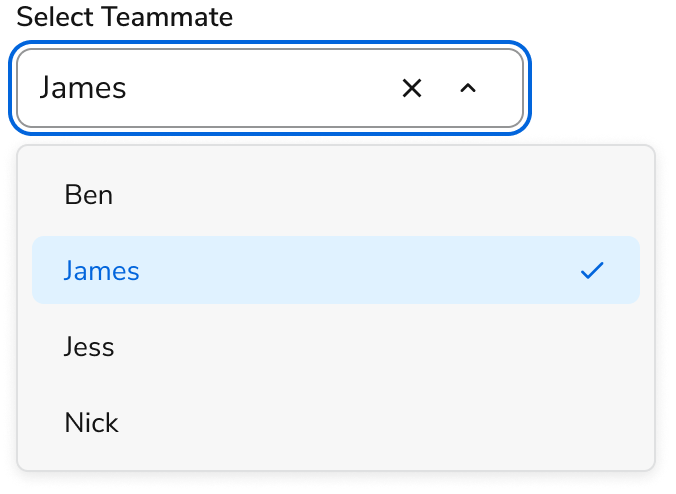
Anatomy
The Combobox consists of four primary elements that work together to allow users to filter and select values from a list.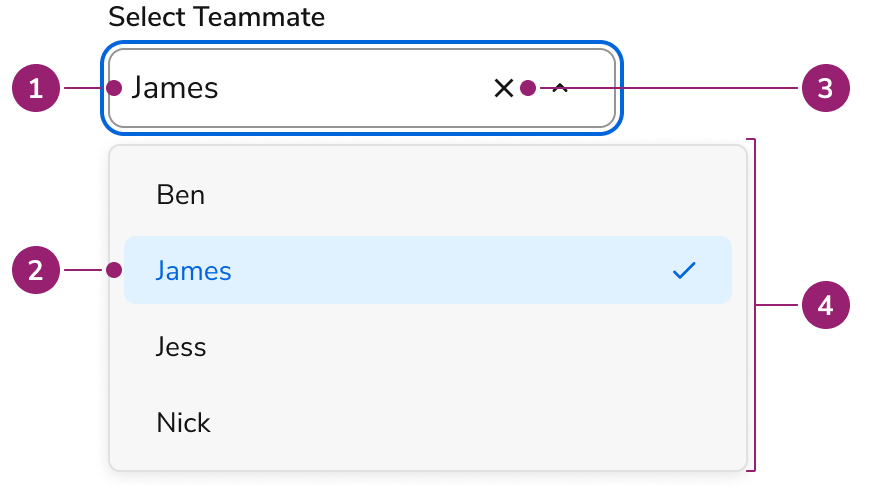
- Trigger
- Content
- Clear button (Optional)
- Popover
Options
The Combobox supports single and multi-select configurations to accommodate various selection scenarios.Multi Select
Behavior
The Combobox responds to user interaction with flexible selection methods and typeahead functionality.Single selecting
Clicking an option updates the text field value and closes the Combobox. When reopening the Combobox with a selected value, the option matching that value is selected.Multi Selecting
Continuous selection
Continuous selection refers to a multiselect that stays open while users keep making selections. Refer to the usage guide for when to use this variant.Select All
Multi-select Comboboxes support selecting all options at once.As Select-only
Configure the Combobox for scenarios requiring an HTML select-like experience.Typeahead
Combobox supports typeahead, narrowing options in the popup as users type.Rows
Comboboxes grow as the number of selections increases. Configure the maximum number of rows.Truncated Chip
When there are more Chips than rows allowed in the Combobox, a truncated Chip will appear.Usage Guidelines
Use the Combobox when users need to select from many options.Selection methods
The main selection method for Combobox supports searching for a particular entity to make the selection. This pattern appears in applications like Slack when adding a new member to a channel.Select-only
Use a Combobox as select-only in these scenarios:- Simple, static list: Short lists of options (e.g., countries, states, or categories) that users easily recognize and navigate without much effort.
- No need for search or filtering functionality: Lists short enough that users can easily scan through all available choices.
- Simple UX: Select-only experiences require less complex interactions.
Continuous multiselect
Combobox supports continuous multi-selection instead of closing after each selection. Use this pattern when users typically search for metadata to find multiple items.- An example would be using “designer” as a search term to filter down to all designers and selecting multiple designers from that list.
Select All
The Select All feature enables users to quickly select or deselect all available options within a multi-select Combobox. This pattern improves efficiency when working with large sets of items or when selecting most of the list is common.Complex selection alternatives
When the Combobox is insufficient for a use case, use an alternative UI. These primarily combine the Select Trigger with the Dialog, Text Field, Listbox, and List View components, and may include others depending on need. Rather than adding additional features to the Combobox, use the Select Trigger for scenarios such as:- Manual applying actions
- Needing secondary actions
- Tabbed division of options
- Multiple footer actions
Alternatives
When there are only a few items to choose from, a radio or checkbox group may be more appropriate. When a particularly complex selection interaction is needed, a Listbox in a special layout may be preferred.Combobox vs Checkbox
Checkbox groups and the Combobox both allow multi-selection of a set of items. Checkbox groups should be used when there are only a few options. For larger options, Checkbox groups can still be used when there is space available and discovery of options is important. Comboboxes are good for 8 or more options and also when conserving space.Combobox vs Menu
The Menu is used to perform actions on the page, and sometimes also a navigational context. The Combobox is used for choosing an option amongst a list, usually in the context of a Form.Combobox vs Popover
When users need to select from many options, use the Combobox instead of the Popover. Avoid recreating a combobox-like or select-like interaction with a Popover.Combobox vs Radio
Radio buttons and the Combobox both allow users to select a single option among a set. Use Radio buttons when there are between 2-7 options. Use a Combobox when there are 8 or more options available. Additionally, in a group of Radio buttons all options are equally represented whereas a Combobox highlights a single option more prominently.Combobox vs Search Field
Use the Combobox when selecting from options defined in an overlayed list, typically in the context of a form field. Use Search Field in situations requiring a traditional search experience, for filtering lists of items on the page, in tables, with large datasets, and for results requiring additional filtering.Combobox vs Select Field
Select Field is the eventual replacement for the Combobox component. Use Select Field when looking for features such as Dialog viewing, standardized content display, secondary actions, sectioning, or lazy loading. Consider using the Combobox if needing a stable component in your application.How to Use
Labels and help
For information around concepts like labels, placeholder, and help, refer to the Form pattern.Sorting options
The Combobox does not prescribe how choices are sorted. Common sorting types include alphabetical, time-based, and categorical. Use a sort that matches user expectations.
Content
Content within the Combobox should clearly communicate available options and selection states. For content guidance, refer to the content guidance provided in the Form pattern.Keyboard Interaction
Users can navigate the Combobox using standard keyboard controls.Text field
Popup
NOTE: Even when the visual focus is on the listbox, DOM focus remains on the text field.Accessibility
Anvil provides most of the accessibility needs for Combobox out of the box, and only needs some additional considerations for library users. For more guidance on building accessible form controls, see custom component best practices.Code
- Implementation
- Combobox and ComboboxSelect Props
- Combobox.SearchField and Combobox.SelectTrigger Props
- Combobox.Content Props
- Combobox.List Props
- Combobox.Item Props
- Combobox.ItemAddNew Props
- Combobox.Empty Props
Common Examples
Combobox components
The Anvil2 combobox is made up of aCombobox component and a few sub-components that can be used together to build simple or complex select drop-downs.Combobox: the parent component to configure comboboxes.Combobox.SearchField: used to create a searchable select input to use with a combobox list in a drop-down.Combobox.Content: popover that passes anitemsarray to itschildrento construct combobox items.Combobox.List: organizes combobox items in the drop-down list.Combobox.Item: used to construct the items within the combobox drop-down.Combobox.Empty: optionally used to customize empty results message.
Multi-selects
To allow the user to select multiple items, set themultiple prop of the Combobox to true. In addition, props such as selectedItem will be replaced with selectedItems (note the “s” at the end) and will expect an array.Select all for multi-selects
To add a “Select All” option at the top of a multi-select combobox dropdown, use theselectAll prop. This prop accepts an object with label, onSelection, and isChecked properties. The onSelection callback is called when the user clicks the Select All option, and isChecked controls whether the checkbox appears checked.Note: The “Select All” option does not automatically select all items when the combobox is opened. It is up to the developer to handle the selection of all items when the “Select All” option is clicked. This means it is incompatible with using Combobox in an uncontrolled way.Building selects
The Anvil2Combobox component is versatile due to its flexibility and robust set of sub-components. It can be used in place of the Select component from the original Anvil library to create a searchable select component.Notes for building selects
- The
itemToStringprop passes anitemobject and expects astringreturn type. This is used to format the text of each combobox item within the search field input (after selecting an item) based on the provideditemobject type. - The
itemToKeyprop passes anitemobject and expects something that can be used to identify the item, such as anid. This is used for identity comparisons, so if this prop is omitted, theitems will be compared by reference equality instead. - The
filterOptionsprop is used to filter the items using the match-sorter library. See their docs for more info on the options that can be provided. - The
selectedItem/selectedItemsprops allow theComboboxto be used as a controlled component. - For easily managing the selected item state, the
onChangeprop accepts asetStatefunction, which is the second item in the array that auseStatefunction returns:
Compare using itemToKey or reference equality
The itemToKey prop is used to compare items using a unique identifier. By default, the Combobox component does searches and comparisons using reference equality. That means that the Combobox may not behave how you expect if your code is generating new references for your items on every render:React.useMemo to memoize computations on items and only update the references when something has meaningfully changed.However, in cases like this, it’s probably more likely you’d prefer to have your items compared by a specific key in your object rather than by reference equality. And so you can do that by passing in an itemToKey function that takes an item and returns a unique key:Passing filtered items through the combobox components
Theitems array passed to the Combobox is automatically filtered based on the user typing in the search input and the keys in the filterOption prop. After filtering, it is passed through the Combobox.Content as a parameter used to generate the children.Adding a new item when there is no exact match
To allow the user to add a new item when their search returns no exact matches, use theCombobox.ItemAddNew component. This component provides an onSelection callback, and that callback will need to be used to update both your list of items and your selected item.Your onSelection callback will need to both update the list of items and update the selectedItem/selectedItems, so we recommend that you use a controlled Combobox when you need the ability to add a new item:Select-only comboboxes
By default, comboboxes include a text input for searching and filtering items. To create a select-only combobox that acts similarly to an HTML select, useComboboxSelect and Combobox.SelectTrigger instead of Combobox and Combobox.SearchField. Combobox.Select remains available as a deprecated alias for ComboboxSelect.Disable clearing selection on select-only combobox
To remove the “x” button that clears a selection in a select-only combobox, use thedisableClearSelection prop.Note: this does not work when multiple is true, due to the nature of clearing options in multi-select comboboxes.Sorting combobox options
By default, Comboboxes sort options based on the order that they are provided via theitems prop.Controlled combobox
Comboboxes can be used uncontrolled by default, or can be used in a fully-controlled way by setting theselectedItem prop (or by using the selectedItems prop when used with multiple select):Default combobox selection
When using a Combobox in an uncontrolled way, Comboboxes can set an item as a default by using thedefaultSelectedItem prop (or by using the defaultSelectedItems prop when used with multiple select):Selected item customization
Comboboxes with multiple select can customize the selected state of an item using the selectedItemProps prop on the Combobox.SearchField. This prop accepts a function that will pass the selected item as an parameter to allow for things like customizing the display color:Disabling combobox popovers
Comboboxes can be used to create searchable select lists without a drop-down. IfdisablePopover is set to true on the Combobox.Content, the list will always render. This is especially useful if the combobox exists within a custom popover.Custom combobox empty state
By default, if no items exist in the filtered combobox results, a simple “No results found” message is displayed. To customize this, use theCombobox.Empty component.Combobox virtualization example
Combobox.Content renders a function that passes down the list of filtered items as children, allowing the Combobox.List component to be used with virtualization libraries, which often require an additional wrapper component around the items being virtualized. The following example uses react-window’s FixedSizeList component for virtualizing the list of items:Testing
Interactive sub-elements carry a stabledata-anv-part attribute so end-to-end tests can target them directly. The library owns the part names; you supply the instance identifier.Attach your own data-* attribute (such as data-cy or data-testid) to Combobox / Combobox.Select. It is forwarded to the root wrapper, letting you scope queries to a single instance:Options also carry
data-id from itemToKey(item) so you can pick one among many: [data-anv-part="option"][data-id="1"].The menu renders in the browser’s top layer (
menu, option, and popover parts), outside the Combobox wrapper. Descendant queries scoped to your wrapper attribute will not match these parts. Target them by their part attribute directly. Only one menu is open at a time.