

Anatomy
The List View consists of five primary elements that work together to display a selectable list with customization options.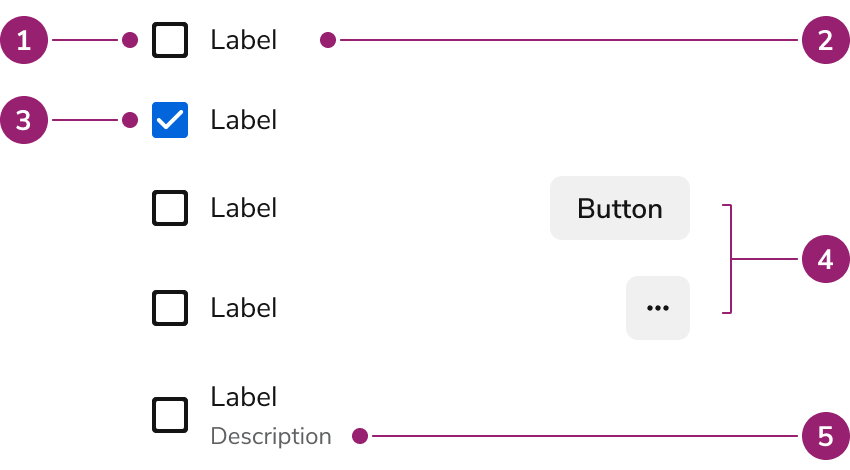
- Unselected
- Label
- Selected
- Secondary Actions
- Description
Options
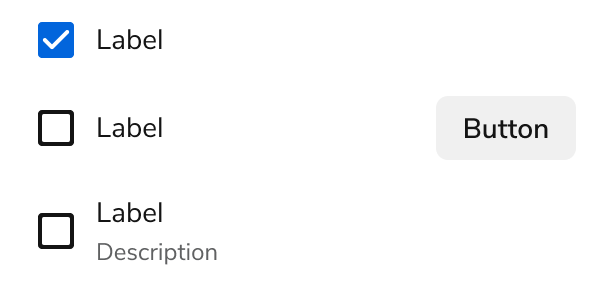
The List View supports selection, secondary actions, disabled states, menus, and custom content configurations to accommodate various list scenarios.Selection
Secondary action
Disabled
Menu
Custom content
Avatar
Description
Behavior
The List View responds to content overflow by wrapping labels to new lines while maintaining consistent list structure.Overflow
When a List View label is too long for the available space, it wraps to a new line.Usage Guidelines
Alternatives
List View vs Listbox
Use Listbox when using simple selections that do not require any customization. Use List View when requiring customized styling or secondary actions. List View may also be used when emphasizing to users that multi-selection is possible.How to Use
Choosing between secondary actions and menus
Choose secondary actions or menus based on the number of actions per item and their frequency of use. Use secondary actions when each item has one or two common actions that users access frequently. Secondary actions provide immediate access without additional clicks, making them ideal for primary workflows like editing or deleting items. Use menus when items have multiple actions or when actions are less frequently used. Menus reduce visual clutter and organize actions hierarchically, making them suitable for complex item management scenarios.Organizing lists with custom content
Use custom content to provide visual context and additional information within list items. Avatars, descriptions, and other custom elements help users quickly identify and understand each option. Keep custom content focused and scannable to maintain list clarity and usability.Content
Content within the List View should clearly communicate each option and provide necessary context through labels and descriptions.Keyboard Interaction
Users can navigate the List View using standard keyboard controls.Code
- Implementation
- ListView Props
- ListView.Option Props
Common Examples
Creating selectable list views
TheListView component can be used to easily create selectable lists using the label prop and custom content as children of each ListView.Option.Indeterminate list views
Theindeterminate prop can be used when the selection of items is controlled to render the checkbox as indeterminate, instead of checked or not checked. This is useful when building a nested structure.Note: the logic to determine which items are indeterminate is not included, since there are various use cases. Simply pass the items that should be indeterminate to the prop.Using items objects with list views
Theitems prop of a ListView can also be passed an array of objects which are passed to the children of the list view. Each item object should have a label, but any other arbitrary attributes are allowed.