

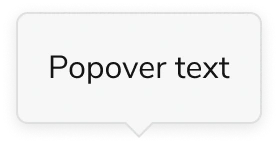
Anatomy
The Popover consists of three primary elements that work together to create floating containers that open on demand.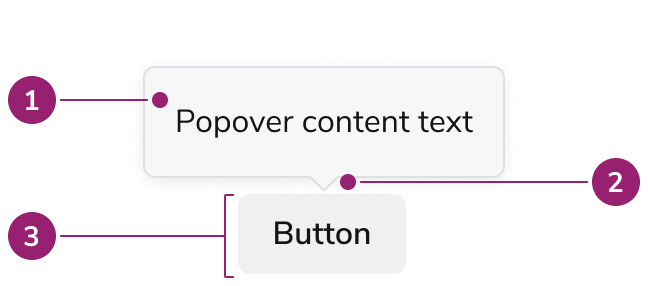
- Popover background, content
- Caret
- Trigger
Options
The Popover supports the following configurations to accommodate various overlay scenarios.Content
Popovers can accept both text and custom content.Placement
Note that placement of a Popover will adjust when not enough space is available.Behavior
The Popover responds to space constraints with automatic positioning adjustments and flexible opening/closing behaviors.Positioning Adjustments
The Popover makes automatic adjustments to its placement and dimensions when space is limited. It will:- Auto flip when not enough space in the viewport is present.
- Resize the Popover when not enough space is present.
- Shift the Popover when scrolling to keep it in view.
Opening a Popover
Popovers can be configured to open in multiple ways.Open on click
Open on hover
Closing a Popover
Popovers can be configured to close in multiple ways.Close on click outside
By default Popovers close on click outside. Override this behavior as needed.Close action in the Popover
An action inside the Popover can close it. The Popover itself does not provide a set style for showing this.Usage Guidelines
Alternatives
Popover vs Combobox
When a user needs to selects from many options, the Combobox should be used over the Popover. It is not recommended to recreate a combobox-like or select-like interaction with a Popover.Popover vs Dialog
Both Dialogs and Popovers overlay elements on the page. In general, Dialogs are preferable when a situation requires user attention, and for more complicated flows.Popover vs Menu
When a list of actions need to take place, the Menu should be used. It is not recommended to recreate menu-like interactions through a Popover.Popover vs Tooltip
Tooltip is the component of choice for tips and other informational overlays. Popovers may be used in place of a Tooltip when actions are needed.How to Use
Positioning a Popover
- Popovers will auto flip and shift by default in order to stay in view. Define a starting position based on element placement: when elements are near a screen edge, position the Popover to open in the opposite direction.
- Position Popovers in a way that minimizes obstruction of important elements.
- If the above are not relevant, a top position is considered the default placement.
Do
Don’t add Popovers to non-interactive elements
Popovers cannot be accessed by keyboard when behind a non-interactive element. Consider adding this information on the page itself, or providing a dedicated help Button Icon.Don’t
Content
Content within the Popover should clearly communicate the additional information or actions available.Keyboard Interaction
Users can navigate the Popover using standard keyboard controls.Accessibility
Trapping Focus
Popovers by default do not trap focus. Content of the Popover maintains the DOM order, unlike portaling, which allows natural tab behavior to work accessibly without trapping the focus. Enable focus trapping by using themodal prop.
For more guidance on managing focus with changing content, see changing content best practices.
Code
- Implementation
- Popover Props
- Popover.Content Props
- Popover.Trigger Props
Common Examples
Popover basics
To build a popover, three components are required:Popover: the configurable parent component- A way to control the open state of the popover. One of:
Popover.Button: an Anvil2 ButtonPopover.Trigger: used to render a custom trigger component
Popover.Content: the content rendered within the popover
Popover placement
Use theplacement prop on the Popover to change the default positioning. The popover will reposition itself if there is not enough space in the default placement.Controlling popovers
Popovers can be controlled or uncontrolled (default). Control the popover using theopen prop.Uncontrolled (default)
Controlled
Using a custom trigger
To use something other than an Anvil2 Button to trigger the popover, use thePopover.Trigger component. The Popover.Trigger passes a set of props to the children that should be passed to an interactive HTML element, such as a button or input.Popover close button
ThePopover.Close button can be used to close the popover from within the popover content.On controlled popovers, the onClick prop should be used to update the open state:Disabling default closing behavior
By default, an uncontrolled popover closes if either the user clicks outside of the popover, or the user presses the “Escape” key. Both of these behaviors can be disabled with props:Disable close on outside click
Disable close on “Escape” press
Enabling trapped focus
By default, the popover content does not trap focus so that users can navigate the content with a keyboard without naturally. To enable this behavior, set themodal prop of the Popover to true.Default without trapping
Trapped focus
Using with Anvil1
Popover from version 1.23.0 uses HTML popover API which utilizes top-layer. This feature puts what’s inside the top-layer to be on the top of entire the HTML. Because of this, there are cases where it does not work well with Anvil1’s portaled components.- While having the
Popoveropen, if a portaled Anvil1 component is triggered to open from within, thePopoverwill be on top always. This is something we can potentially adjust in Anvil1 and we have a spike ticket internally for it. If you encounter this issue, please reach out to us. - While having the
Popoveropen, if aDrawerorDialogfrom Anvil1 is triggered to open, not within thePopover, thePopoverwill be on top of theDrawerorDialog.
React Accessibility
Most of the accessibility considerations for managingaria props and keyboard focus are handled internally. There are some things to keep in mind while working with popovers:- Always test keyboard navigation for interactive elements within popovers. The user should be able to easily access the elements in a logical order.
- If the popover includes a form, be sure to follow accessible best practices for form building.
- When building a custom trigger using
Popover.Trigger, be sure to pass the props to an interactive element, as certainariaprops are included to properly connect the trigger to the content.