

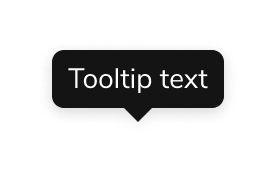
Anatomy
The Tooltip consists of three primary elements that work together to add quick clarity to an element.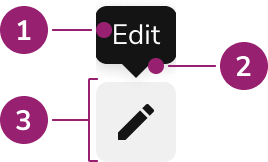
- Tooltip background, content
- Caret
- Trigger
Options
The Tooltip supports the following configurations to accommodate various supplementary information scenarios.Content
Text content
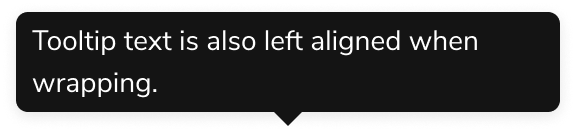
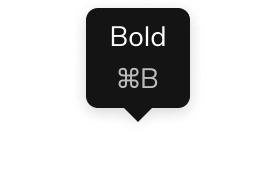
Custom content
Placement
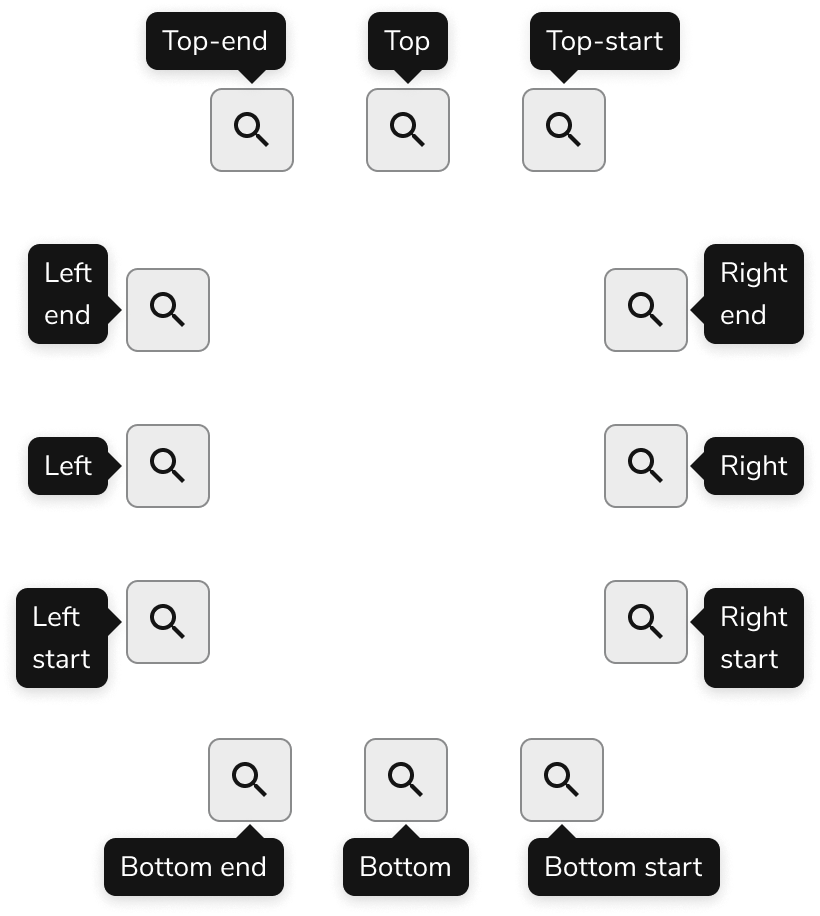
Visual States
Tooltips open when the trigger element is in a hover or focus state. Avoid removing opening on focus, as this prevents keyboard-only users from viewing Tooltips.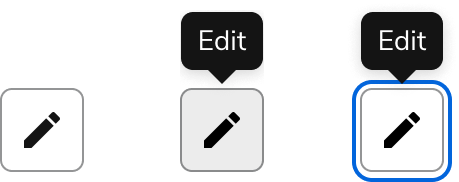
Behavior
The Tooltip responds to space constraints with automatic positioning adjustments and overflow handling.Overflow handling
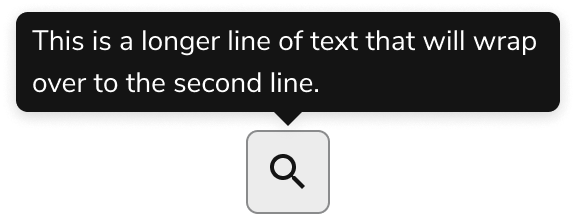
Usage Guidelines
Alternatives
Tooltips are generally difficult to both discover and use on the page, particularly for touch device users. Explore alternatives to a Tooltip first, such as inline text.Tooltip vs Popover
Tooltip is the component of choice for tips and other informational overlays. Popovers may be used in place of a Tooltip when actions are needed.Content
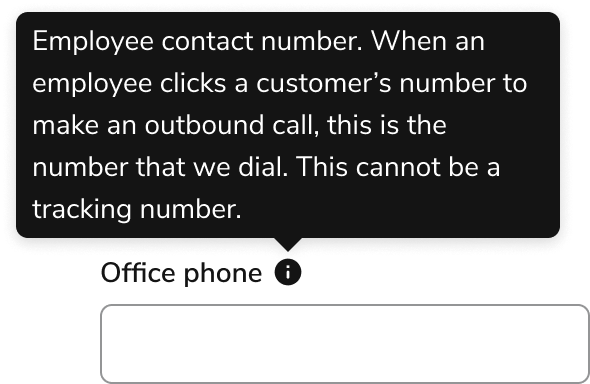
Content within the Tooltip should be brief, clear, and supplementary to the trigger element.Keep content 1-2 lines
When content extends to 3+ lines, it is strongly encouraged to find another method of conveying the information.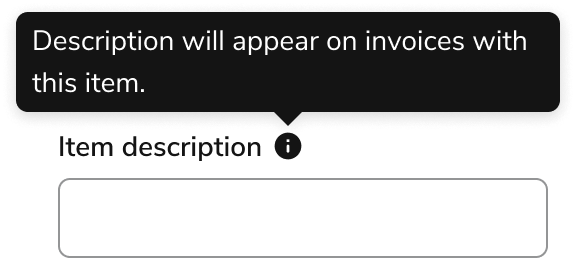
Do
Don’t
Don’t repeat the content of the Tooltip’s trigger
Avoid repeating the trigger’s content in the Tooltip, even in UIs that heavily use Tooltips. Omitting a redundant Tooltip is preferred over consistent Tooltip usage in the UI.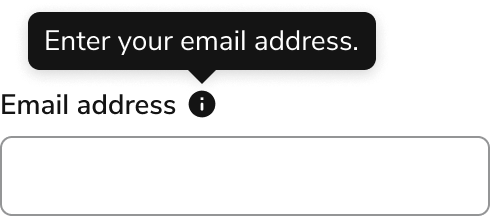
Don’t
Keyboard Interaction
Users can navigate the Tooltip using standard keyboard controls.Accessibility
Anvil provides accessibility needs out of the box. Annotating labels is the main piece needed in a design.Provide Tooltip labels for Icon Buttons
Provide a label to describe the action for both screen readers and users who focus on the element, regardless of whether a label is visible on the page. For more guidance on labels and context, see input field context association best practices.Code
- Implementation
- Tooltip Props
Common Examples
TheTooltip component is used to add a floating label to an element, usually triggered on hover or focus.Controlling tooltip state
By default, the open state of a tooltip is managed internally and opens when the trigger element has hover or focus.To manually control the open state of the tooltip, use theopen prop.Adjusting tooltip offset
In some cases, the context around the tooltip trigger may require the tooltip to render further away from or closer to the trigger.In these cases, adjust theoffset prop, which accepts a number representing pixels.