

For development, import
NumberField from @servicetitan/anvil2. For design, find it in the Anvil2 file.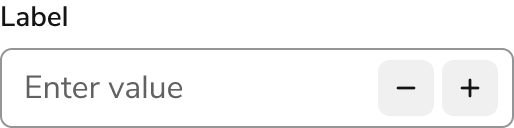
Anatomy
The Number Field consists of seven primary elements that work together to accept numerical input.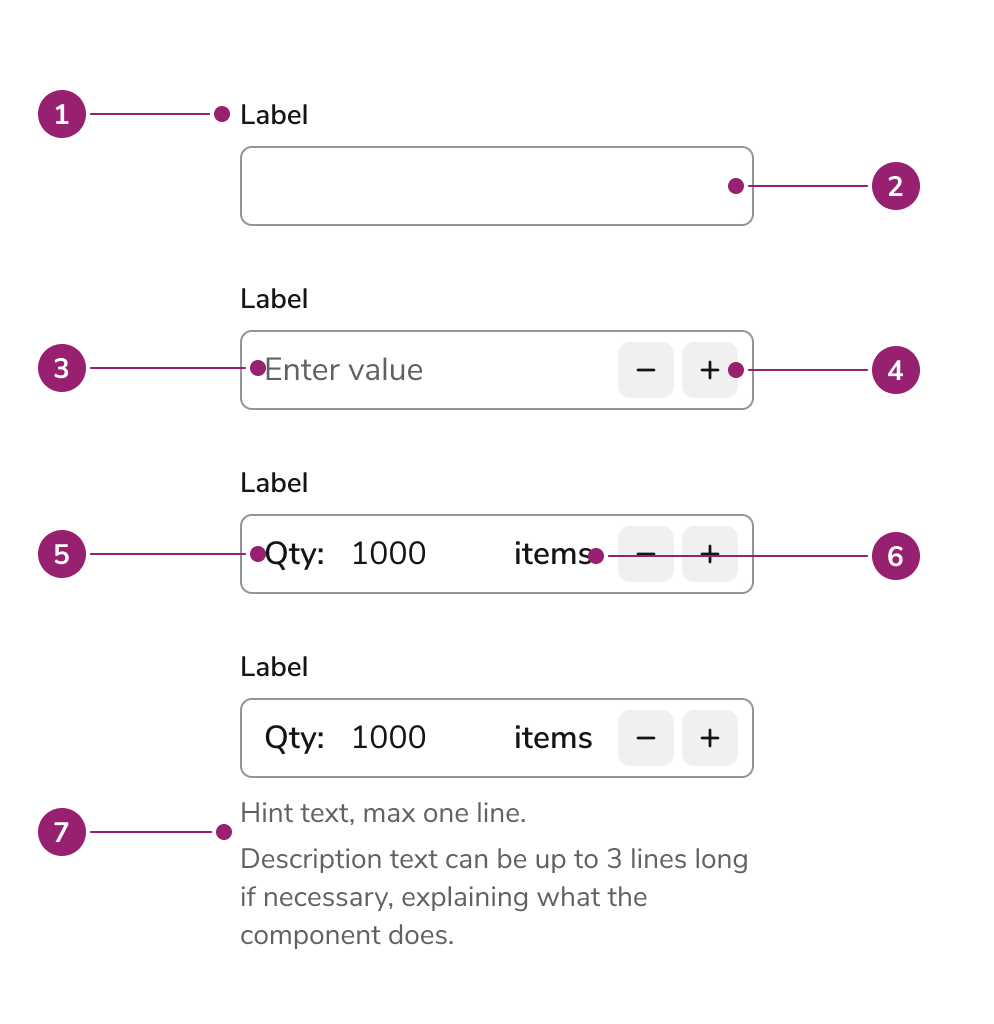
- Label
- Field
- Placeholder
- Increment/Decrement buttons
- Prefix
- Suffix
- Helper texts
Options
The Number Field supports the following configurations to accommodate various numerical input scenarios.Sizes
Prefix
Suffix
Behavior
The Number Field responds to user interaction with distinct visual states and flexible width behaviors.Overflow
For long number entries, the content within a Number Field will scroll horizontally. The visible portion of the text will automatically follow the cursor, ensuring the user can always see what they’re typing.Visual States
Widths
Number Fields should generally be sized to the expected length of the value a user will enter. Unless a specific width is set, the field will automatically fill all available horizontal space.Usage Guidelines
Number Field is the standard component for any numeric input that doesn’t have a dedicated component. It’s designed for general-purpose numeric values and allows you to use decimals, define step values, and set boundary limits.
Note: Dedicated components such as Percentage Field and Currency Field are planned to handle those specific use cases.
How to Use
Read-only
Using a read-only Number Field is the recommended way to display information that users can review but not change. Unlike a disabled field, a read-only field remains fully accessible: users can still copy the text, focus the input, and interact with it using a screen reader. Additionally, it maintains the necessary contrast for optimal readability.Prefixes and suffixes
Prefixes and suffixes provide clear context for a Number Field, preventing any misunderstanding of the value being entered.Prefix
Use a prefix to add a descriptive label to the left of the input. For example, using Qty: helps a user immediately understand the purpose of the number they are entering.Suffix
Use a suffix to provide a unit of measurement or another clarifying label to the right of the input. This is useful for units like items, minutes, or lbs.Hiding/Showing the +/- controls
Hide the +/- controls when the value is something a user needs to type precisely rather than step through, such as an account number or ID. In those cases, the buttons add no value and should be omitted. Show the +/- buttons when the value has a meaningful, predictable step, such as a quantity. When users will nudge a value up or down by a consistent amount and the range is small enough to navigate that way, the buttons make the interaction faster and more forgiving than typing. This works well when the value has a defined step and range.Labels and Help text
For guidance on labels and help text, check out our Labels and Help pattern.Validation
For form validation guidance, check out our Form Errors and Validation pattern.Content
Content within the Number Field should clearly communicate the expected numerical value through labels, prefixes, and suffixes.Keyboard Interaction
Users can navigate the Number Field using standard keyboard controls.Code
- Implementation
- NumberField Props
Common Examples
Default values
A default value can given toNumberField to use the field in an uncontrolled mode.Controlled usage
TheNumberField can be controlled. This means you can maintain the state outside the component. Listen for new values with onChange and supply state back into the value prop.Empty
TheNumberField allows not only 0, but also the ability for the input to be completely cleared out. This is represented by null in the onChange, value, and defaultValue props.Step value
The increment and decrement functionality of theNumberField defaults to adding or subtracting 1, but can be modified to add or subtract another number. This value applies to the visual +/- buttons as well as keyboard up/down keys.Note that step does not enforce that the value is a multiple of the step. Instead, it will add to or subtract from the current value.Min and max values
TheminValue and maxValue props define the bounds of the NumberField. The stepper buttons and keyboard up/down keys clamp the value between minValue and maxValue: if value + step > maxValue, the result of incrementing is maxValue, and if value - step < minValue, the result is minValue.Negative values
TheNumberField defaults to a minimum of 0, but supports negative number inputs by setting a lower minValue.Fractional values
TheNumberField defaults to integers, but supports decimal number inputs with the maximumFractionDigits and minimumFractionDigits props.Hiding increment/decrement buttons
The +/- buttons can be optionally hidden using thehideControls prop. When hidden, users can still change the value by typing directly into the input or using keyboard up/down arrow keys.Errors
Error messages can be applied to the component via theerror prop.Markdown in labels
Thelabel prop supports inline markdown: bold (**text**), italic (*text*), bold and italic (***text***), highlight (==text==), and code (`text`).Hide the label
UsehideLabel to visually hide the label. The label string is converted to an aria-label on the input so it remains accessible to screen readers — any inline markdown is stripped to plain text.