

Anatomy
The Tab consists of five primary elements that work together to organize related content into groups.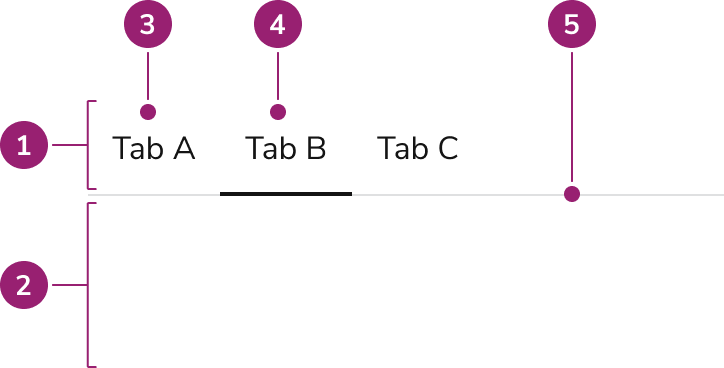
- Tablist
- Tab content or panel
- Tab
- Active Tab
- Divider
Options
The Tab supports active state, label, and width configurations to accommodate various content organization scenarios.Active
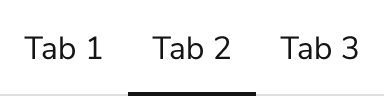
Tabs always have exactly one active Tab at a time. Typically, the first Tab in a group is the default active Tab.
Label

Custom labels
The Tab label can be replaced as needed with custom, non-interactive content.Width options
Fixed width
By default, an individual Tab will be as wide as its text, with a minimum width of 48px. This is useful when Tabs are in wide containers.
Filled width
Tabs can also fill all available width in its container. This is useful in smaller containers.
Behavior
The Tab responds to space constraints with compression and overflow behaviors while maintaining consistent visual states.Visual States
Visual states apply independently of the active state.
Disabled
Disabled Tabs are not supported. Consider either removing the Tab, or disabling the Tab’s content in some way instead.Tab compression
With both fixed and filled Tab widths, when not enough space is available, the Tabs will shrink, but not truncate, to fit the container. A minimum of1rem of space will exist between Tab labels.

Tab group overflow
When compression is not enough, the Tab group will scroll overflow, rather than truncate. A user can both scroll to reveal (either by keyboard or mouse), or use the next / previous buttons provided by the group.
Usage Guidelines
Use the Tab to organize content into multiple sections. Tabs help to break up content into easier to process information.Alternatives
Tab vs Details
Details are used to show additional information around a sub-topic on a page, while a Tab categorizes information. The context of Details is small, non-essential information, while Tabs can categorize both small and large, essential and non-essential information.Tab vs Segmented Control
Segmented Control allows users to change the presentation format of displayed content or to filter it. Tabs changes the view to show new content.Tab vs Side Nav
Side Navs and Tabs perform similar tasks of organizing content. In most situations, Side Navs are a higher level of the navigation structure compared to Tabs. Side Navs are also able to organize less related items together compared to Tabs.Tab vs Stepper
Tabs help organize information about a subject on the page, while a Stepper helps complete a flow. They can’t substitute for each other, although both could be used on the same page.How to Use
Always have one Tab active
Exactly one Tab should always be active in a Tab list.Do
Don’t
Don’t
Make the scope of Tabs clear
A user should be able to understand what is and isn’t part of a Tab list. This usually means content below the Tabs, extending across the Tab’s divider line. Additional visual consideration may be needed if the Tab scope is a sub section of a page.Do
Don’t
Showing numerical values
Tabs can utilize small Chips to convey value. Pair a Tab with a Chip when the number value is informational in nature.Do
Don’t
Representing status
When a status, typically an error, needs representation at the Tab level, pair it with an Alert, either below the Tab or above the Tab depending on how critical it is a user should know about the status. As a rule, place it below the Tabs. Don’t represent status directly in the Tabs. Status in Tabs directly is not a common experience in apps, in addition to accessibility concerns for keyboard and screenreader users.Do
Do
Don’t
Nested Tabs
Use caution when nesting Tabs within Tabs, as they can be difficult to use simultaneously. Consider alternative ways of organizing information, such as a Side Nav, Details, or Stepper.Content
Content within the Tab should clearly communicate each section through descriptive labels.Keyboard Interaction
Users can navigate the Tab using standard keyboard controls.Manual activation only
Tab groups only support manual tab activation, meaning keyboard users can cycle through tab focus, but must also activate the tab with a separate key.Accessibility
Anvil provides all the accessibility pieces needed. There are some additional accessibility considerations if new behavior is added on top of the design system.Automatic tab activation
This refers to tabs being automatically activates on focus. This is considered an acceptable behavior, but is not provided by Anvil. If a design needs this feature, consider following the W3C ARIA implementation of automatic activation, including how it handles keyboard interaction. Automatic tabs do not need a new visual treatment.Use caution when adding actions in Tabs
Be sure that when adding an action of any kind to Tabs that it is still reachable by keyboard. This is especially true if your Tab action also uses arrow keys. For more guidance on custom tab behaviors and keyboard interaction, see changing content best practices.Code
- Implementation
- Tab Props
- Tab.List Props
- Tab.Panel Props
Common Examples
Basic Tabs
Tabs are used to separate large blocks of content relevant to the user’s current context. Four components are used to makeup Anvil tabs:Tab, Tab.List, Tab.Button, and Tab.Panel.Notes
- There should always be an equal number of
Tab.ButtonandTab.Panelcomponents. - Values in the
controlsprop of eachTab.Buttoncomponent should match theidof the correspondingTab.Panel.
Changing the Default Tab
By default, the content of theTab.Panel associated to the first Tab.Button will be displayed. To change this behavior, supply the index of the Tab.Button that should be displayed first to the defaultIndex of the parent Tab.Controlled Tabs
To control the active tab from outside the component, use theindex and onIndexChange props. This is useful when you need to synchronize the active tab with external state, such as a URL parameter or another UI element.When using
index, you must also provide onIndexChange to keep the active tab in sync when the user interacts with it directly. Without onIndexChange, the tab will appear frozen.React Accessibility
- An Anvil
Tab.Buttoncannot be disabled. - When a
Tab.Buttonhas focus, the left and right arrow keys and enter can be used to navigate tabs.