


Anatomy
The Avatar consists of three primary elements that work together to visually represent an entity.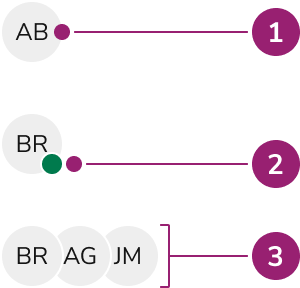
- Avatar body
- Status indicator (Optional)
- Avatar Group
Options
The Avatar supports multiple content types, sizes, and grouping configurations to accommodate various representation scenarios.Image
Initials
When an image is not used, the avatar displays initials derived from the name, calculated based on specific rules. When two or more words are used, the first letter of the first two words is used. When only one word is provided in the name, the first two letters are used. On ‘small’ Avatars, only the first letter is used regardless of what name is used.Custom background colors
Avatars provide one color by default. They accept any color or Token value. Text color auto-calculates to achieve the highest available contrast. Use a Token value that supports theming.Sizes
Status
Avatars can also convey an online or offline status.Grouping
Avatars can be grouped together in a condensed form. The specific spacing depends on the size of individual Avatars. Grouping also allows for a max count of Avatars, where a +X will be displayed in place of additional Avatars. This cutoff is configurable to any number.Status in groups
Usage Guidelines
How to Use
Optionally add text labels to Avatars
Text labels are not provided directly with an Avatar, but are recommended when space allows. Customize labels as needed.
Adding interactivity to an Avatar
Combine an avatar with a Button Compound to add interaction. This provides interactive states and accessibility.
Only use a Tooltip when also adding interactivity
Since an Avatar is non-interactive by default, use a Tooltip when the Avatar is focusable by addingtabIndex={0}. A text label next to the Avatar is still the preferred option.

Don’t make isolated changes to an Avatar’s shape
Shape is consistent when representing a category of entities. Deviating from this confuses users.
Don’t
Content
Avatar will always display initials when no image is provided.Keyboard Interaction
The default Avatar and Avatar Group, do not have any keyboard interactions.Code
- Implementation
- Avatar Props
- AvatarGroup Props
Common Examples
Changing the avatar colors
Avatar colors can be changed using thecolor prop. Internally, the color could be adjusted in order to ensure low vision and colorblind users can read the text.Showing online status on avatars
Set thestatus prop to "online" or "offline" to add an indicator to the avatar.Avatar image and name
The content within an avatar will change based on thename and image props provided. If an image is provided, and does not fail to load, it will be displayed.If no image is provided, or it fails to load, two characters of the name value will show instead:- If
nameis a single word, the first two characters will be used - If
nameis multiple words, the first characters of the first and last words are used
Stacking avatars in a group
Avatars can be grouped using theAvatar.Group component. They will overlap slightly, with the last Avatar component child on top.Avatar as a button
To make an avatar interactive, wrap it with aButtonCompound with shape="circular". This will add a button element around the avatar which can be used for tab focus and interactions.