

Embedded AI is a rapidly developing area at ServiceTitan. For how the AI Mark fits into broader embedded AI and Atlas usage, see Embedded AI.
Anatomy
The AI Mark consists of a single element: the double-star shape that identifies AI-assisted or AI-generated content in product UI.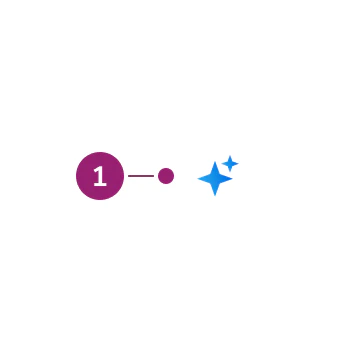
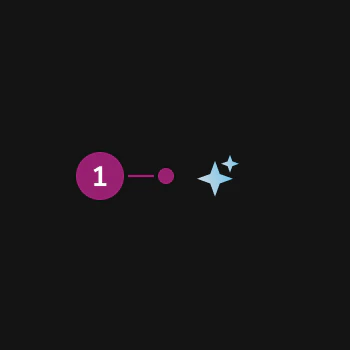
- Double-star shape — AI Mark
Options
The AI Mark supports the following configurations for color, size, and related presentation.Color
- Gradient: A blue gradient, used as the primary option for denoting something is AI.
- Default: A
currentColoroption, used against non-default backgrounds, such as within buttons.
Sizing
The mark comes in four sizes aligned with Anvil icon sizing.- small: 12×12
- medium: 16×16
- large: 24×24
- xlarge: 32×32
Behavior
Animation
The AI Mark has two animation modes:- Pulse: The default hover treatment for the mark.
- Spin: Used exclusively in situations that perform an action (such as buttons), also on hover.
Tooltips and popovers
The AI Mark responds to hover and focus, and it supports an optional tooltip or popover disclosure when users need more context than the icon alone. Pair the AI Mark with a tooltip or popover when short inline copy is not enough and users should be able to read more about how AI is used.- Tooltip: Use for a single line or short string of explanatory text on hover or keyboard focus. Reserve tooltips for lightweight context (for example, what “AI-assisted” means in that spot).
- Popover: Use when the disclosure needs richer layout or actions—longer explanations, multiple lines, or controls such as feedback. Popover opens on activation (for example, click), not only on hover.
Contrast-driven style choice
Use the gradient mark by default. Switch to the monochrome mark when the primary treatment fails contrast requirements—for example, primary Button and similar cases where the gradient does not meet contrast against the background.Editable states
The AI Mark responds to edits. When a user starts editing a cell, remove the AI Mark immediately. After editing begins, the value is no longer purely AI-generated, and keeping the mark would misrepresent the content.Usage Guidelines
Use the AI Mark when you need a clear, consistent visual that an experience or control is AI-related outside of the dedicated Atlas conversational UI.Placement on fields
The AI Mark can sit in the field label or in the body or description area. When a field has a visible label, prefer the label. When there is no label—for example, a Data Table cell—place the mark to the right of what AI has generated. If a group of items was generated with AI (for example, a Card), place the mark to the right of the group title.Avoid duplicate marks
If the AI Mark already appears on a triggering element (for example, a button that starts an AI action), do not show it again in the output that element produces. One clear association per action keeps the UI honest and avoids noisy repetition.Don’t use outdated marks
Content
Content within or next to the AI Mark should keep AI disclosure clear and scannable. Prefer plain language that states what the AI does or what the user should expect.- Pair the mark with labels or headings that describe the AI-assisted outcome, not the technology
- In complex workflows, add short explanatory text or follow-up disclosure as needed in the UI or via tooltip or popover when the mark alone does not carry enough context
- When both a label and description exist, align the mark with Placement on fields
Keyboard Interaction
Users can navigate the AI Mark using the same keyboard patterns as the surrounding control or container (for example, the button or field label that includes the mark).Embedded AI
Read more about embedded AI and how to use the AI Mark within larger workflows in the product.