

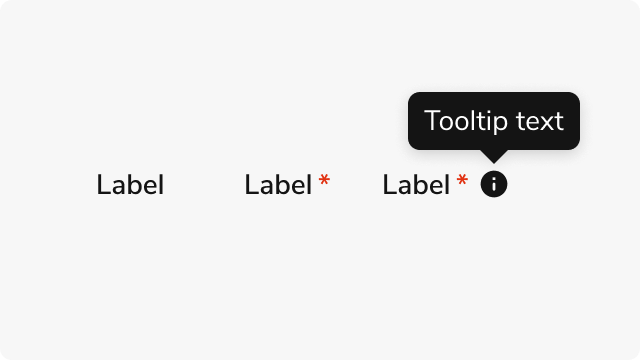
Anatomy
The Field Label consists of three primary elements that work together to provide clear, accessible labels for form fields.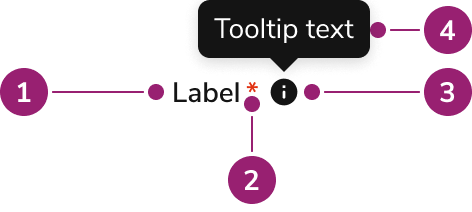
- Label text - The primary label content that identifies the form field
- Required indicator (Optional) - A red asterisk displayed when the field is required, with screen reader announcement
- More info icon (Optional) - An information icon that displays additional context in a tooltip when hovered or focused
- More info tooltip (Optional) - A tooltip that displays additional context about the form field when hovered or focused
Options
The Field Label supports the following configurations to accommodate various form labeling scenarios.Required Indicator
When a form field is required, Field Label displays a red asterisk after the label text. The asterisk provides a visual indicator for sighted users, while screen readers announce “Required” to ensure accessibility.More Info Tooltip
Field Label supports an optional help tooltip that displays additional context about the form field. The tooltip appears when users hover over or focus the information icon, providing guidance without cluttering the label area.Behavior
The Field Label responds to user interaction with distinct visual states and tooltip interactions.Visual States
Field Label maintains consistent typography and spacing across all states. The required indicator uses a danger color to draw attention, while the more info icon remains visually distinct but unobtrusive. When the more info tooltip is present, the icon becomes interactive and responds to hover and focus states.Tooltip Interaction
The more info tooltip opens on hover or focus of the information icon. The tooltip positions itself above the icon by default, with fallback placements to ensure visibility when space is limited. Tooltip content is also available to screen readers through a screen reader-only element, ensuring all users receive the additional context.Usage Guidelines
Use the Field Label when you need to associate labels with form inputs, indicate required fields, provide additional context, create fieldset legends, or build custom form components that require explicit label control.Alternatives
Field Label vs Built-in Labels
Many Anvil2 form components include label functionality through props likelabel and required. Checkbox Group and Radio Group also provide a legend prop. Use these built-in options when available, as they handle label association and styling automatically. Use Field Label directly when building custom form components or when you need explicit control over label rendering and positioning.
Label vs Legend
Use Field Label as a label when associating text with a single form control. Use Field Label as a legend when naming a group of related controls inside a fieldset. Checkbox Group and Radio Group already expose alegend prop for this pattern — prefer that prop instead of composing Field Label yourself for those components.
How to Use
Show required indicators consistently
Use the required indicator to help users understand which fields are mandatory before they start filling out the form. Consistent use of required indicators across all forms creates predictable patterns that reduce user confusion and form abandonment. Use required indicators consistently across all forms. When some fields are required, clearly mark all required fields to help users understand form expectations at a glance.Use more info for supplementary information only
More info tooltips are best for supplemental information that enhances understanding but isn’t essential to complete the field. Essential information should be visible in the label, hint text, or description rather than hidden in a tooltip. Use more info for supplementary context, definitions, or examples that help users understand the field better. Keep tooltip content to 1-2 lines and avoid repeating information already visible in the label. Don’t put essential information in more info tooltips. Users must recall tooltip content when completing the field, which creates cognitive load. Use hint text or descriptions for information users need to see while filling out the form. Put essential information like requirements and formatting rules in hint text or descriptions where users can see it while filling out the form. This reduces cognitive load and helps users complete fields correctly.Content
Content within the Field Label should be clear, concise, and descriptive.- Use sentence case for label text
- Keep labels brief but descriptive enough to identify the field purpose
- Write tooltip content that provides actionable guidance or clarifies field requirements
- Ensure required indicators are used consistently across forms
- Match label terminology with the form field’s purpose and expected input
Keyboard Interaction
Users can navigate the Field Label using standard keyboard controls.Accessibility
Field Label implements accessibility features to ensure all users receive proper form field context. The component uses semantic HTML elements (label or legend) to create proper associations with form controls. Required fields include both visual indicators and screen reader announcements. The more info tooltip content is available to screen readers through a screen reader-only element, ensuring assistive technology users receive the same contextual information as sighted users.