Anatomy
The List View consists of five primary elements that work together to display a selectable list with customization options.
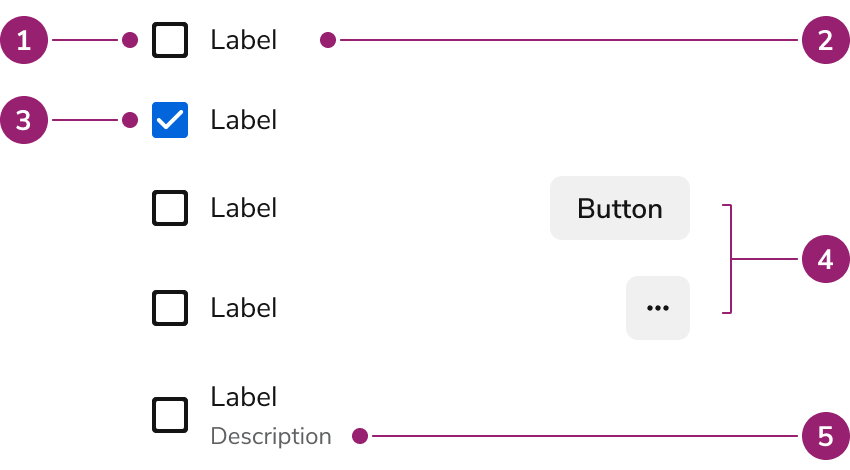
- Unselected
- Label
- Selected
- Secondary Actions
- Description
Options
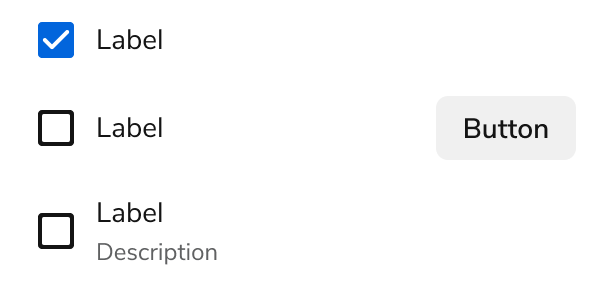
The List View supports selection, secondary actions, disabled states, menus, and custom content configurations to accommodate various list scenarios.
Selection
Secondary action
Disabled
Custom content
Avatar
Description
Behavior
The List View responds to content overflow by wrapping labels to new lines while maintaining consistent list structure.
Overflow
When a List View label is too long for the available space, it wraps to a new line.
Usage Guidelines
Use the List View when constructing lists of selectable items that require customization or secondary actions.
When to Use
List Views are used to construct lists of selectable items. They create lists of actions, navigation, and selections.
List Views are useful for emphasizing multiple selection with checkboxes.
Secondary action
Use List View when your list requires secondary actions, in addition to selecting multiple items or interacting with checkboxes. Unlike other options such as Listboxes, Comboboxes, or Side Nav menus, List View provides the functionality for these additional actions.
Alternatives
List View vs Listbox
Use Listbox when using simple selections that do not require any customization. Use List View when requiring customized styling or secondary actions. List View may also be used when emphasizing to users that multi-selection is possible.
How to Use
Choosing between secondary actions and menus
Choose secondary actions or menus based on the number of actions per item and their frequency of use.
Use secondary actions when each item has one or two common actions that users access frequently. Secondary actions provide immediate access without additional clicks, making them ideal for primary workflows like editing or deleting items.
Use menus when items have multiple actions or when actions are less frequently used. Menus reduce visual clutter and organize actions hierarchically, making them suitable for complex item management scenarios.
Organizing lists with custom content
Use custom content to provide visual context and additional information within list items. Avatars, descriptions, and other custom elements help users quickly identify and understand each option. Keep custom content focused and scannable to maintain list clarity and usability.
Content
Content within the List View should clearly communicate each option and provide necessary context through labels and descriptions.
Keyboard Interaction
Users can navigate the List View using standard keyboard controls. Last modified on January 23, 2026