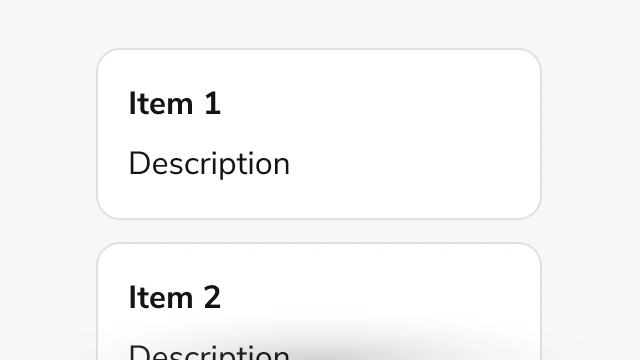
Anatomy
The Overflow consists of three primary elements that work together to manage content that exceeds available space.
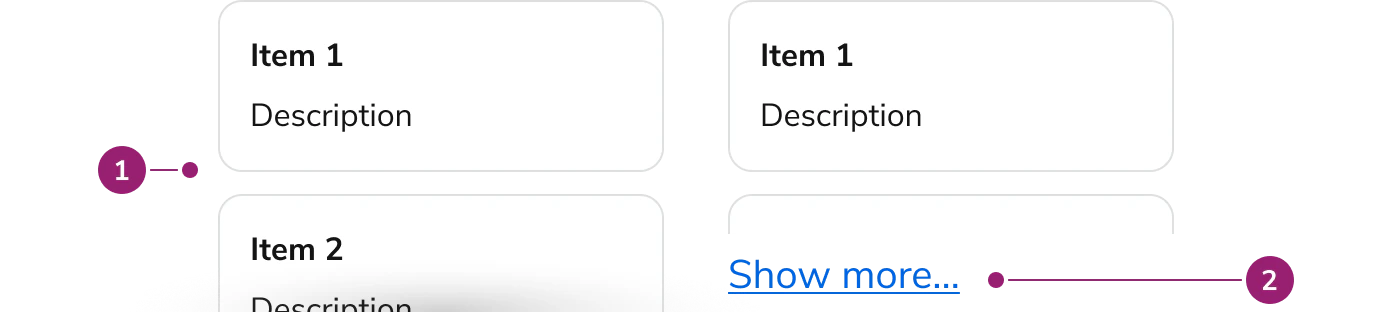
- Content area - The scrollable container that holds the overflow content
- Expand button (Optional) - A button that appears when truncation is enabled, allowing users to expand or collapse content
Options
The Overflow supports the following configurations to accommodate various content overflow scenarios.
Direction
Overflow supports both vertical and horizontal scrolling. Vertical scrolling is the default, suitable for most content that exceeds available height. Horizontal scrolling displays content in a row layout, useful for wide content that exceeds available width.
Truncation
When truncation is enabled, Overflow displays a “Show more…” button when content exceeds the visible area. Users can expand to view full content or collapse to return to the truncated view. Truncation is only available when direction is set to column. Custom expand and collapse text can be configured, along with optional callbacks for expand and collapse events.
Behavior
The Overflow responds to content overflow with scrollable areas and visual indicators that adapt to the scroll position.
Scrollable content
The content area becomes scrollable when content exceeds the specified height or width. Users can scroll using mouse, touch, or keyboard navigation. The scrollable area maintains focus for keyboard accessibility, allowing users to navigate through overflow content using arrow keys.
Usage Guidelines
When to Use
Use the Overflow when you need to:
- Display long content within a constrained space without breaking the page layout
- Provide scrollable areas for content that varies in length
- Offer expandable content sections that users can reveal on demand
- Handle horizontal content overflow, such as wide tables or lists
When not to use
Avoid using the Overflow for:
- Critical content - Essential information should be immediately visible without requiring scrolling or expansion
- Short content - Content that fits naturally within available space does not need overflow handling
- Navigation elements - Use dedicated navigation components like Tabs or Side Nav for organizing navigation content
Alternatives
Overflow vs Details
Overflow provides scrollable areas for content that exceeds space, while Details provides collapsible sections for showing or hiding supplementary information. Use Overflow when content must remain accessible through scrolling. Use Details when content can be completely hidden until the user chooses to reveal it.
Content
Content within the Overflow should be structured to work effectively within scrollable or expandable containers. Ensure that important information appears early in the content when truncation is enabled, as users may not expand to view all content.
Keyboard Interaction
Users can navigate the Overflow using standard keyboard controls.
| Key | Description |
|---|
| Tab | Moves focus to the next focusable element |
| Arrow keys | Scrolls the content area when the Overflow container has focus |
| Space or Enter | Activates the expand/collapse button when truncation is enabled |
Last modified on January 23, 2026