

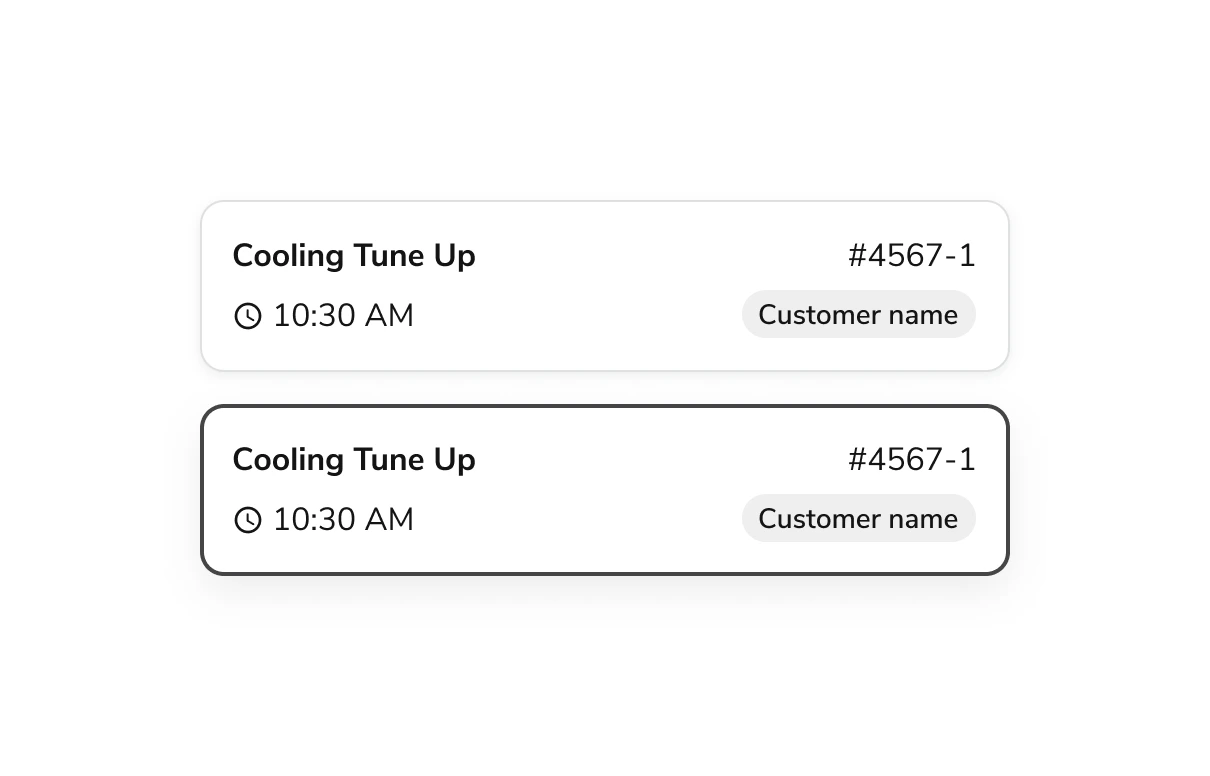
Anatomy
The Select Card consists of six primary elements that work together to create a card-like checkbox or radio with customizable inner content.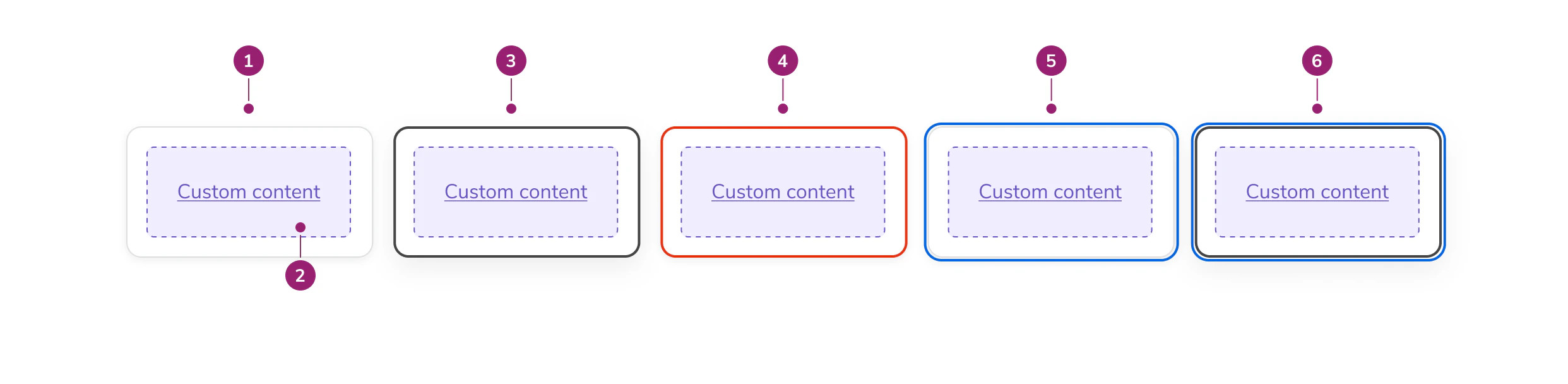
- Card surface - The interactive container that responds to user selection
- Inner contents - Customizable content area for labels, descriptions, chips, or other elements
- Selected state - Visual indicator showing the card is currently chosen
- Errored state - Visual treatment indicating validation or selection errors
- Focused state - Visual indicator showing keyboard focus
- Focused & selected state - Combined visual treatment for focus and selection
Options
The Select Card supports the following configurations to accommodate various selection scenarios.States
Default
Selected
Disabled
Errored
Drop Shadows
SelectCard has a drop shadow by default. You can optionally remove it for use in galleries and other dense layouts where shadows may create visual noise.Select Indicator
Display a checkbox or radio indicator in a separate column on the left side of the card. The indicator type is automatically determined by the selection mode of the parent group.Behavior
The Select Card responds to user interaction with distinct visual states for selection, error, and focus.Usage Guidelines
Content
Content within the Select Card should clearly communicate the option being selected. Keep inner content concise and scannable. Use labels, descriptions, chips, or other elements that help users quickly compare options.Using Drop Shadows
- In galleries and dense layouts, remove the drop shadow
- In other contexts, keep the drop shadow for visual separation
Keyboard Interaction
Users can navigate the Select Card using standard keyboard controls.Accessibility
- Include Select Cards in a group with a descriptive legend
- Provide clear, distinct content for each card to help users differentiate options
- When a Select Card group has an error, include helper text to describe the error