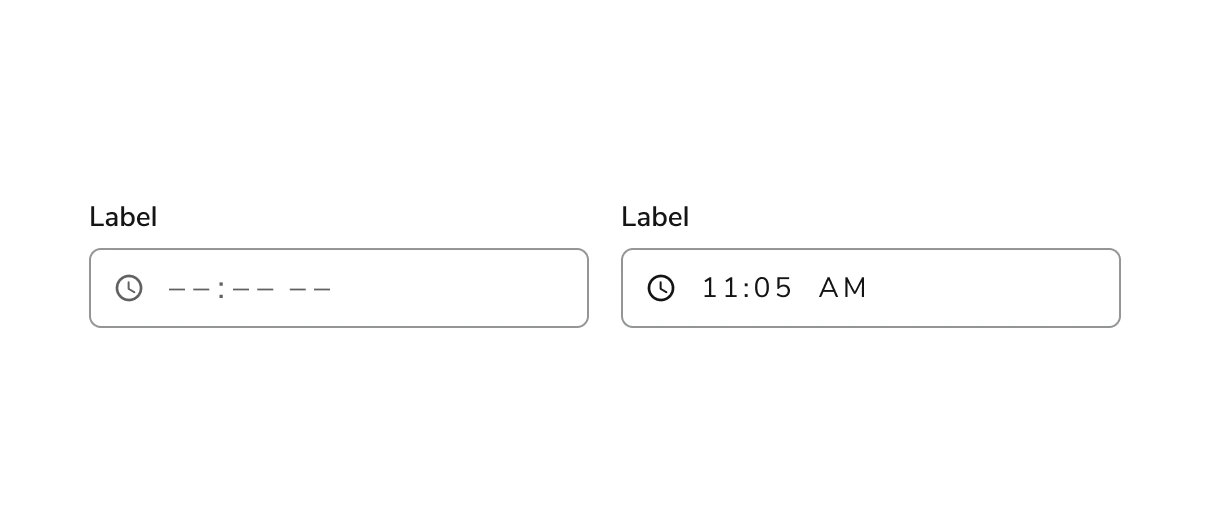
Anatomy

The Time Field consists of nine primary elements that work together to allow users to enter a time into an input.
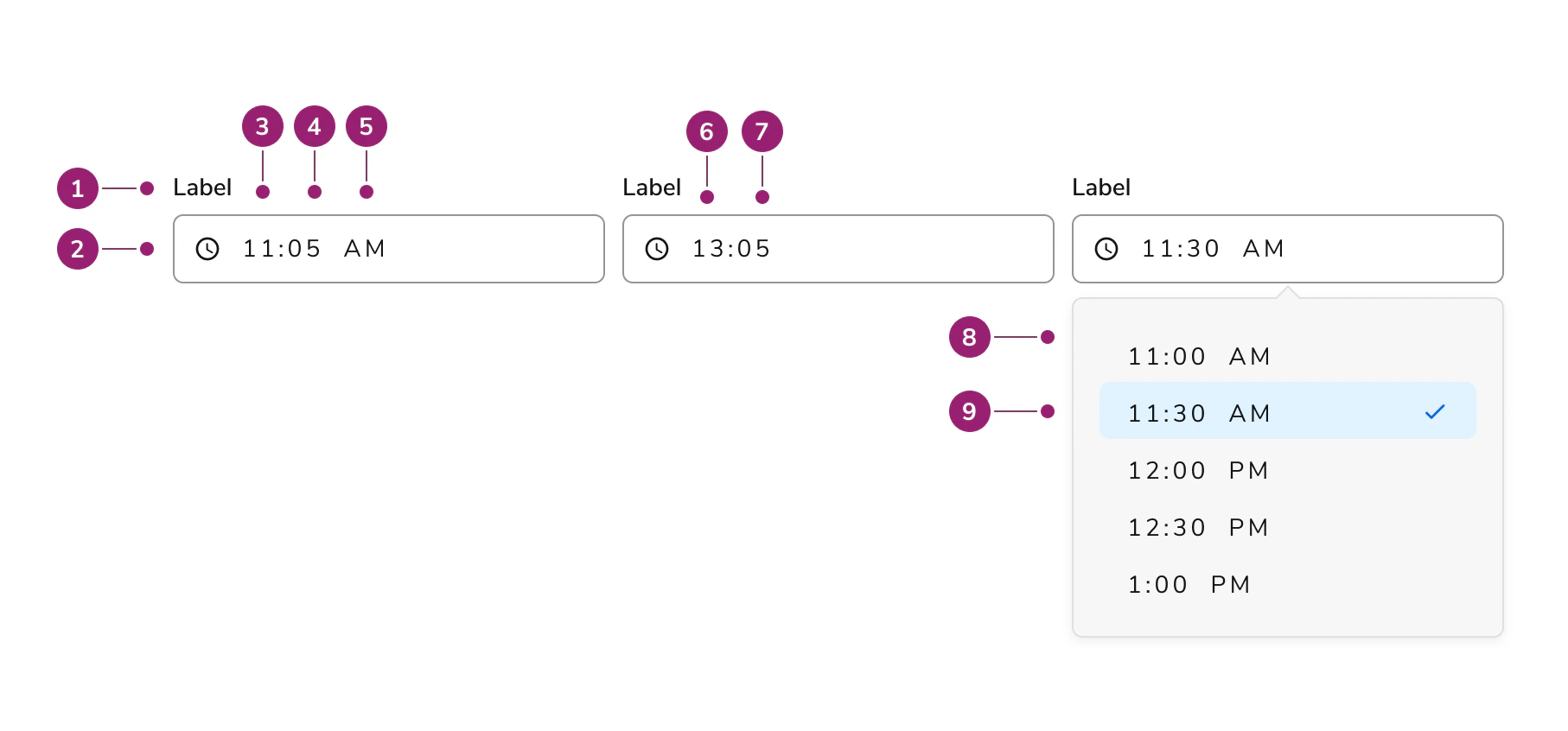
Anatomy of the Time Field
component
  1. Label
  2. Clock icon (permanent)
  3. Hours (AM/PM variant)
  4. Minutes (AM/PM variant)
  5. AM/PM marker
  6. Hours (24hr variant)
  7. Minutes (24hr variant)
  8. Options panel
  9. Selected option

Options

The Time Field supports 12-hour and 24-hour format configurations to accommodate various time entry scenarios.

12hr vs. 24 hour

Time Field supports 12-hour and 24-hour formats. 12-hour format is the default.

Behavior

The Time Field responds to user interaction with distinct visual states, error handling, and min/max constraints.

Visual States

Erroring

  • Errors occur when the field is required and the developer has added definitions for isInputInvalid and isInputEmpty properties on blur.
  • When auto-rounding is set to true and the user enters a non-rounded value, the value updates on blur without erroring.
  • When users must enter a time at a particular interval, use an input with suggestions and steps instead of erroring to guide the user.
  • Read more about validation in the code tab.

Min/max setting

  • Input accepts both min and max values.
  • For option time fields, this sets the available options to a min and max based on the increment step.
  • Times outside the time frame constraints cannot be entered into the field.
  • Read more about min/max setting in the code tab.

Usage Guidelines

Use the Time Field when users need to input a time, such as recording when an event occurred or setting an appointment time.

How to Use

When possible, provide an initial value in the Time Field. For example, if appointments are only possible on a particular day between noon and 3pm, provide the time “12:00 PM” and allow the user to change it from there. When possible, provide min and max values in the Time Field. For example, if appointments are only possible during business hours, add the opening and closing times as min and max values, so the user cannot make selections outside of the allotted time frame. Here, the Time Picker displays values between 9am and 5pm. Provide intelligent time stops for the user when selecting time if possible. For example, if the user can only input time(s) in 15 minute intervals, provide the options dropdown with that stop to help the user input their times correctly.

Content

Content within the Time Field should clearly communicate the expected time format through labels and placeholder text.

Keyboard Interaction

Users can navigate the Time Field using standard keyboard controls.
KeyAction
Up and down arrowsMoves up and down between options and the AM/PM in the dropdown
EnterSelects the time and closes the dropdown selector
Last modified on January 23, 2026