

For development, import
DateFieldRange from @servicetitan/anvil2. For design, find it in the Anvil2 file.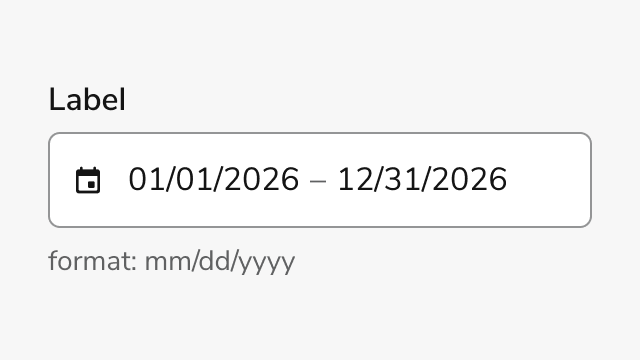
Anatomy
Date Field Range consists of four primary elements that enable users to select a start and end date in one masked field, with a calendar for visual selection.
- Label - Identifies the field and its purpose
- Start date - First segment of the masked field
- End date - Second segment of the same field, after a hyphen
- Helper text (Optional) - Description, format hint, warning, or error message
Options
Date Field Range supports the following configurations to accommodate different use cases and regional preferences.Date Format Modes
Date Field Range supports two date format modes to match regional conventions. The default format ismm/dd/yyyy for US audiences, while dd/mm/yyyy is available for international users.
Sizes
Three size options accommodate different layout densities and visual hierarchies.Behavior
Date Field Range responds to user interaction with distinct visual states and validation feedback.Visual States
The component displays different visual states to communicate field status and interactivity. Default state shows the field ready for input. Focus state highlights the active field. Error state shows a message the product supplies. The field does not invent that message from the dates alone. Disabled state prevents interaction and closes an open calendar.Manual entry
Both dates are typed into one field. The mask showsmm/dd/yyyy - mm/dd/yyyy (or dd/mm/yyyy - dd/mm/yyyy when that mode is selected), with a space, hyphen, and space between the ends. A single digit followed by / is padded, so 1/ becomes 01/. The field does not swap an end date that falls before the start date. That order stays as typed, and the range fails constraint validation.
Calendar interaction
Clicking the field opens the calendar and leaves focus in the input. Arrow Down opens the calendar and moves focus to the first control inside it. Users can move between months and select each end of the range. The calendar highlights the selected span and closes after the end date is selected, returning focus to the field. Choosing a day before the current start restarts the range at that day instead of storing an inverted pair. Dates outside the minimum and maximum, and dates marked unavailable, are disabled in the calendar.Validation
Date Field Range checks the range as it changes and reports whether the text is complete and whether the range is allowed. It does not write an error message itself. The message under the field is the one the product provides. A range is complete when both ends are real dates. It is allowed when the last committed dates fall on available days, stay inside the minimum and maximum, and the start is not after the end. An empty range is allowed unless the field is required. An in-progress edit can still report the previous range as allowed, so wait until both dates are complete before showing a constraint error.Usage Guidelines
Alternatives
Date Field Range vs Date Field Yearless Range
Use Date Field Range when the year is essential to the date range selection, such as project timelines or reporting periods. Use Date Field Yearless Range when the year is irrelevant, such as recurring seasonal periods or annual date templates.How to Use
Labeling and Range Validation
Provide clear, descriptive labels that communicate the purpose of the date range selection. Labels should indicate what the range represents and establish the relationship between start and end dates. Implement validation that ensures logical date ranges and provides immediate feedback when constraints are violated.- Write labels that clearly communicate the purpose of the date range selection
- Keep the format hint visible when the date format might be unfamiliar
- Set minimum and maximum dates to block dates outside the allowed span
- Show an error when both dates are complete and the range still fails its constraints
- Explain that the end date must be on or after the start date
- Use the calendar when visual selection is helpful
Anti-pattern: Ambiguous Context and Invalid Ranges
Avoid creating confusion by omitting format guidance or allowing invalid date ranges without clear feedback.- Use Date Field Range for recurring annual periods where year doesn’t matter
- Hide the format hint when the date format might be unfamiliar
- Treat the first typed digit as a failed range
- Leave a finished, inverted range without an error message
- Use placeholder text to show the date format — the mask already fills the field, so a placeholder is never visible
- Create labels that don’t clearly indicate what date range is being selected
Content
Content within Date Field Range should be clear, concise, and actionable.- Labels should clearly indicate what date range is being selected
- Error messages should explain why a date range is invalid and how to fix it
- Format hints should match the selected mode (mm/dd/yyyy or dd/mm/yyyy)
- Descriptions should provide context without overwhelming the user
Keyboard Interaction
Users can navigate Date Field Range using standard keyboard controls.Input Field
Calendar Picker
Accessibility
Date Field Range includes built-in accessibility features. The component supports full keyboard navigation and screen reader compatibility. Ensure labels are descriptive and error messages are clear for assistive technology users. For more guidance on form field labels and context, see input field context association best practices.Code
- Implementation
- DateFieldRange Props
- DateFieldRangeChange
- DateFieldRangeValue
Common Examples
Date string values
DateFieldRange accepts and returns date-only ISO 8601 strings (YYYY-MM-DD) for startDate and endDate. onChange returns that same date-only form, or null when an end is empty. A full ISO datetime is accepted and normalized to the calendar date in that string’s offset; the day in the string is kept. When you start from a JavaScript Date, build the string from the local year, month, and day. toISOString() is UTC, so it can name a different calendar date than the local one you mean to store.The field is one masked input, not two. The displayed value looks like mm/dd/yyyy - mm/dd/yyyy, with a space, hyphen, and space between the ends. A single digit followed by / is zero-padded (1/ becomes 01/). Typing does not swap an end date that is earlier than the start.Default values
PassdefaultValue for an uncontrolled field. The field keeps later edits itself. Use null to start empty.Controlled usage
Store aDateFieldRangeValue in state and pass it as value. onChange receives a DateFieldRangeChange, which adds validity flags the value prop does not accept. Copy startDate and endDate back into state. Pass null to clear both ends.Constraint errors
The field reports validity and leaves the message to you.isInputValid is true only when both ends are complete dates. isDateRangeValid is a separate check on the last committed dates: an empty range passes unless required is set. An in-progress edit can leave isDateRangeValid true while isInputValid is false, because an incomplete end keeps the previous committed date. Show error only after isInputValid is true and the range is still not allowed. error also sets aria-invalid. A boolean true is the error style with no message.Disabled hint text
The hint text can be disabled. If the hint text is disabled, ensure that the date format is displayed on the page.Timezone
timezone sets the calendar’s Today action and, when the field has no value, the month it opens on. When the zone differs from the browser time zone, the calendar shows “Dates shown in” plus that zone’s abbreviation.Disable calendar popover
The display of theCalendar can be prevented by passing disableCalendar.Markdown in labels
Thelabel prop supports inline markdown: bold (**text**), italic (*text*), bold and italic (***text***), highlight (==text==), and code (`text`).Hide the label
UsehideLabel to visually hide the label. The label string is converted to an aria-label on the input so it remains accessible to screen readers — any inline markdown is stripped to plain text.React Accessibility
The input is a textbox. With a stringlabel, the visible label is associated with the input. hideLabel moves that string to aria-label and strips inline markdown. With no label, the input’s accessible name is “Select a date range”.required marks the input required and adds a visible asterisk plus screen-reader text on the label. error sets aria-invalid. Error text is announced with aria-live="assertive". Warning text uses aria-live="polite".Arrow Down opens the calendar and moves focus to the first control in the popover. Escape closes the calendar and returns focus to the input. Inside the calendar, arrow keys move by day or week, Page Up and Page Down move by month, and Shift plus those keys moves by year. Enter or Space selects the focused day. Selecting the end date closes the calendar and returns focus to the input.Testing
The field’s interactive sub-elements carry a stabledata-anv-part attribute so end-to-end tests can target them directly. The library owns the part names; you supply the instance identifier.Attach your own data-* attribute (such as data-cy or data-testid) to the field. It is forwarded to the masked text input — the one element present in every mode, including disableCalendar:The masked input also exposes the current range for assertions:
The popover and calendar render in the browser’s top layer, outside the input’s subtree, so a descendant query scoped to your
data-cy on the input will not reach them. Target them by their part attribute directly ([data-anv-part="date-calendar"]) or by the popover’s data-testid="calendar-popover". Only one calendar is open at a time.