

For development, import
TimeField from @servicetitan/anvil2. For design, find it in the Anvil2 file.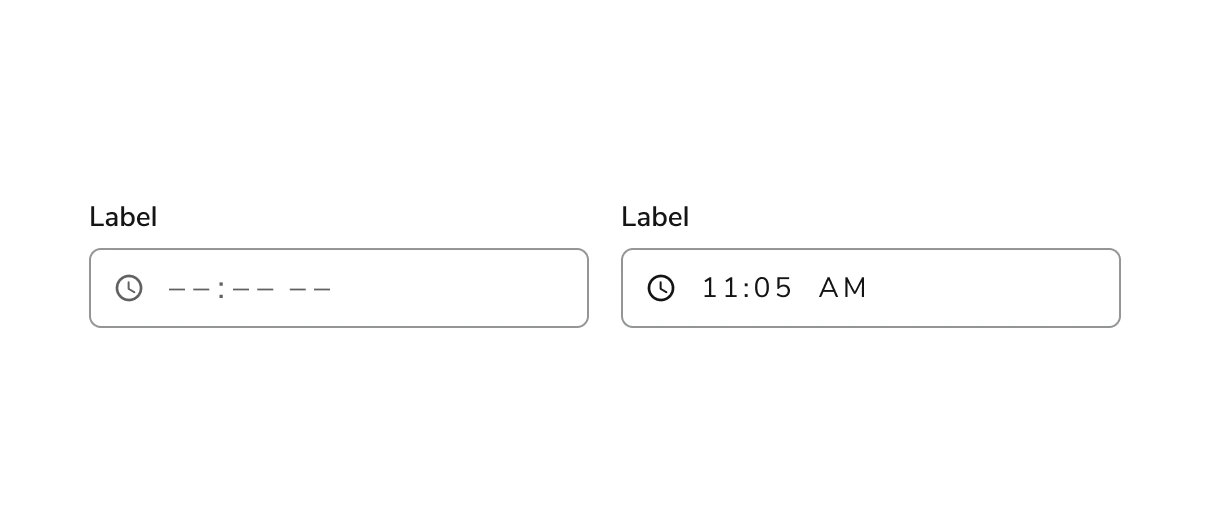
Anatomy
The Time Field consists of nine primary elements that work together to allow users to enter a time into an input.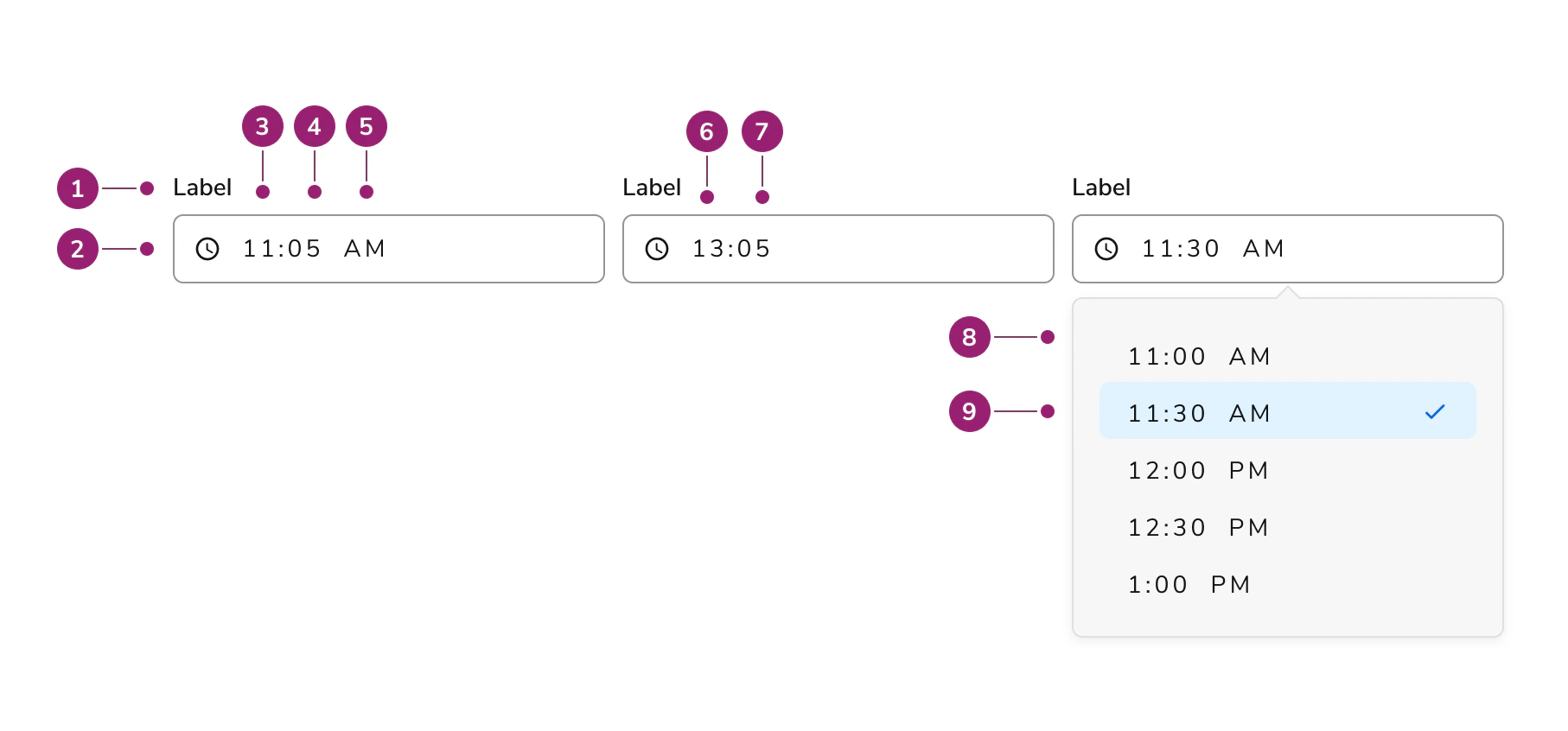
- Label
- Clock icon (permanent)
- Hours (AM/PM variant)
- Minutes (AM/PM variant)
- AM/PM marker
- Hours (24hr variant)
- Minutes (24hr variant)
- Options panel
- Selected option
Options
The Time Field supports 12-hour and 24-hour format configurations to accommodate various time entry scenarios.12hr vs. 24 hour
Time Field supports 12-hour and 24-hour formats. 12-hour format is the default.Behavior
The Time Field responds to user interaction with distinct visual states, error handling, and min/max constraints.Visual States
Erroring
- Errors occur when the field is required and the developer has added definitions for
isInputInvalidandisInputEmptyproperties on blur. - When auto-rounding is set to
trueand the user enters a non-rounded value, the value updates on blur without erroring. - When users must enter a time at a particular interval, use an input with suggestions and steps instead of erroring to guide the user.
- Read more about validation in the code tab.
Min/max setting
- Input accepts both min and max values.
- For option time fields, this sets the available options to a min and max based on the increment step.
- Times outside the time frame constraints cannot be entered into the field.
- Read more about min/max setting in the code tab.
Usage Guidelines
How to Use
When possible, provide an initial value in the Time Field. For example, if appointments are only possible on a particular day between noon and 3pm, provide the time “12:00 PM” and allow the user to change it from there. When possible, provide min and max values in the Time Field. For example, if appointments are only possible during business hours, add the opening and closing times as min and max values, so the user cannot make selections outside of the allotted time frame. Here, the Time Picker displays values between 9am and 5pm. Provide intelligent time stops for the user when selecting time if possible. For example, if the user can only input time(s) in 15 minute intervals, provide the options dropdown with that stop to help the user input their times correctly.Content
Content within the Time Field should clearly communicate the expected time format through labels and placeholder text.Keyboard Interaction
Users can navigate the Time Field using standard keyboard controls.Code
- Implementation
- TimeField Props
- TimeFieldChange Props
Common Examples
With Suggestions Enabled (Default)
By default, time fields use a 12-hour format and present suggested times in a dropdown based on thestep prop. The dropdown is only present if there is more than one valid option to select from. Whether the dropdown is present or not, the input allows typing in the field itself to get to your desired time.There is autocomplete for best guess assumptions of the time you might be going for based on a partial input value. If both AM and PM times both are possible options, AM takes precedence over PM for autocomplete.Without Suggestions
WhendisableSuggestions is set to true, the suggestions dropdown will no longer appear. All other features, including autocomplete, will continue to work as the user types.Auto-Rounding
If theautoround prop is set to true, the time field will attempt to round to the next valid time on blur based on the step and max props. Note: rounding will always go to the future, never the past.If suggestions are enabled, the suggestions will display the auto rounded options available, even if the time currently typed in the input is not yet rounded.Add a description to allow users to know auto rounding is enabled for the field.Min and Max Constraints
Use themin and max props to set a time frame constraint. When the props are present, a time outside the time frame can not be entered into the field.Autocomplete will adjust to a time within the time frame if the partial value can fall within the constraint. For example, 02:— will autocomplete to 02:00 PM for a 09:00 AM - 05:00 PM time frame instead of the default 02:00 AM since 02:00 AM does not fall between 09:00 AM and 05:00 PM.autoround will cap at the max time even if it doesn’t fully align with the step prop. For example: In a field with a 09:00 AM - 05:00 PM time frame and a step of 30 minutes, if 4:45 is entered it will round to 5:00 PM.Add a description to allow users to know there is a time constraint.24 Hour Format
Set theformat prop to 24 to change to the time format. When using this format, ensure min and max times are also set to 24 hour format.Validation
Validation needs to be handled with the onChange.isInputValid and isInputEmpty are boolean props returned with the time so that custom validation can be applied. Note: Because of the use of the mask acts as a value for the input, native html validation will not occur.Markdown in labels
Thelabel prop supports inline markdown: bold (**text**), italic (*text*), bold and italic (***text***), highlight (==text==), and code (`text`).Hide the label
UsehideLabel to visually hide the label. The label string is converted to an aria-label on the input so it remains accessible to screen readers — any inline markdown is stripped to plain text.