

Anatomy
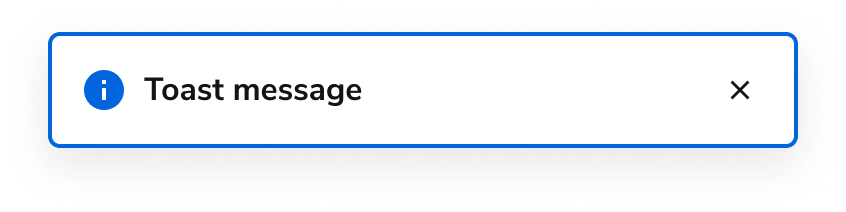
The Toast consists of four primary elements that work together to create temporary alerts that appear as a direct result of a user action.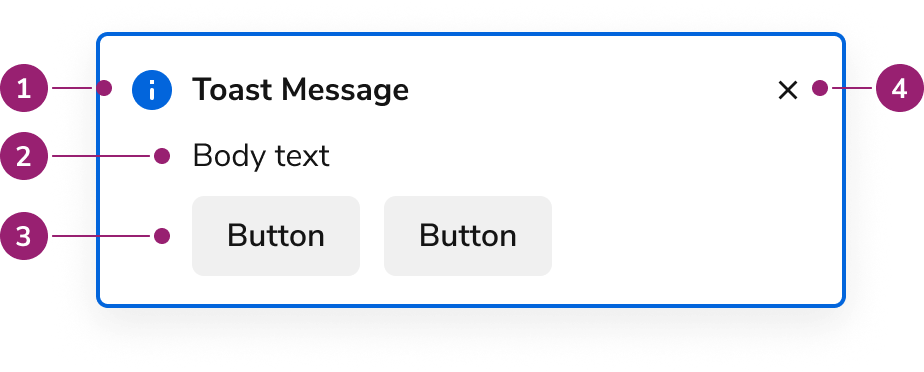
- Title
- Body content
- Actions
- Close button
Options
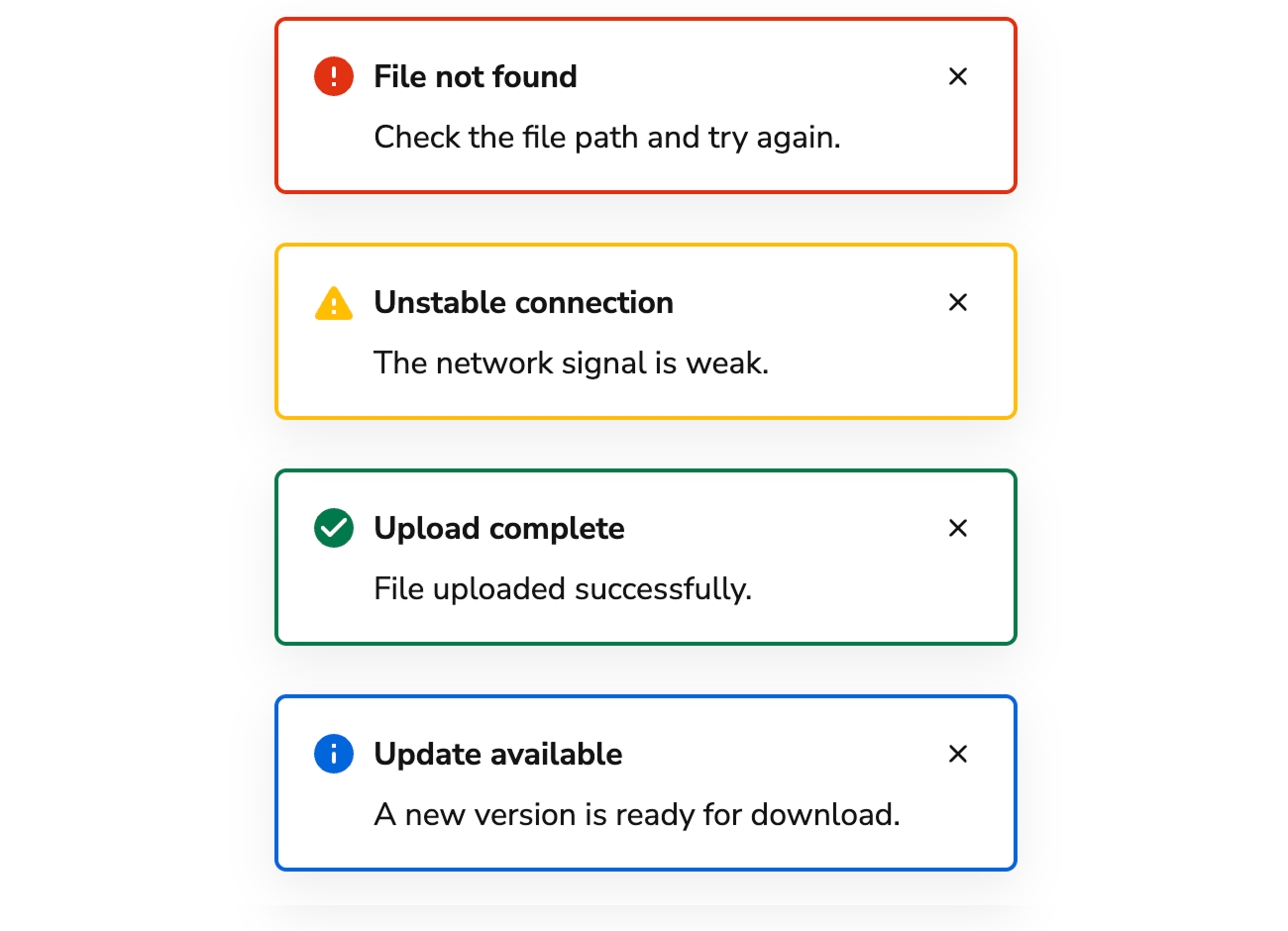
The Toast supports the following configurations to accommodate various notification scenarios.Status
Content Area
AI Mark
Include an AI Mark in a Toast when the title should indicate AI-generated content.Usage Guidelines
See the notification pattern for additional guidance.
Status Variations
Informational
Communicates operational information to the user. These are commonly used to denote the start of an operation, and usually includes follow-up notifications.
Success
Communicates the success of an operation, e.g., user preferences were updated. Avoid including the term “successfully” in success Toasts as it duplicates information.
Critical/Error
Critical Toasts are used when an operation was unable to be performed or has failed. Page-specific and form errors should utilize the Alert notification. When applicable, users should be able to take action on an operation.
Warning
Warnings are distinct from errors and represent issues that do not need an immediate resolution, but still need to be addressed. Unintended consequences in an operation and fallback choices are common examples. In general, users should be able to take action on a warning.
Alternatives
Toast vs Alert
Alerts are used to communicate information about either part of a page or a whole page. Alerts can be used to summarize information, such as a summary of errors. Toasts are brief pieces of information and usually appear as the result of user action.Toast vs Announcement
Announcements are used to convey app-wide messages, such as a new release being available, application maintenance, or sandbox information. Toasts are short pieces of information usually prompted by user action.Behavior
The Toast responds to timing requirements and positioning constraints while maintaining consistent notification appearance.How to Use
Positioning
Toasts are positioned in the top-right of the screen on top of application UI. Toasts do not cover any part of the global navigation.Timing
By default, Toasts are persistent until dismissed by a user. An optional timeout is available. The recommended duration is 8 seconds, but this can be customized. Toasts are always persistent in the following cases:- When there are any actions within the Toast.
- When a Toast contains a Progress Bar.
- When a Toast is in an error state.
Progress Bar
When the time to complete a task can be calculated, pair a Toast with a Progress Bar.Content
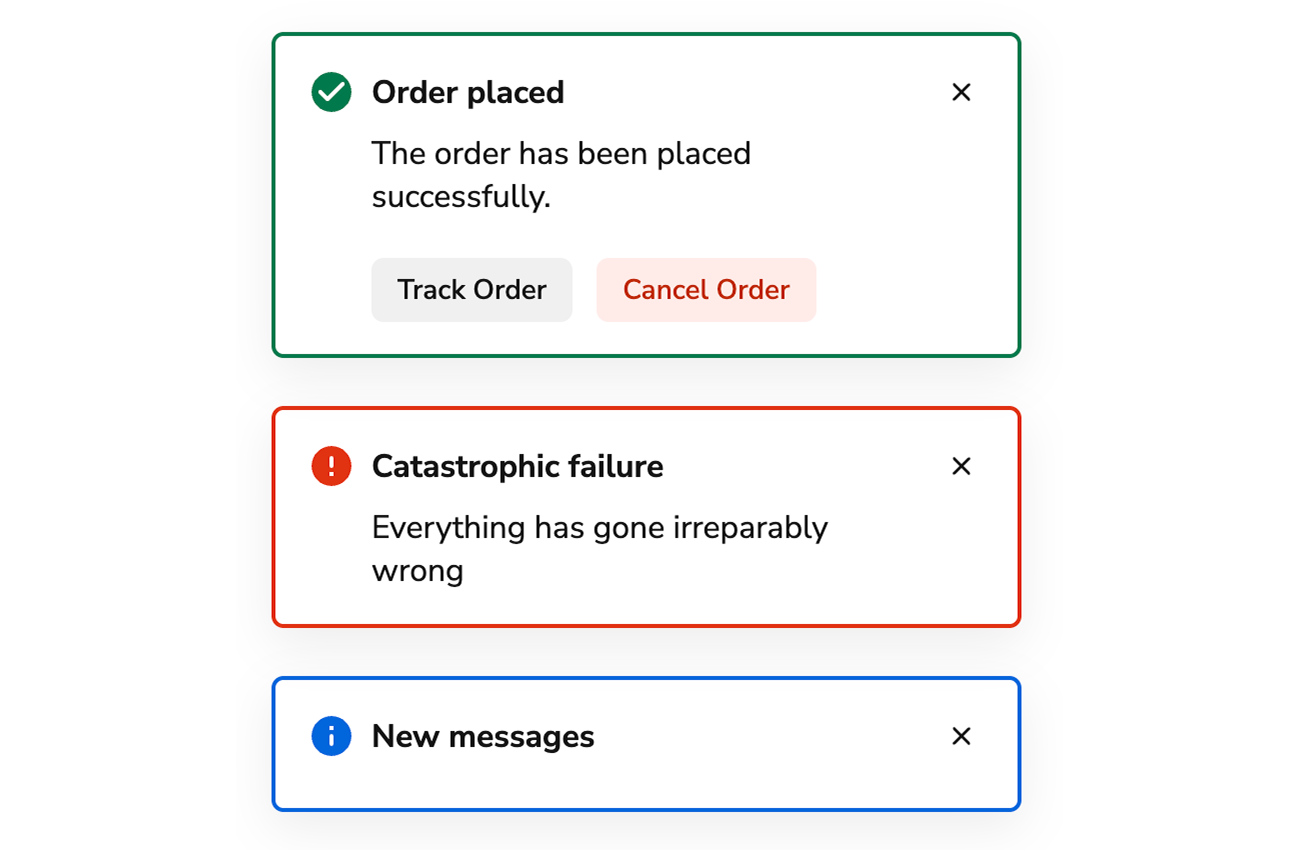
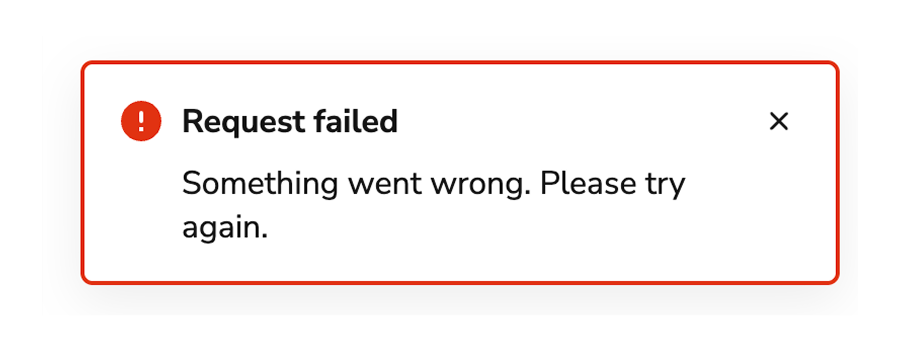
Content within the Toast should be brief, scannable, and actionable.Titles should be brief and scannable and as specific as possible.
Use sentence case. Don’t use periods and exclamation points, and avoid articles: a, an, the.Write titles as verbs
Titles should have a clear verb + noun question or statement.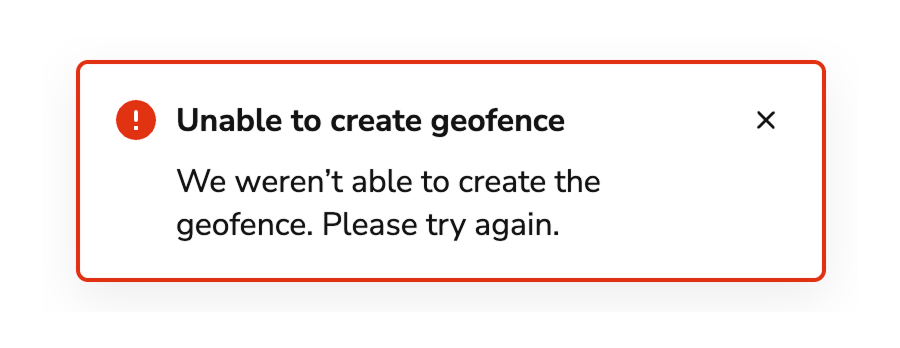
Do
Don’t
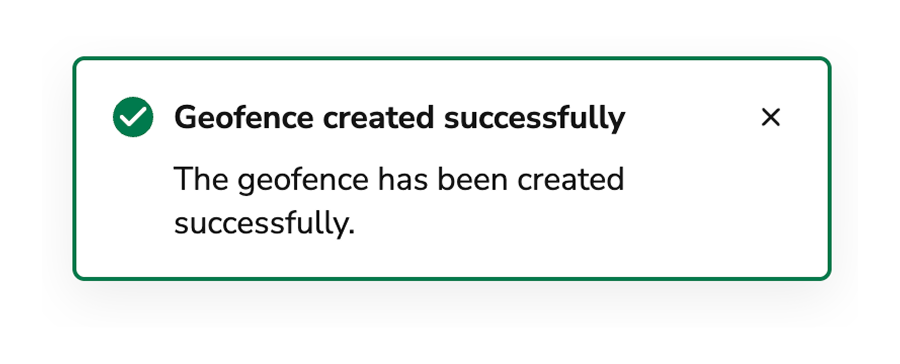
Messages that can be communicated in a single header don’t require body text.
Body text should only provide information that is not included in the header. Do not repeat information that’s already in the header.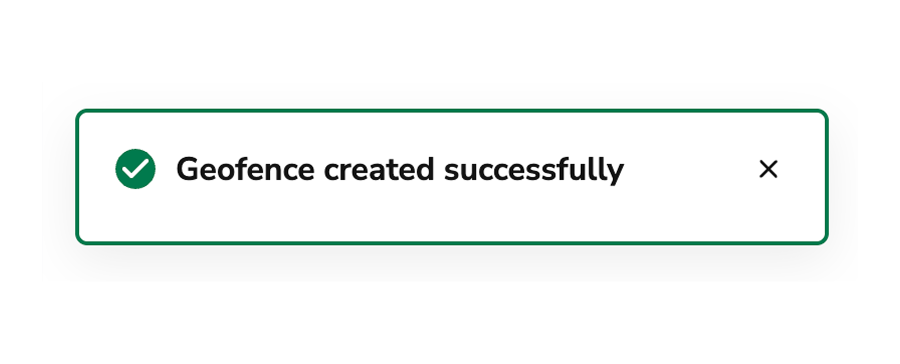
Do
Don’t
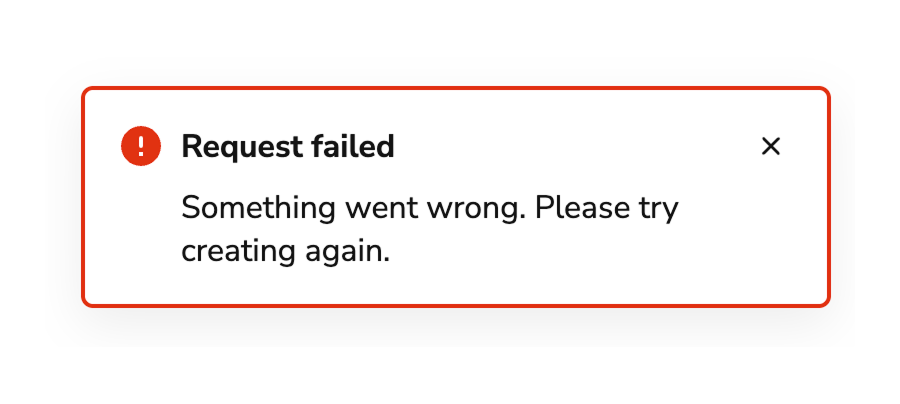
Make body content concise, informative, and actionable
Use imperative verbs when telling users what they need to know or do. Avoid permissive language like “you can”. Whenever possible, include an in-line action for a user to take so that they can readily address the issue explained in the message.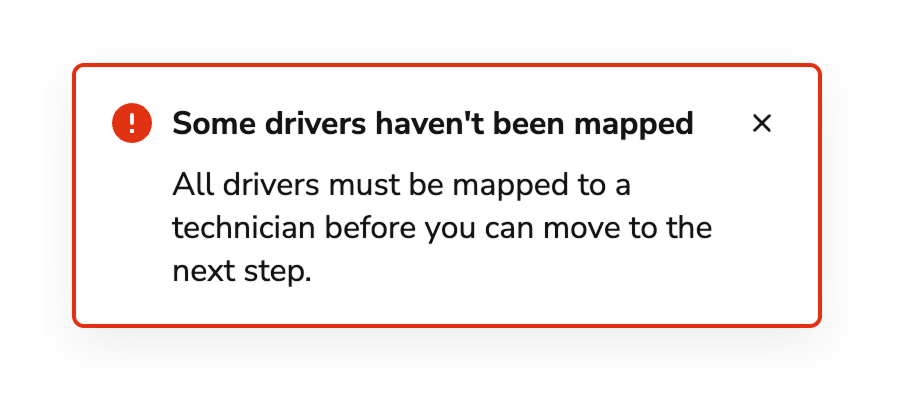
Do
Don’t
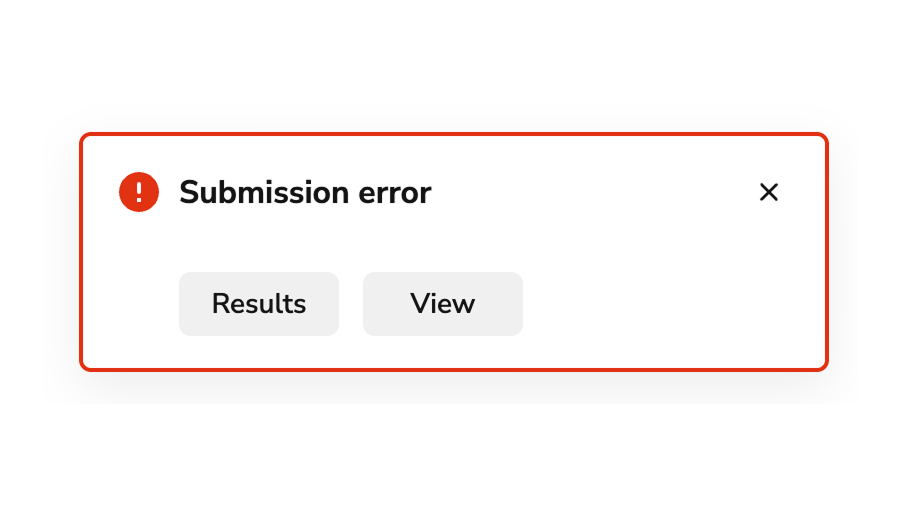
Buttons should be clear, predictable, and action-oriented
Users should be able to predict what will happen when they click a button. Lead with a strong verb that encourages action. Use a verb/noun pair on actions in most cases. Common actions like Save, Close, or Cancel do not require an accompanying noun.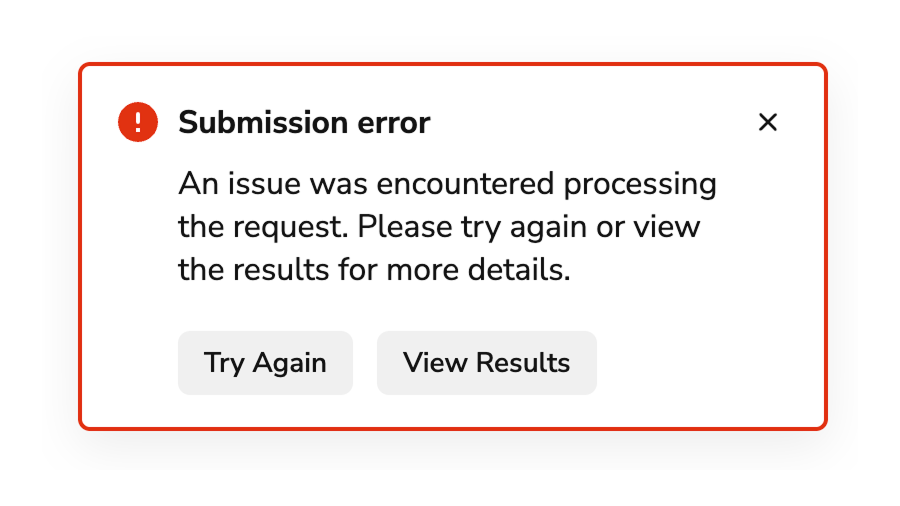
Do
Don’t
Code
- Implementation
- Toaster Props
- Toast Methods
Common Examples
Toast methods
There are seventoast methods available in Anvil2. Four of them are used to create standard toasts with varying styles:toast.info()toast.success()toast.warning()toast.danger()
toast.promise(), generates a pending toast, and uses a completed promise to update the toast based on a response.The other two are used to manage existing toast messages:toast.update()toast.dismiss()
Toasters
To use thetoast methods, there must be a Toaster component rendered somewhere up the tree, usually at the root of the application. The toaster is the container that toast messages appear in, and manages positioning, stacking, and dismiss timing updates.Multiple toasters
In order to avoid double-rendering toast messages, theToaster component will only render toast messages if it doesn’t detect another Toaster. This means if you are using a Toaster in a standalone MFE, it will display toasts, but will defer to the host’s Toaster when it is loaded in the host application.Note: A limitation exists where the Toaster cannot detect a Toaster in a sibling MFE. For this reason, there must be a Toaster in the host app to which MFEs will defer.Toaster config
To ensure consistency, theToaster component should handle most of the config options for toast messages within an app. The following props can be added:Showing basic toasts
Basic toast method examples
Toast method config object
All of the basic toast methods accept a config object with the following shape:Notes for basic toast methods
- Toasts with
actionswill ignore the duration setting to allow users a chance to perform an action. - The toast config passed to a toast method will override some of the defaults set on the
Toastercomponent.
Using promise toasts
Promise toast example
Promise toast method config object
The config object passed to toast.promise() should have three properties –loading, success, and error.Notes for promise toasts
- The first parameter of the
toast.promise()method should be aPromisethat either resolves or rejects. Otherwise, the loading state will render indefinitely.
Using progress toasts
Theprogress property can be passed to any toast creation method or toast.update() to display a Progress Bar inside the toast.Notes for progress toasts
- Set
progressto a number from 0–100 for a determinate progress bar, or"indeterminate"for an indeterminate one. - Use
toast.update()to advance the progress value as work completes. - Set
duration: falseto prevent the toast from auto-dismissing before the operation finishes. - When the operation completes, use
toast.update()with a newstatusto change the toast’s visual style.
Updating toasts
Notes for updating toasts
- An
idfor the toast message to be updated is required as the first parameter of thetoast.update()method. Thisidis provided as the return value of any of the toast creation methods. - Any of the
toastPropscan be updated using this method, includingprogress. statuscan also be set intoast.update()to change the toast’s visual style (e.g. changing from"info"to"success"when an operation completes).
Dismissing toasts
When toasts are dismissed
Toasts without
actions auto-dismiss after the duration expires.Toasts with actions ignore the duration setting and are only dismissed when the user takes direct action: pressing the “x” button, clicking a toast action button, or calling toast.dismiss() programmatically.- By pressing the “x” button on the toast message.
- By swiping the toast message off the screen on touch screens.
- Automatically after the
durationexpires, if supplied on theToasteror in thetoastmethod. - Programmatically using the
toast.dismiss()method.
Notes for dismissing toasts
- The
toast.dismiss()method accepts an optionalidparameter to dismiss a specific toast message. Thisidis given as the return value of any of the toast creation methods. - If no
idis provided, all visible toast messages will be dismissed. - If a
durationis provided, and the toast becomes stacked (hidden), the timeout is paused and restarted once the toast becomes visible again.
Callbacks for toast dismissal
There are two callback parameters available on the toast methods:onCloseis passed to the “x” button’sonClick, so it is only run when the user activates the buttononDismissis run anytime the toast is removed, including on “x” button click, whentoast.dismiss()is run, or when thedurationexpires on the toast
Using toast actions
Theactions property of the toastConfig that is passed to toast creation methods can be used to add one or two Button components to the toast message. The actions property accepts an object with two properties:ToastAction type is used to update some Button props of the action button.AI Mark
Add an AI Mark inline after the toast title by includingaiMark in the toast config. Use true for the sparkle only, or pass tooltip or popover configuration.Toast event handling
Whenever a toast is added, updated, or dismissed, theToaster component runs the onToastEvent callback with the following object passed in the event:toast.dismiss() will not include toastProps, since it affects all of the existing toasts.MFE Toaster note for toast event handling
TheToaster used in the monolith/host app will take precedence over any loaded by an MFE, so the onToastEvent will generally not work for MFEs that are run in a host app that includes its own Toaster, such as monolith.React Accessibility
- When
actionsare used, do not add adurationso that users have time to decide if they would like to take action. - By default, pressing the “t” key on the keyboard while a toast message is visible will shift focus to the toast. This is announced by screen readers to make the messages easily accessible for some users. If the “t” key is used for another hot key, this can be overridden using the
focusKeyprop of theToaster.