

Anatomy
Dnd consists of three primary components that work together to create drag and drop interfaces.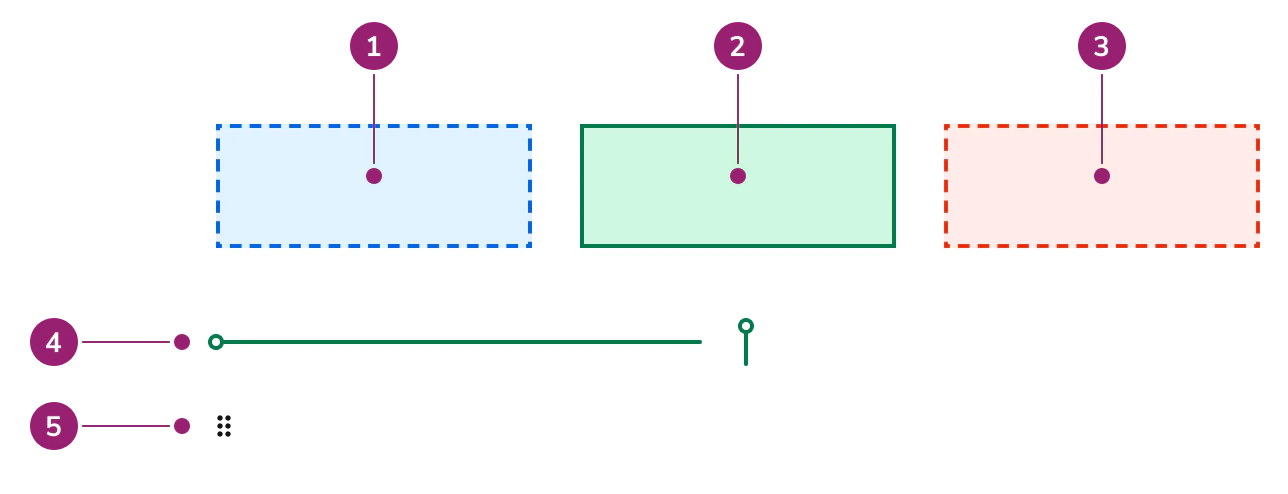
- Drop Zone - Active but not over
- Drop Zone - Over and valid
- Drop Zone - Over and invalid
- Sort Line
- Handle
Options
Dnd supports the following configurations to accommodate various drag and drop scenarios.Drop Zone
Drop Zone displays different visual states based on drag conditions:- Active but not over - Shows a dashed border when an item is being dragged but not over the drop zone
- Over and valid - Shows a solid border with success styling when a valid item is over the drop zone
- Over and invalid - Shows a dashed border with danger styling when an invalid item is over the drop zone
Handle
The Handle displays an icon to indicate that an item is draggable. It can be configured to be decorative or interactive, depending on the use case.Sort Line
Sort Line indicates where an item will be dropped in a sortable list. The line width is based on its nearest relatively positioned ancestor. Use Sort Line for one-dimensional sorting in vertical or horizontal lists. Sort Line is not suitable for two-dimensional sorting such as grids.Usage Guidelines
Dnd is a collection of UI components, rather than a complete drag and drop solution. Additional work is needed in design to make it a complete drag and drop solution.Alternatives
Dnd vs DndSort
DndSort is a pre-built composition that uses all Dnd components to cover many basic cases including sorting a list, arranging items into groups, or both. Use DndSort when it meets your needs. Use Dnd when you require custom drag and drop behavior beyond what DndSort provides.Provide alternatives to Drag and Drop
While Dnd is keyboard navigable, alternative interactions should be provided for users who cannot or do not want to use drag and drop.Content
Content within Dnd components should clearly communicate drag and drop capabilities and provide appropriate visual feedback.- Drop Zone content should indicate what can be dropped in the area
- Handle and Handle Button should be clearly visible and indicate draggability
- Sort Line should appear at the precise drop location to guide users
Keyboard Interaction
Users can navigate Dnd components using standard keyboard controls. Dnd components provide visual styling only and do not implement keyboard interactions. Implement keyboard navigation using your chosen drag and drop library or custom keyboard handlers to ensure accessibility.Code
- Implementation
- Dnd.Zone Props
- Dnd.Handle Props
- Dnd.SortLine Props
Bring your own drag-and-drop interactions.While these components are intended to help you create drag and drop experiences that align with our designs, they do not provide the actual drag-and-drop interactions. You should evaluate external libraries make the best choice for your needs.
Common Examples
Zone
TheDnd.Zone can be used to style an element as a drop zone.Handle
TheDnd.Handle is an icon which helps users understand that something is draggable.Handle Button
TheDnd.HandleButton is a button-wrapped icon which helps users understand that something is draggable. Use this if your draggable item contains other interactive elements.Sort Line
TheDnd.SortLine indicates where an item will be dropped in a sortable list.The width of the line is based upon its nearest relatively positioned ancestor.This component should be used when you’re building an experience that is sortable in one dimension (i.e. vertical or horizontal lists). It is not suitable for sorting two-dimensional sorting (e.g. grids).DndSort
If you’re not looking to create your own entire drag and drop solution, check to see ifDndSort is capable of supporting your needs. It’s a pre-built composition that uses all of these Dnd components to cover many basic cases including: sorting a list, arranging items into groups, or both. Read more about that component here.Best Practices
Draggables with interactivity
Do
Don’t