


Anatomy
The Alert consists of four primary elements that work together to communicate important information to users.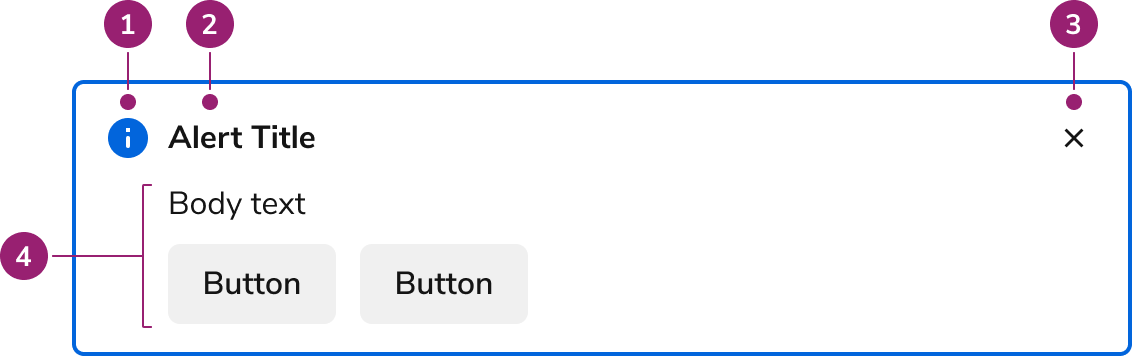
- Status icon
- Title
- Close action (Optional)
- Body content (presented as text and actions) (Optional)
Options
The Alert supports four status types and flexible content configurations to accommodate various messaging scenarios.Status
Content Area
The Alert allows for any type of content inside below the title and icon. This is typically represented as text and 0–2 actions (as Secondary Buttons).Close
Control Alert visibility by conditionally rendering it. Unlike Dialog or Drawer, Alert does not include an open prop. Preserve the close action by default. Remove it only when an alert must persist, such as in warning or danger scenarios.AI Mark
Include an AI Mark on an Alert when the title should indicate AI-generated content.Behavior
The Alert responds to content overflow by expanding vertically to accommodate longer messages while maintaining its visual structure.Overflow handling
Usage Guidelines
Alternatives
Alert vs Announcement
Announcements are used to convey app-wide information. They are placed as a global element on the page. Alerts are contextual to an area of an app, and are more flexible in scope and layout position.Alert vs Dialog
Dialogs are interruptive by design, while an Alert is non-disruptive. Prefer using an Alert when information needs to be conveyed. Use a Dialog only when there is a clear need to interrupt a flow, such as a confirmation of destructive or irreversible actions.Alert vs Toast
Alerts are used to communicate information about either part of a page or a whole page. Alerts can be used to summarize information, such as a summary of errors. Toasts are brief pieces of information and usually appear as the result of user action.How to Use
As part of a form
Pair alerts with forms, typically as part of an error pattern.Layout positions
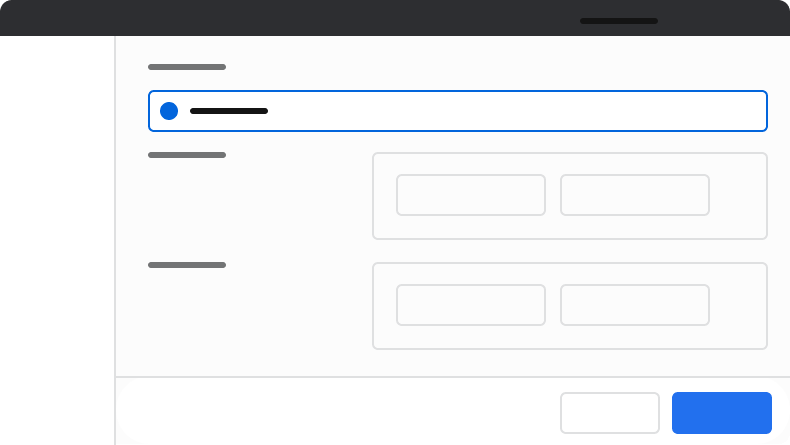
Position alerts toward the top of their related context. This includes UIs such as Pages, Drawers, and Dialogs.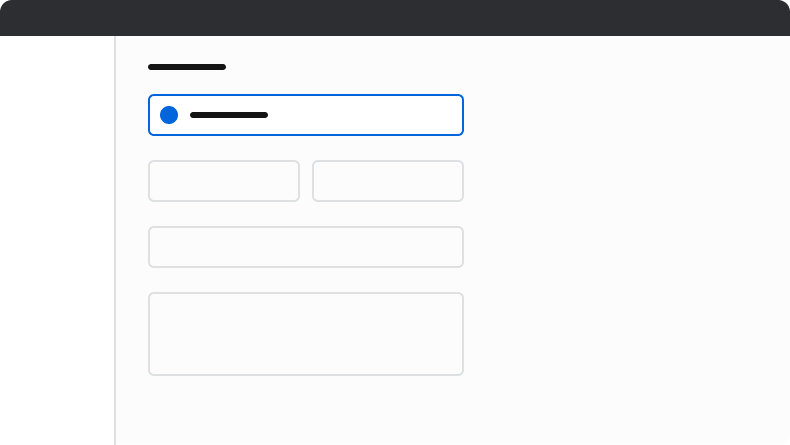
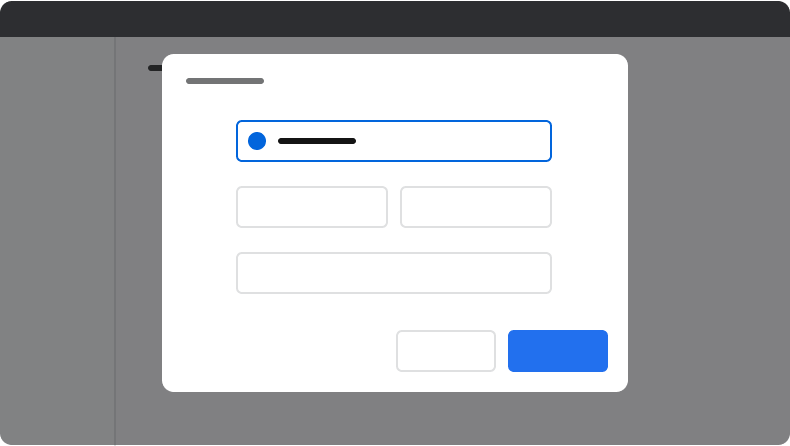
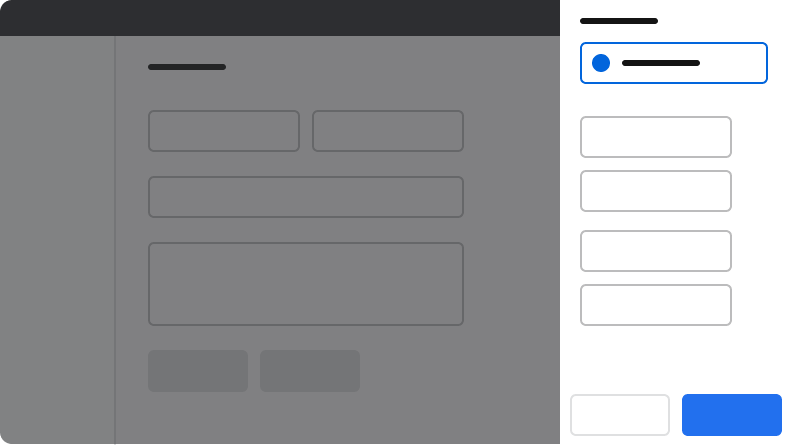
Content
Content within the Alert should communicate clearly and concisely, helping users understand the situation and take appropriate action.Use a title that identifies the issue
Titles identify the issue clearly. Write titles in sentence case. Put longer copy in the content area, not the title.Do
Don’t
Focus on a single message
The body content should focus on a single, simple message or action to avoid overwhelming the user with too much information. Avoid repeating the information in the title. Do not use periods in short phrases or single sentences. An exception to this rule is for a summary of errors, typically found with forms.Do
Write concise, action-oriented body content
Do
Don’t