

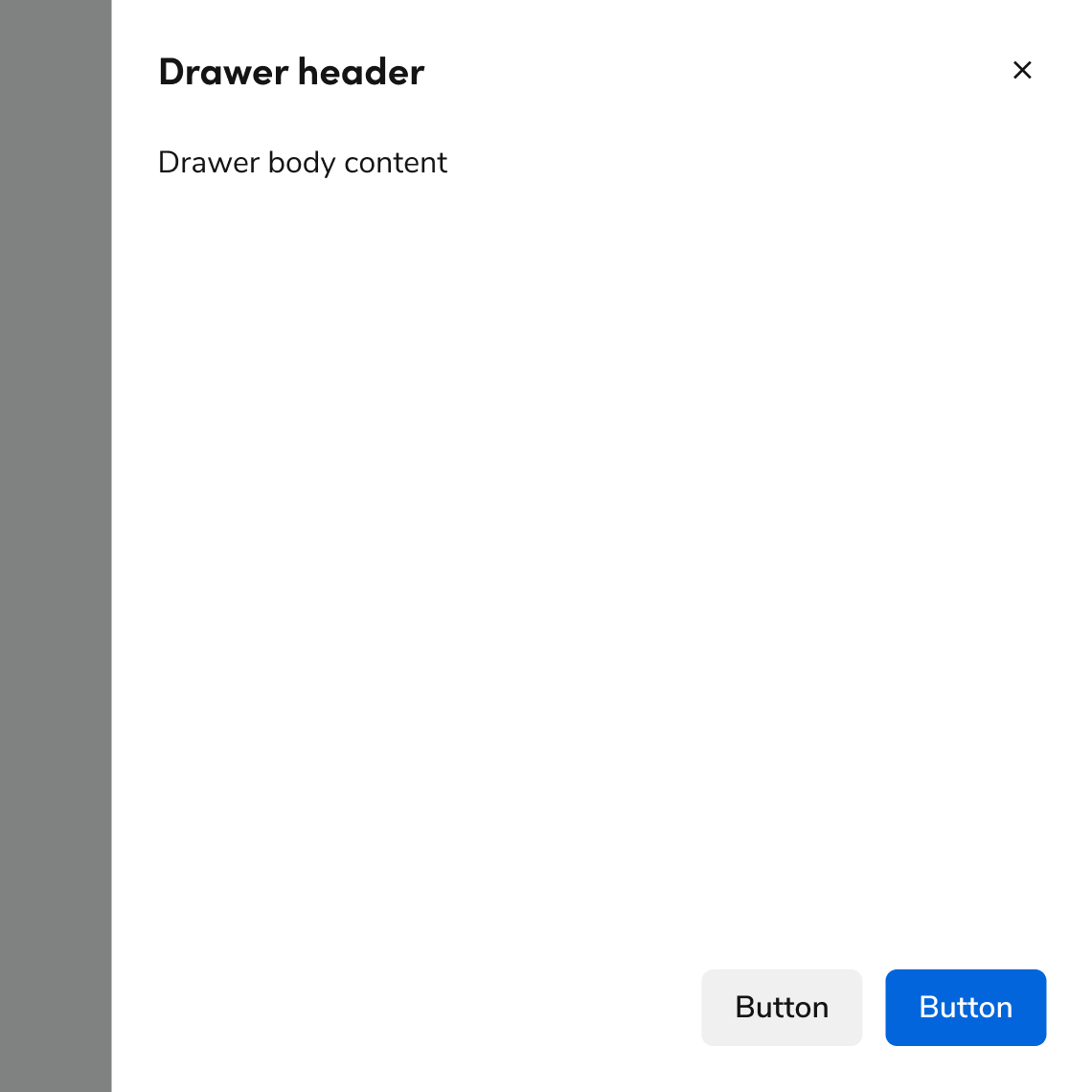
Anatomy
The Drawer consists of six primary elements that work together to slide content onto the page from the right.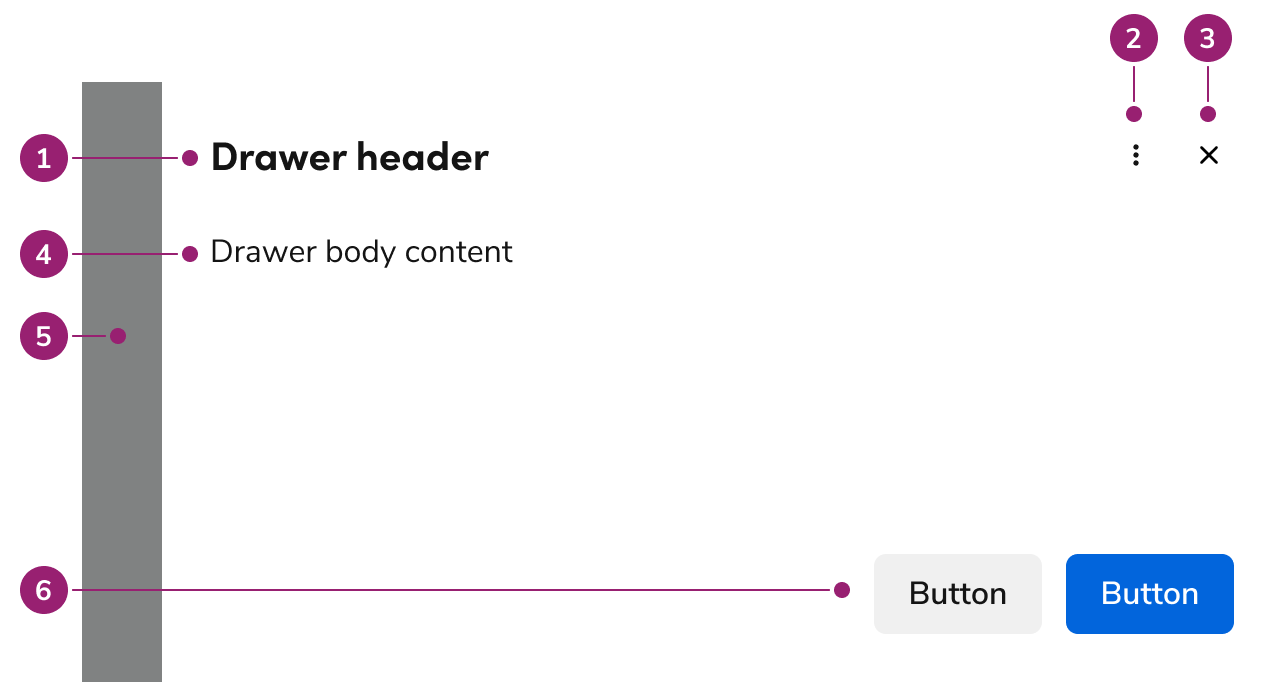
- Header
- Header actions (Optional)
- Close action
- Body content
- Backdrop
- Footer actions
Options
The Drawer supports flexible content, header actions, footer actions, and sizing configurations to accommodate various flyout scenarios.Header actions
Drawer supports an optional overflow menu in the header for secondary operations related to the drawer content. Header actions appear to the left of the close action.Body content
Drawer supports any type of content in the body.Footer actions
Drawer supports several types of action groupings. These typically include one primary action and may include elements such as links or destructive actions.Sizing
Drawer supports 4 sizing options: small, medium (default), large, and extra large.Behavior
The Drawer responds to content overflow and scrolling requirements while maintaining focus management.Overflow handling
Header and footer content in Drawer wraps rather than truncates. Footer actions support custom overflow behavior when needed.Scrolling
The body region of Drawer scrolls when space is not available. The footer can be configured to scroll with the body but is typically sticky.Usage Guidelines
Use Drawer to show information or a task without navigating to another page.Alternatives
Consider integrating the content directly on the page instead of using a Drawer. This allows users to continue to both see and interact with the rest of the content on the page.Drawer vs Dialog
How to Use
Position the Drawer on the right
Drawers always appear on the right side of the page.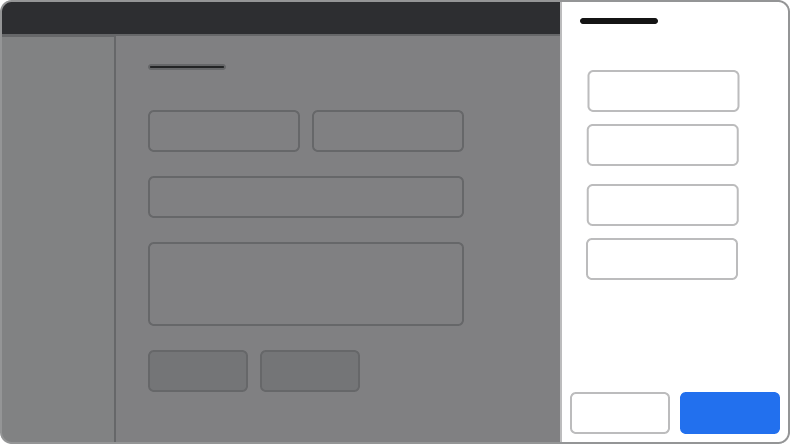
Do
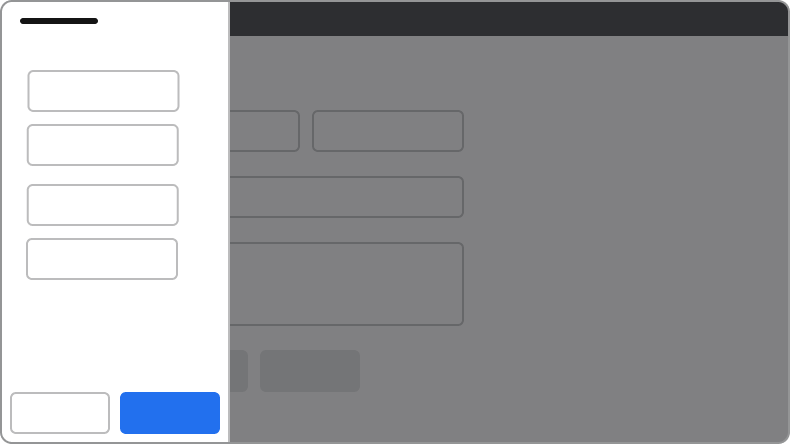
Don’t
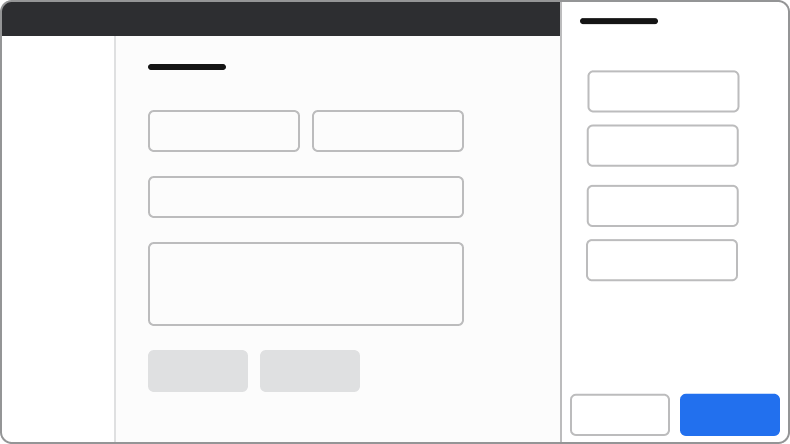
Always use a backdrop
The backdrop reinforces the focused nature of Drawer and prevents de-synced states. If side content must not have a backdrop, integrate the content directly on the page instead.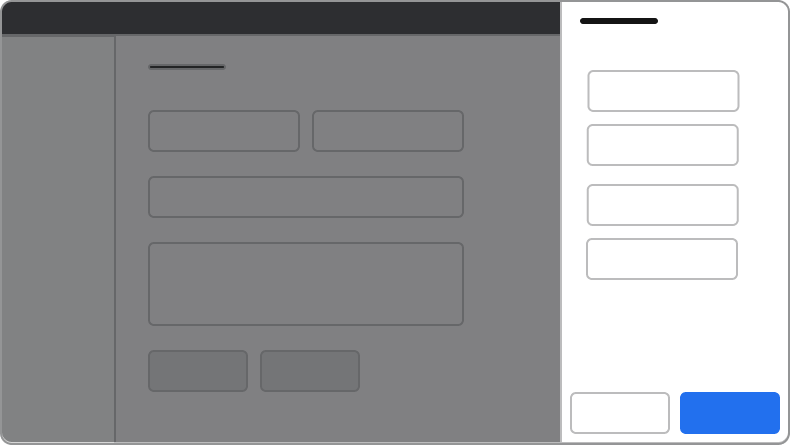
Do
Don’t
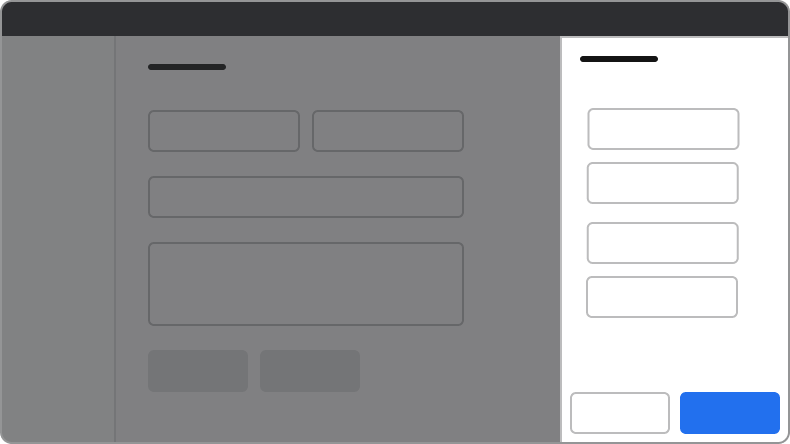
Always extend the Drawer to the screen’s full height
Drawers will always extend to 100% the height of the browser window. Don’t offset the Drawer to fit below other elements on the page.Do
Don’t
Dialogs on top of Drawers
Avoid stacking overlay elements. A confirmation message through a Dialog is an exception. If a confirmation Dialog is needed within a Drawer, use an alternative to Drawer.Content
Content within the Drawer should be clear, organized, and support the task or information being displayed.Keyboard Interaction
Users can navigate the Drawer using standard keyboard controls.Accessibility
Focus management
There are a few different things to keep in mind with the Drawer’s focus behavior.Trap focus within the Drawer
By default, the Drawer will trap focus within itself. Elements outside of the Drawer would not be accessible by keyboard.First focus management
What elements Drawer focuses on open depends on a few factors:- If the body content has a focusable element, Drawer focuses on the first of these elements.
- If the body does not have a focusable element, the following is the preferred first-focus element:
- With no actions at all, focus first on the close action.
- When a primary action exists, focus first on the primary action.
- When a primary destructive action exists, focus first on the secondary cancel action.