

Anatomy
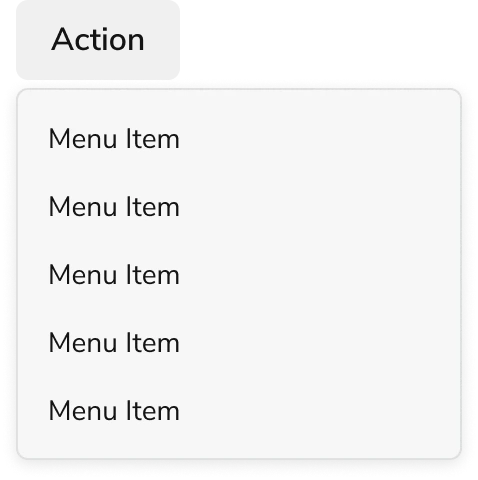
The Menu consists of four primary elements that work together to provide users with an actionable list of options.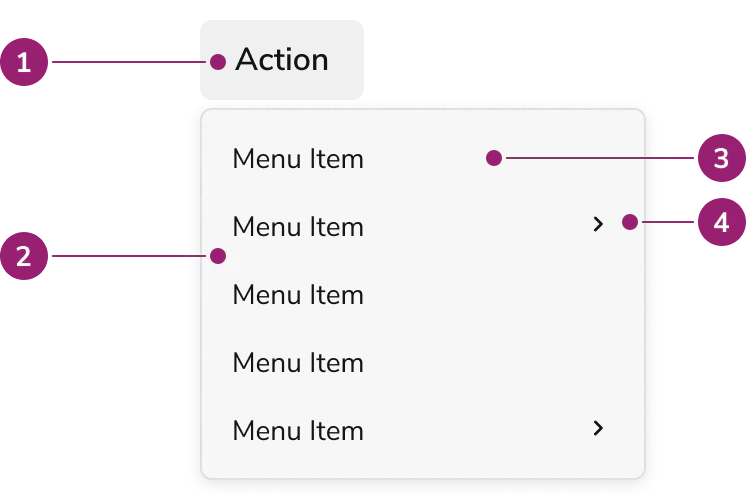
- Trigger
- Popover
- Menu item
- Nested Menu item
Options
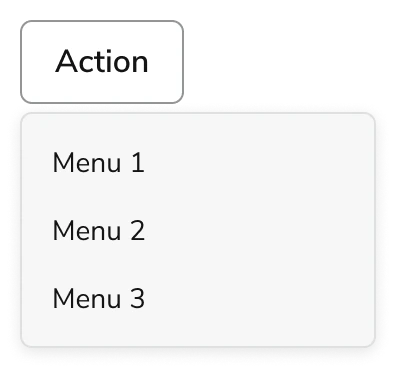
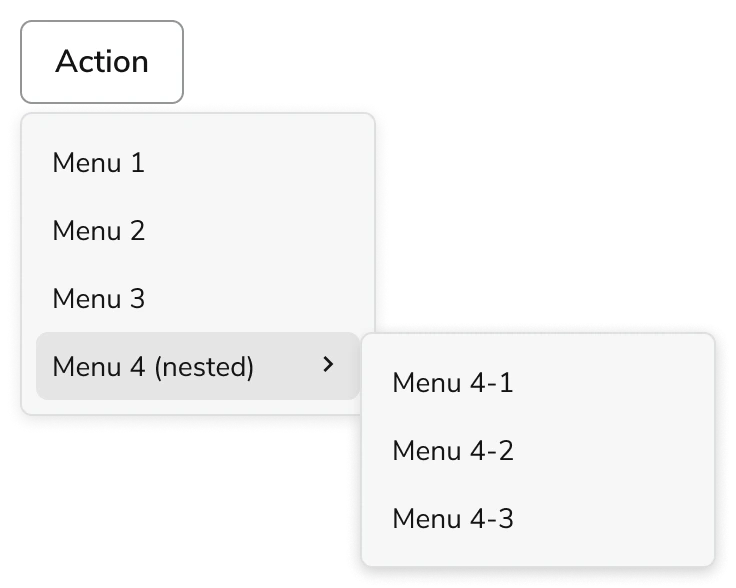
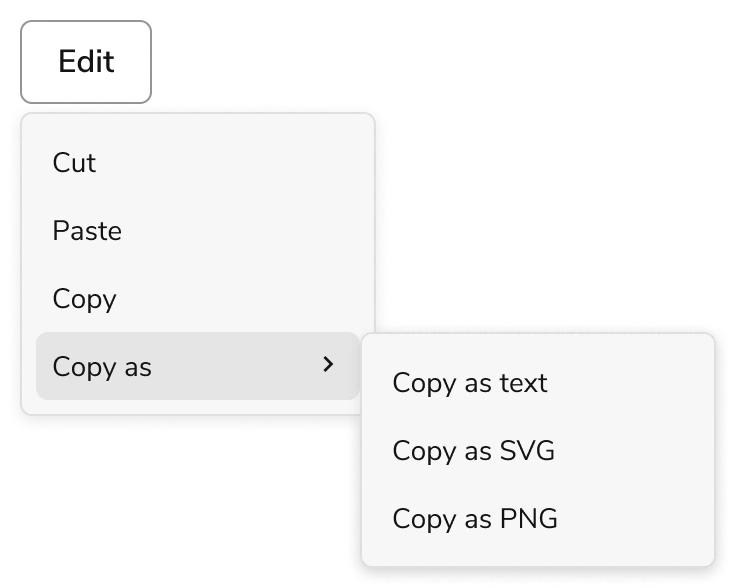
The Menu supports flat and nested configurations to accommodate various action list scenarios.Flat
Nested
Behavior
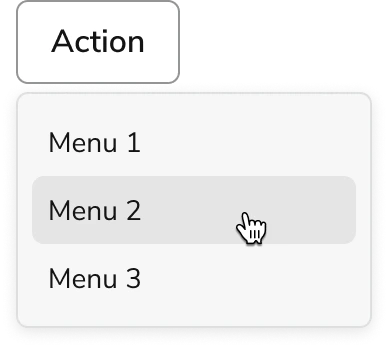
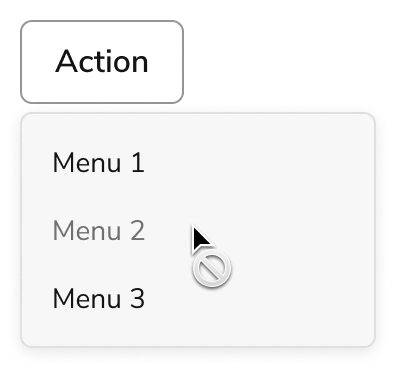
The Menu responds to user interaction with distinct visual states and synchronized focus and hover behaviors.Visual States
Default
Hover
Disabled
Focusing
Focus and hover states are synchronized. Moving the mouse over a menu item will automatically set focus to that item. Similarly, navigating through the menu with keyboard focus will trigger the hover state on the focused item.Usage Guidelines
Alternatives
Menu vs Combobox
The Menu is used to perform actions on the page, and sometimes also a navigational context. The Combobox is used for choosing an option amongst a list, usually in the context of a Form.Menu vs Popover
When a list of actions need to take place, the Menu should be used. It is not recommended to recreate menu-like interactions through a Popover.How to Use
Parent and Children
Menu trigger should have direct relationship to its children. This also applies to the nested version of the Menu.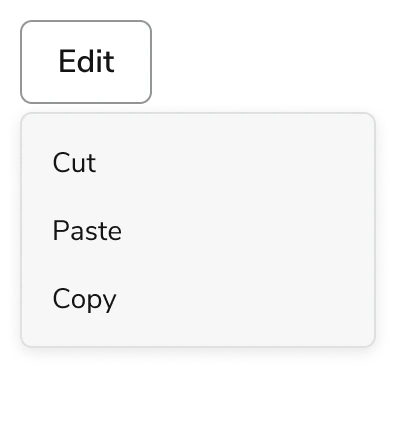
Disabled Handling
- When an action is temporarily unavailable, use disabled state
- When a user does not have the credentials to take action, do not display these unavailable actions to them. This avoids cluttering the UI and confusing the user when they are unable to take action. When a component is disabled, it is not interactive, meaning tooltips are not available to inform more.