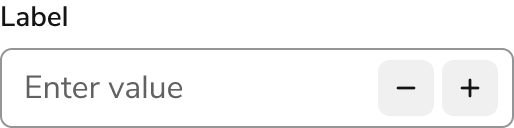
Anatomy
The Number Field consists of seven primary elements that work together to accept numerical input.
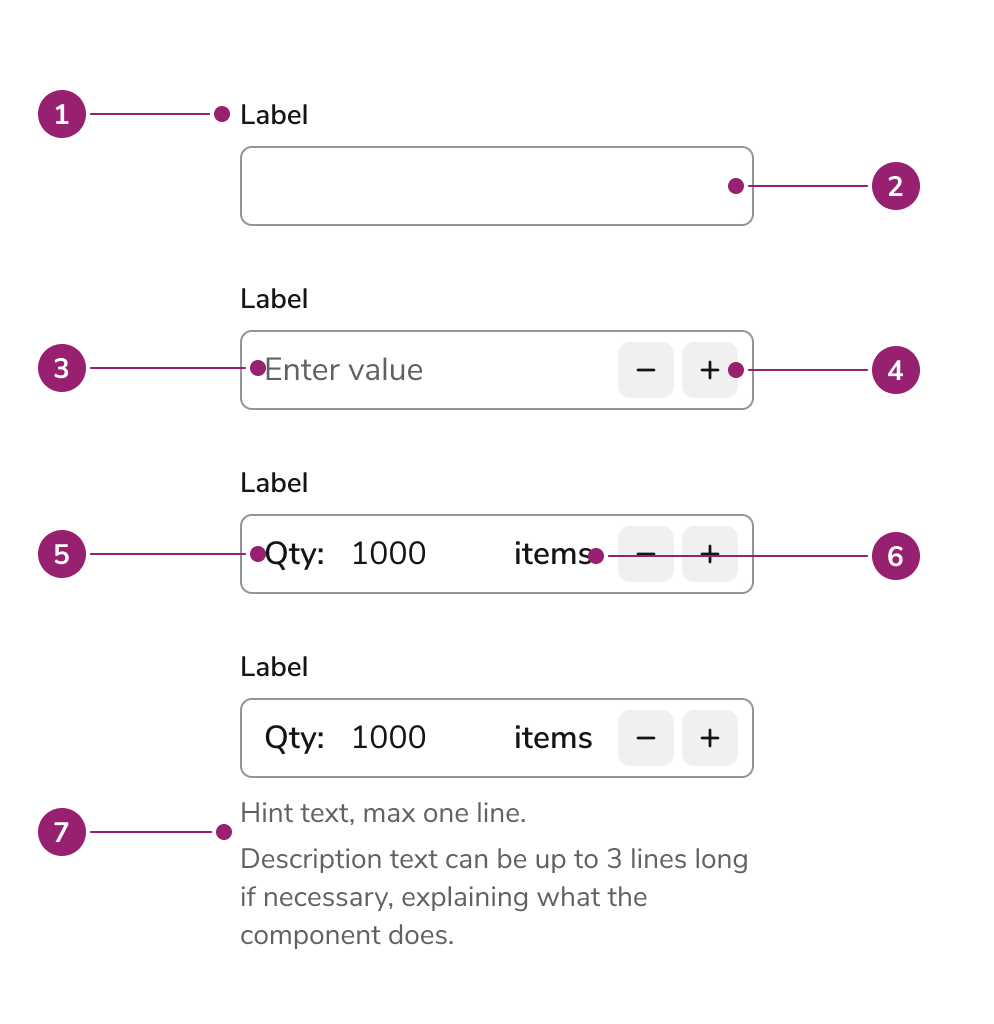
- Label
- Field
- Placeholder
- Increment/Decrement buttons
- Prefix
- Suffix
- Helper texts
Options
The Number Field supports the following configurations to accommodate various numerical input scenarios.
Sizes
| Size | Height |
|---|
| Small | 2rem (32px) |
| Medium (default) | 2.5rem (40px) |
| Large | 3rem (48px) |
Prefix
Suffix
Behavior
The Number Field responds to user interaction with distinct visual states and flexible width behaviors.
Overflow
For long number entries, the content within a Number Field will scroll horizontally. The visible portion of the text will automatically follow the cursor, ensuring the user can always see what they’re typing.
Visual States
Widths
Number Fields should generally be sized to the expected length of the value a user will enter. Unless a specific width is set, the field will automatically fill all available horizontal space.
Usage Guidelines
Use the Number Field when accepting numerical input that doesn’t have a dedicated component.
When to Use
Number Field is the standard component for any numeric input that doesn’t have a dedicated component. It’s designed for general-purpose numeric values and allows you to use decimals, define step values, and set boundary limits.
Use it for:
- Quantity: The number of items, for example.
- Measurements: Values for height, weight, or distance.
- IDs and Codes: Numerical identifiers, such as account numbers.
Note: Dedicated components such as Percentage Field and Currency Field are planned to handle those specific use cases.
How to Use
Read-only
Using a read-only Number Field is the recommended way to display information that users can review but not change. Unlike a disabled field, a read-only field remains fully accessible: users can still copy the text, focus the input, and interact with it using a screen reader. Additionally, it maintains the necessary contrast for optimal readability.
Prefixes and suffixes
Prefixes and suffixes provide clear context for a Number Field, preventing any misunderstanding of the value being entered.
Prefix
Use a prefix to add a descriptive label to the left of the input. For example, using Qty: helps a user immediately understand the purpose of the number they are entering.
Suffix
Use a suffix to provide a unit of measurement or another clarifying label to the right of the input. This is useful for units like items, minutes, or lbs.
Labels and Help text
For guidance on labels and help text, check out our Labels and Help pattern.
Validation
For form validation guidance, check out our Form Errors and Validation pattern.
Content
Content within the Number Field should clearly communicate the expected numerical value through labels, prefixes, and suffixes.
Keyboard Interaction
Users can navigate the Number Field using standard keyboard controls. Last modified on January 23, 2026