

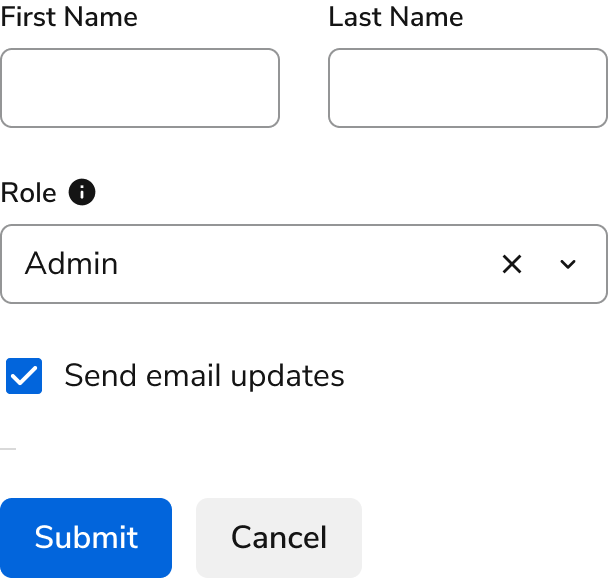
Form Anatomy
Forms are made up of many possible components, including many represented below.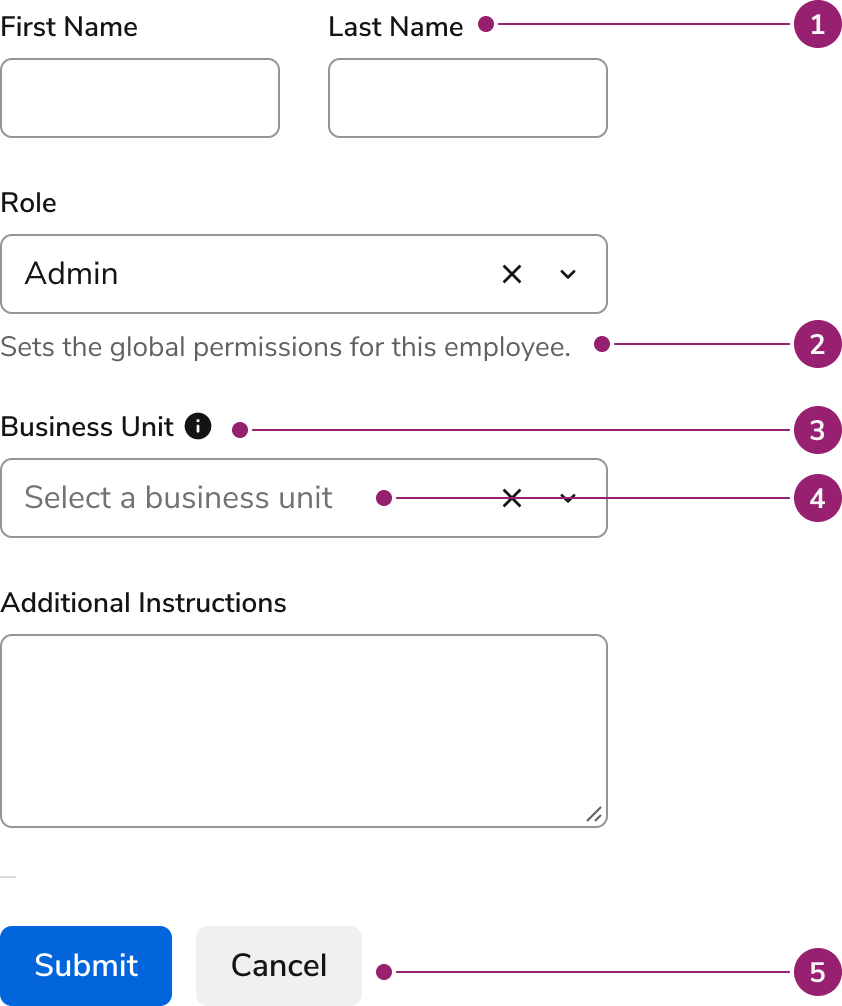
- Label
- Description
- More Information
- Placeholder
- Form Actions
Suggested spacing
The following are suggested spacing for form elements. Spacing within the component is set by the system, while spacing between components is suggested.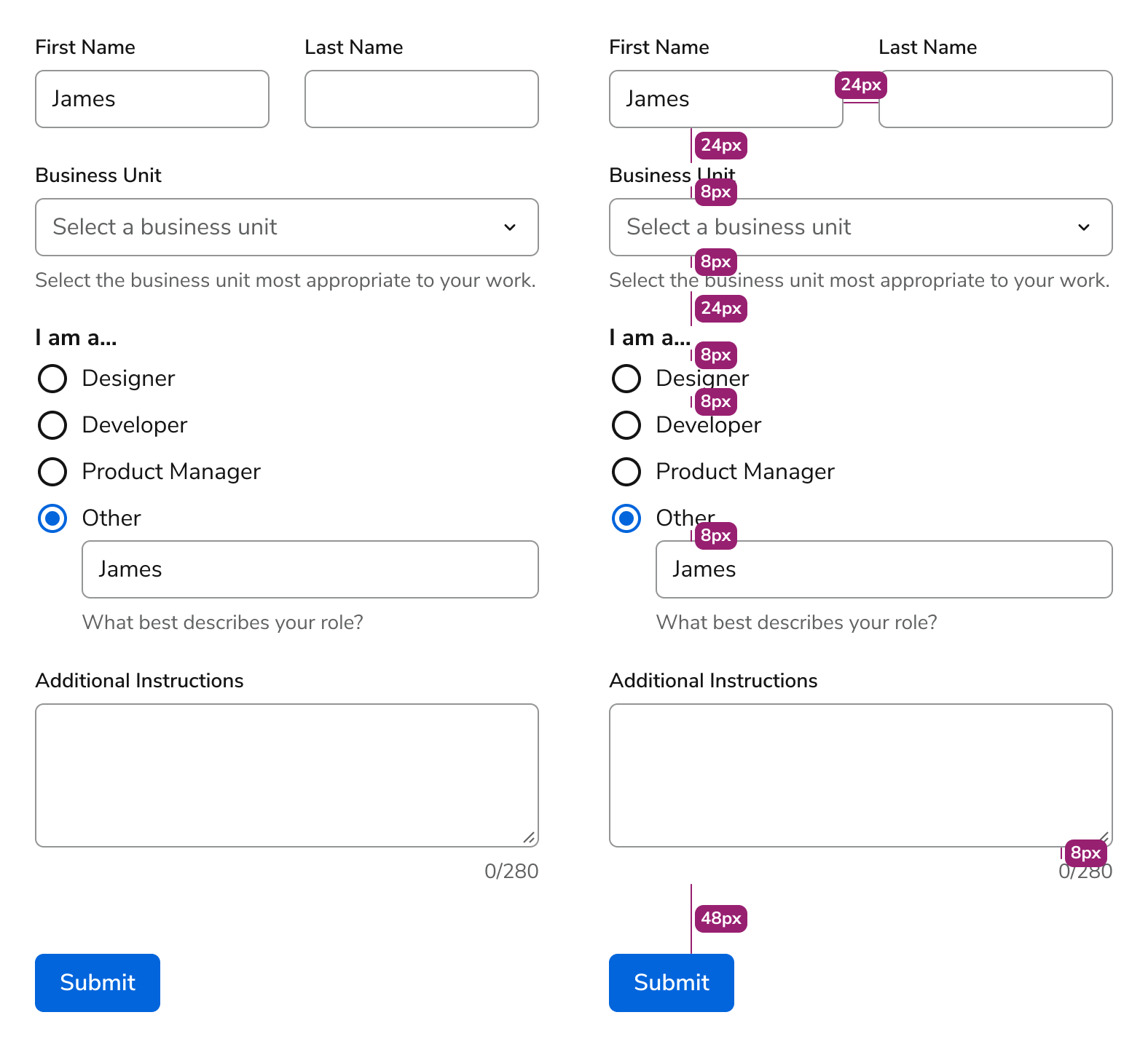
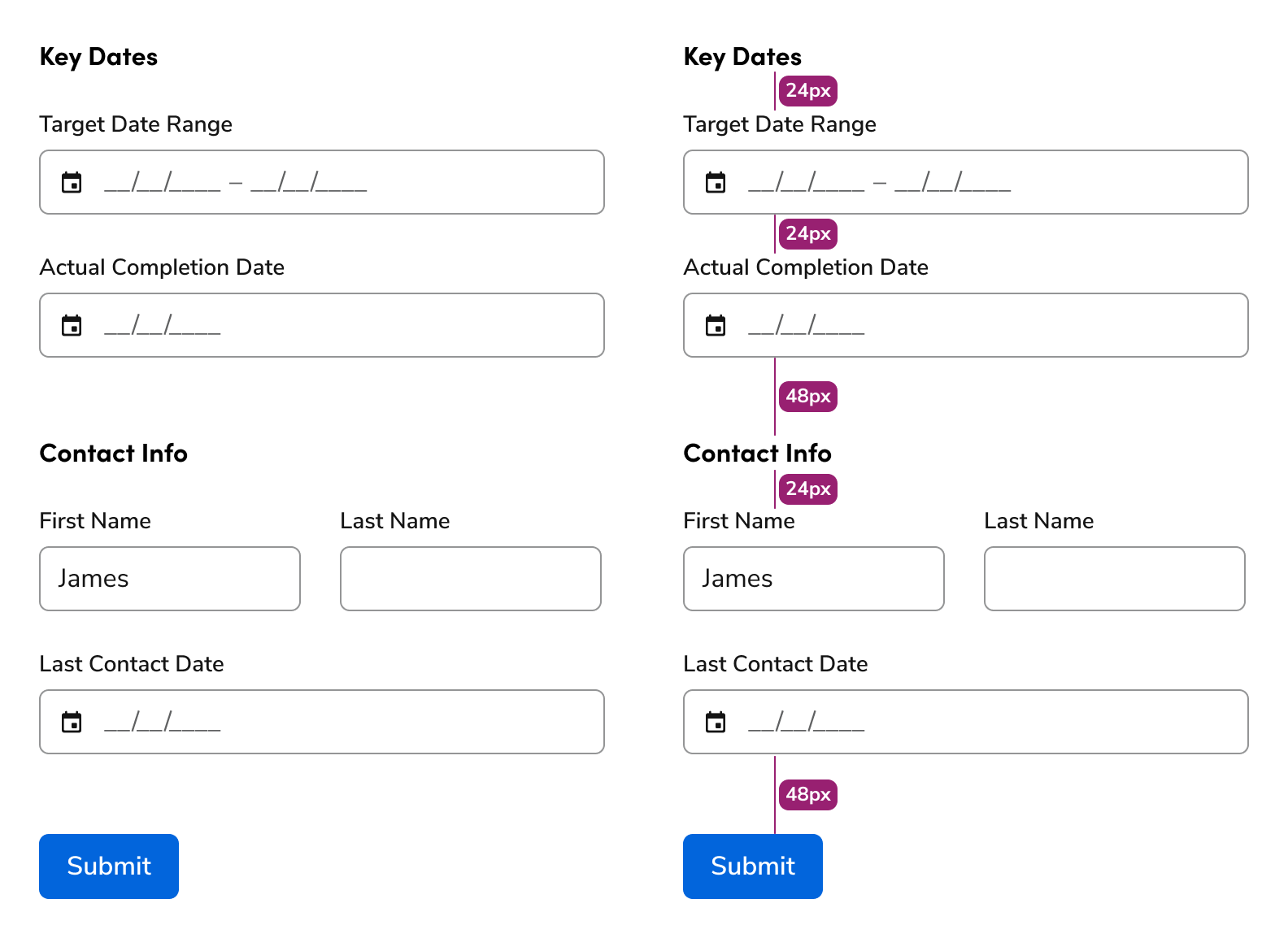
Group spacing
Columns
As a rule, form elements should be limited to 1 column. Multi-column layouts can be used when there is sufficient space on the screen for it, and the elements are logically related to each other.Forms in Layouts
In a Dialog
As a rule, form element width should conform to the size of the Dialog’s set width.Labels and Help
What help elements should we use?
Labels should almost always be used
Most contexts for forms require a label. Some exceptions include when an icon can clearly explain the use case, such as a search input, or if a label exists elsewhere, such as a table column.Do
Don’t
Use inline help for essential and supplementary information
Descriptions are strong at providing additional information necessary to complete a form.Use more info for supplementary information
More info help can de-clutter a page by putting supplemental information behind an overlay element.Hints and Descriptions are preferred over more info
Hint text and description text always being visible on the page improves the usability of the content itself. More info can still be used however, particularly when the content density of the page is high.Relationship between Hint, Description, and Error text
Hint Text
Hint text primarily focuses on the expected format for an input. It appears before a user interacts with a form field or when the field is empty.Description Text
Description text provides broader context about what the form field is about or what impact it would make. It appears after the Hint text. It helps users understand why they are providing this information and the implications of their input.Error Text
Error text appears when a user’s input fails validation. Hint text remains visible alongside the error to provide persistent contextual guidance. Error text clearly and concisely describes what went wrong and often suggests a way to correct the issue. Description text persists regardless. Multiple error messages and warning messages are also supported. The combination of Hint, Error, Warning, and Description text should be kept concise, where Hint is typically one line and Description is at most three.Placeholder text should generally be avoided
In general, placeholders should be omitted, as they have many downsides:- Users lose the help content on typing, and after the element is filled out.
- Higher contrast text can confuse a user into believing the placeholder is a real value.
- They have inconsistent implementations in browsers.
Don’t
Do
Reassure the user as they take action
Form help reminds and validates the user’s actions. It’s especially valuable when used with features that aren’t used often, have high stakes, or rely on a certain level of expertise and area knowledge, e.g., accounting concepts. This helps the user feel confident about the outcome what they are about to do and reduce errors.Form Validation
To see how to handle errors in Forms, refer to our Errors & Warning pattern documentation.Form Submission
Forms should only submit when the user explicitly clicks the submit button. Pressing the Enter key within a form field should not trigger form submission. This prevents accidental submissions, especially when users are still reviewing or completing other fields in the form.Do
Don’t
Progressive Disclosure
Certain form elements can be displayed only after a relevant element has been selected. This can be useful in shortening a form without losing critical information. When these hidden elements are inline, indenting the element can visually reinforce its relation.Button Alignment
Place form actions at the bottom
Do
Don’t
Left alignment usage
Left alignment is used when the form is on a typical page.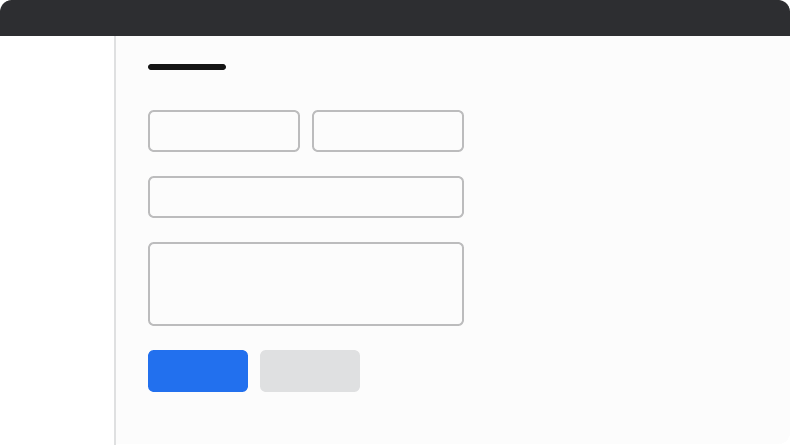
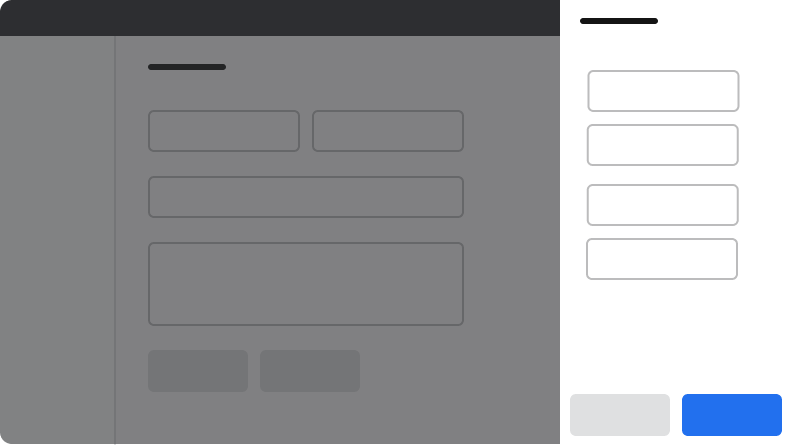
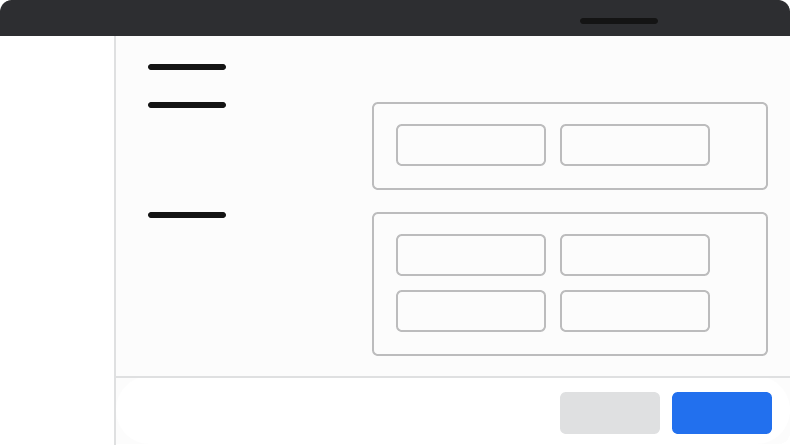
Right alignment usage
Right-aligned actions occur when the form element is contained in a Modal or Drawer, or when a page has a sticky footer.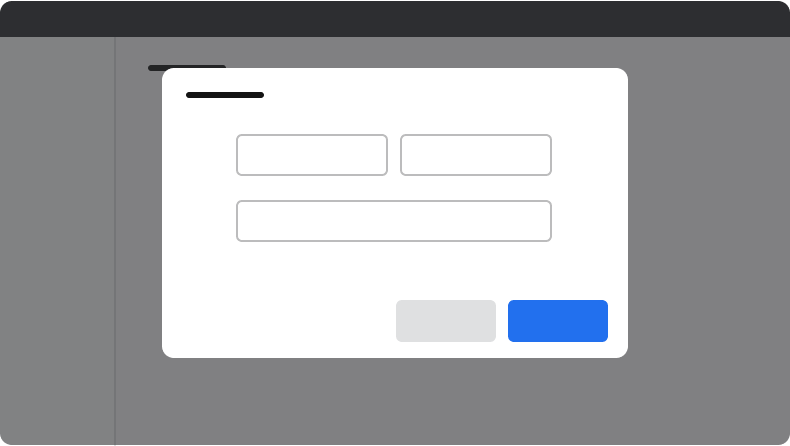
Form Titles
Titles should clearly communicate at a glance what the purpose of the form is.- Job Dashboard
- Agreement Details
- Visits
Do
- General Info
- Details
- Other
Don’t
Labels
- Keeps labels 1–3 words long
- Use title case capitalization
- Email Address
- Phone Number
- First Name
Do
- What is your email address?
- My phone number is:
- First name
Don’t
Required Labeling
Form elements can be additionally labeled as required (*). The way to use this includes:- Be consistent within the complete form. This overrides preference on individual sections / pages of a form.
- Use the required (*) when optional fields are present.
- When all fields are required, the (*) is not needed.
- If an existing form uses the (optional) label, consider refactoring the page to use the above required labeling standards.
Description
Use sentence case capitalization
Keep help text 1-2 lines as long as the element itself
Most contexts for forms require a label. Some exceptions include when an icon can clearly explain the use case, such as a search input, or if a label exists elsewhere, such as a table column.Hint
Model text inputs
Modeled text inputs are text field inputs that require text to be formatted in a specific way. Because modeled text inputs require a particular structure, always include examples that demonstrate how the user should enter the information.- Use help text to include an instructional call to action and an example that shows the required text format
- If there’s not enough room to include both an instructional call to action and an example, then include only the example
- Use the word “Example” followed by a colon to introduce the example (instead of e.g.)
Do
Don’t
Do
Don’t
More Information
Keep help text 1-2 lines
This is true even in a form with lots of more infos. Either find unique supplemental information to discuss, or remove the more info.Don’t repeat the content of the label
This is true even in a form with lots of overlay help. Either find unique supplemental information to discuss, or remove the overlay help.Don’t
Don’t surface essential information
Users have to recall overlay information when completing the form element. Hint text and descriptions let the user read it at all times.Don’t
Placeholder Text
In general, avoid
In most use cases, the inline and overlay help are preferred picks to placeholder text. Placeholder text is low contrast, it disappears as soon as a user starts typing, is limited in space, and unreliable for screen readers.Don’t use real examples
Real examples confuse user input. If an example is used, it should look clearly generic.Don’t