

Content Guidelines
For all confirmation messages, please refer to the Confirmation Messages content pattern for content guidelines and tips for structuring messages.Unsaved Changes
An “unsaved changes” confirmation pattern is typically used when the user has made changes to data or content within the current workflow but attempts to navigate away without saving those changes. This pattern helps improve the user experience and prevents data loss or mistakes. This pattern should not be used if no changes have been made by the user.Confirm an action
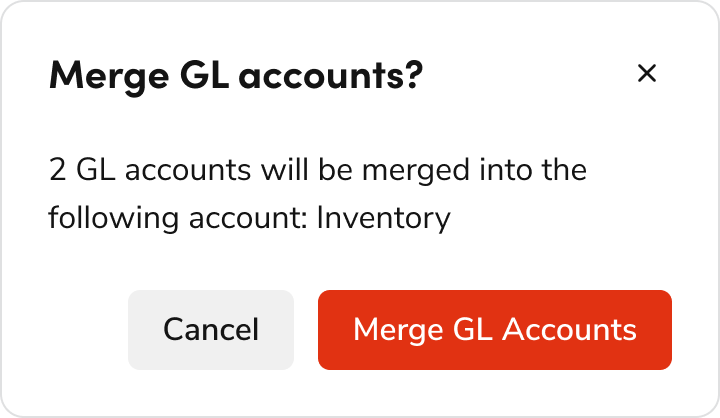
Destructive
Use this pattern for confirming a destructive action, such as delete, disconnect, remove, disable, etc.Simple Destructive Confirmation
Use when content is simple and text-only.Dos/Don’ts
Do
Don’t
Don’t
- Use question format for title
- Ask the question in title, not description. Don’t phrase it as “Are you sure you want to…?”
- Use negative color for destructive action
- Match the CTA label with the title (e.g., “Delete Profile”)
Complex Destructive Confirmation
This pattern is used in contexts where the content of the Dialog is more complex (e.g., long description, bullet points, multiple paragraphs, etc.).Dos/Don’ts
Do
Don’t
- Do not use a Popover for complex confirmation patterns as it has potential usability issues
- Use a danger Button instead of colored text
Edge Case
Do
- When the action itself contains the word “Cancel”, use a verb-noun pairing like “Cancel Receipt” in the CTA so users would know what happens if that’s the only thing they read. Primary CTA should mirror the question in the header.
- Use “Don’t Cancel” as the secondary action when the main CTA is “Cancel”
Non-Destructive
Use this pattern when confirming a non-destructive action, such as activate, enable, continue, etc.Simple Non-Destructive Confirmation
Use when content is simple and text-only.Dos/Don’ts
Do
Don’t
Don’t
- Use primary (blue) button for non-destructive action
- Avoid using yes/no, primary CTA should mirror the question in the header.
- If button text is too long and space is limited, prioritize retaining the verb and noun while omitting adjectives
- For example, “Recalculate Estimate Tax” can be shortened to “Recalculate Tax.”
Complex Non-Destructive Confirmation
Use this pattern when content contains UI elements beyond plain text (e.g., card, table, etc.).Dos/Don’ts
Do
Don’t
- Use appropriate Dialog size according to content
- Alert should be displayed above content
Congratulations/Success
A Congratulations/Success confirmation pattern is typically used when the user has successfully completed a task or workflow. The pattern helps improve the user experience by providing feedback to the user and can be an opportunity to delight the user.Simple task
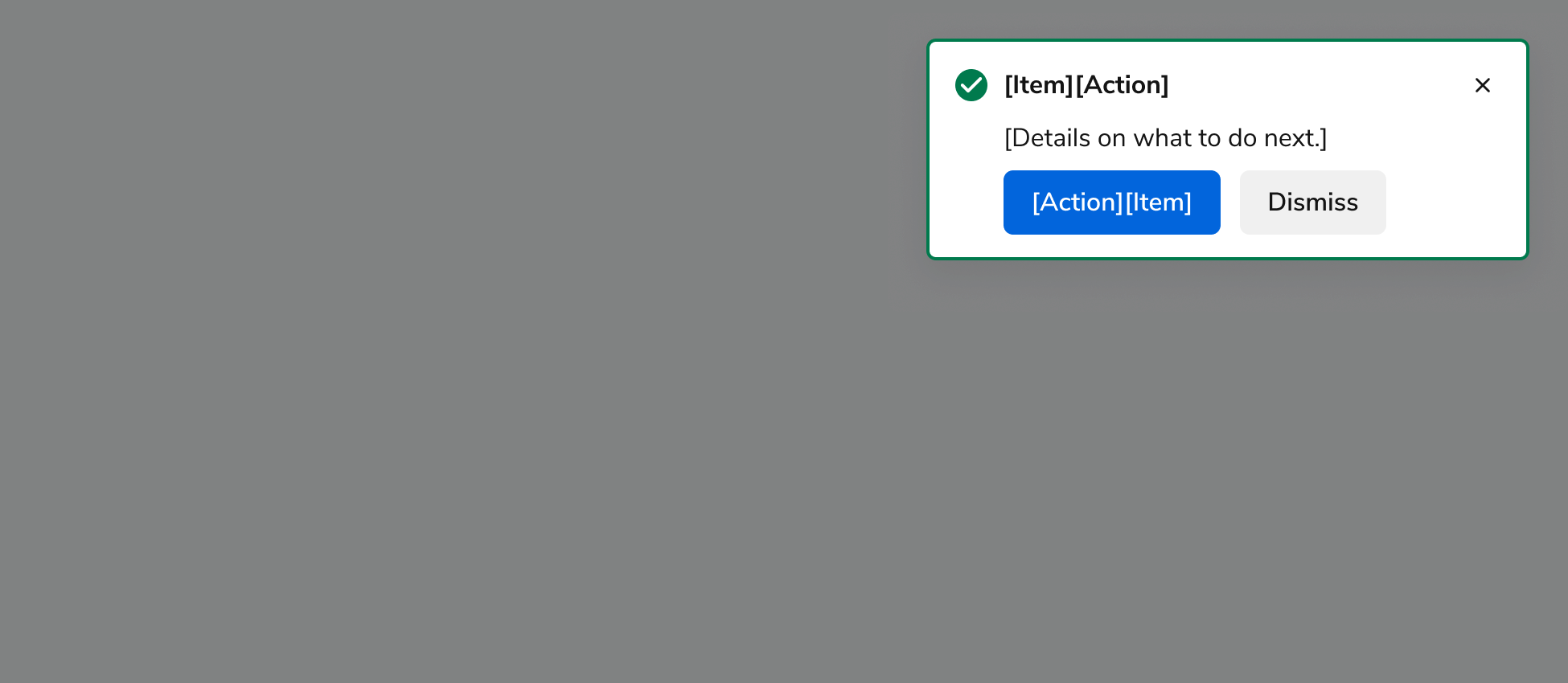
- Use when the user completed an easy, short, and common task (i.e., something that users do multiple times).
- The Toast appears after the task is completed and the page reloads.
- If the user navigated to a different page or Dialog to complete the task, the Toast appears after navigating the user to the page where they started the task.
Complex task/workflow with no next steps
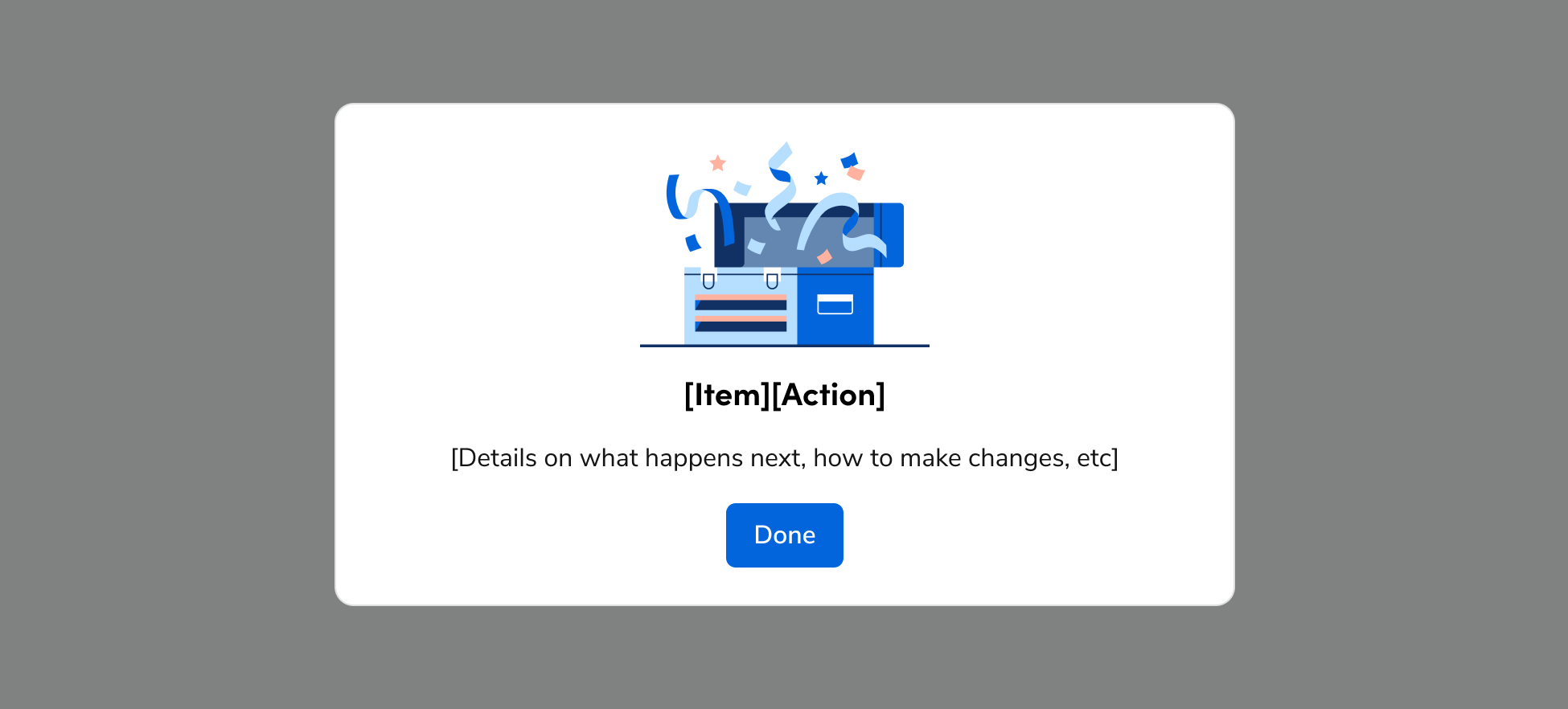
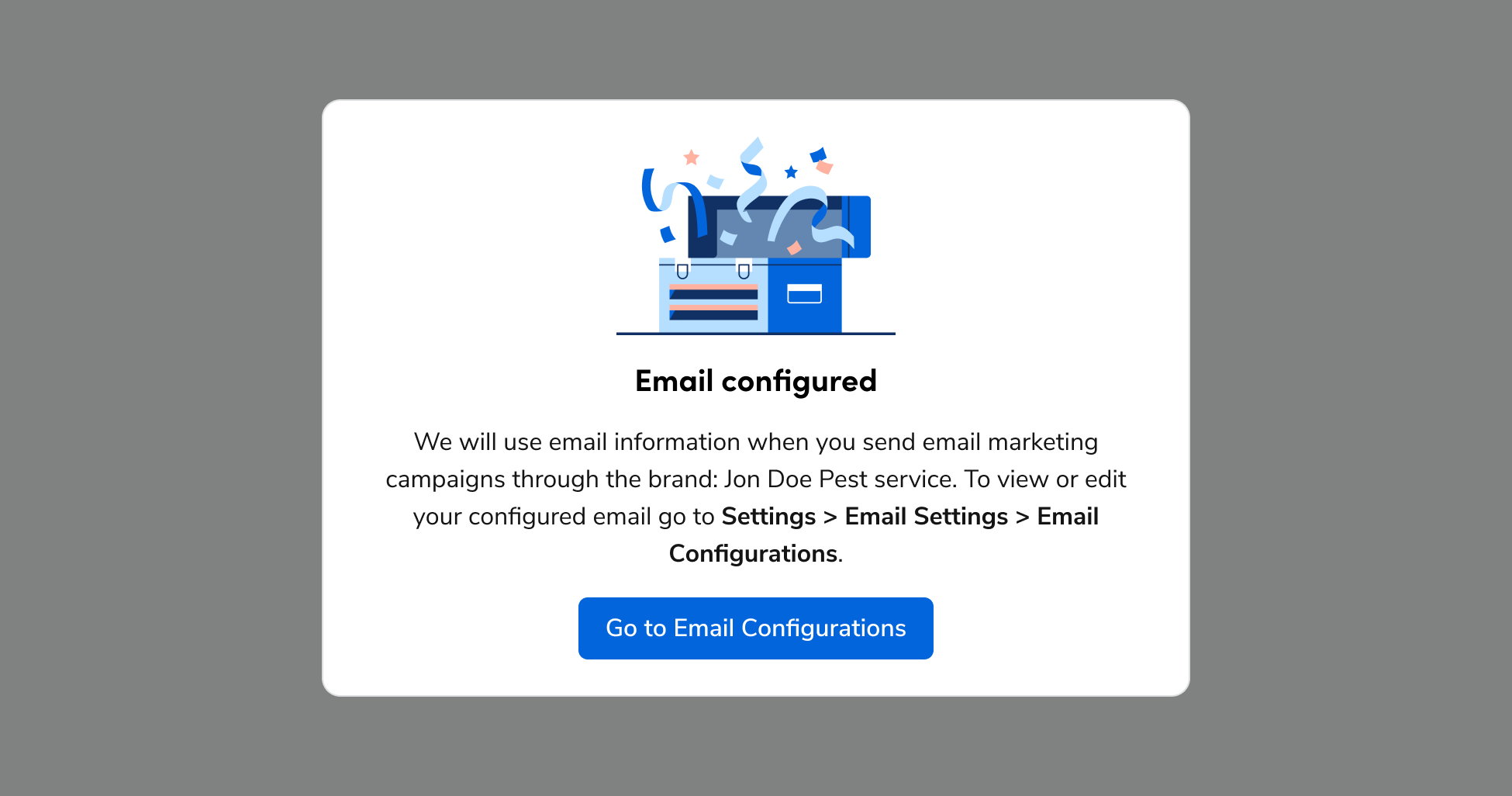
- Use when the user completed a more complex task or workflow and there are no next steps to complete. Note: The only CTA that should be used in this template is “Done”.
- Complex tasks and workflows are generally 3 or more steps, time intensive, and something the user does only once.
- Dialog appears after navigating the user back to the page where they started the task or workflow.
Dos/Don’ts
Do
Don’t
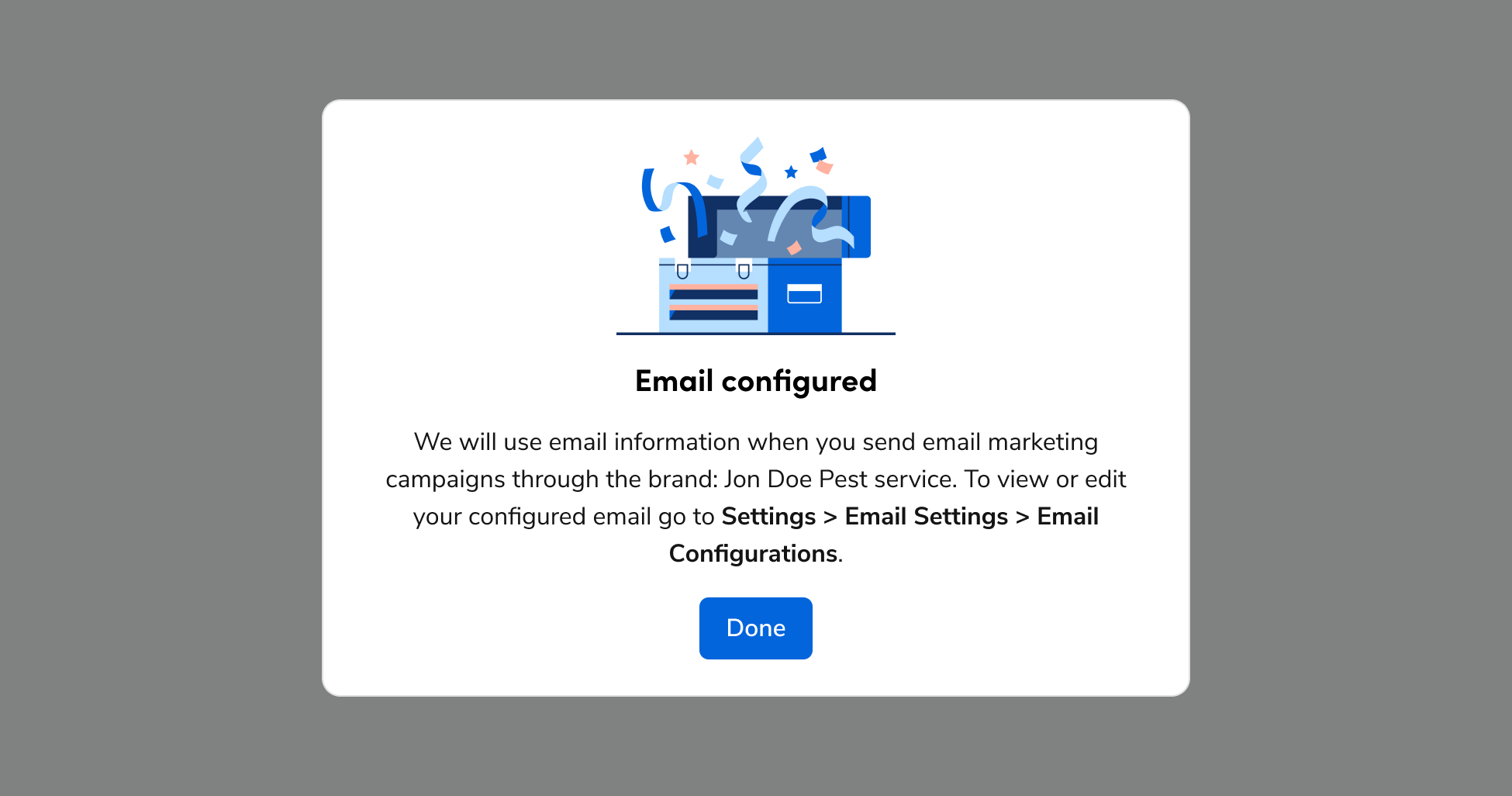
- Use sentence case for title.
- Include only one CTA – “Done”. Note: if you want to include other CTAs, use the next template.
- Don’t include CTAs that perform actions or navigate the user to other pages. The user should already have been navigated to the next logical page before this Dialog appears.
Complex task/workflow with related CTAs
Use this pattern for complex tasks or workflows (e.g., three or more steps, time-intensive, or one-time actions). These dialogs appear after navigating the user back to their starting page and offer next steps beyond “Done”.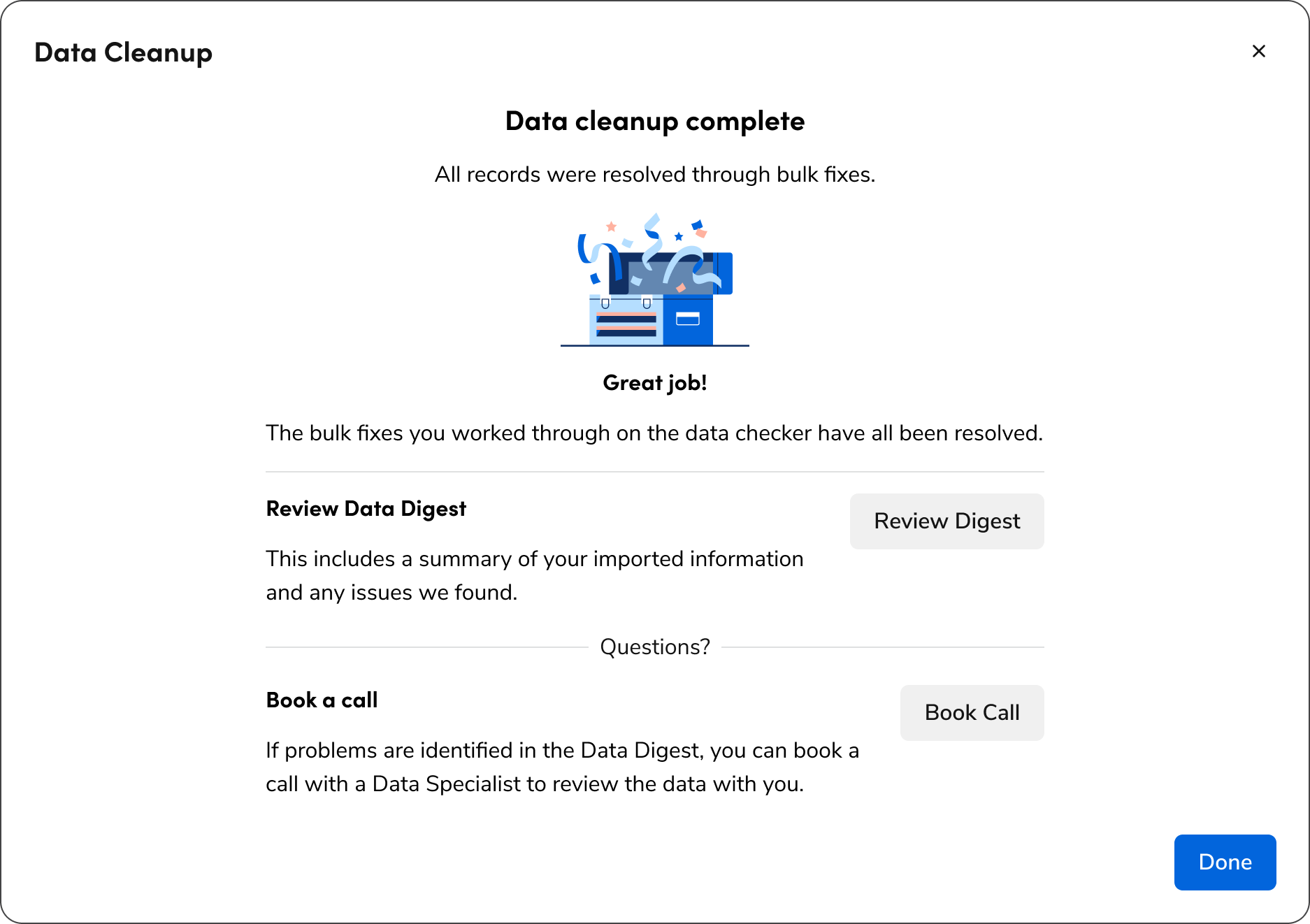
Do
- Use a single column layout within a full-screen Dialog
- Include clear titles, explanations, and CTAs for each next step. Use a verb + noun pair as the button text for CTAs, like “Book Call” or “View Progress”.
- Don’t use a CTA that navigates the user back to where they started as this adds an unnecessary click. Automatically navigate the user there when they complete the flow and use the previous template as a success message instead.
Success as part of page content
- Use when the success message needs to be persistent and becomes a part of the page content.
- Alert appears immediately after the task or workflow is completed.
Dos/Don’ts
Do
- Include the Alert inline in the layout.
- Use when the success state and/or data around the completion of the flow needs to be documented for future views of the page. Include dates and times in the copy when applicable.