

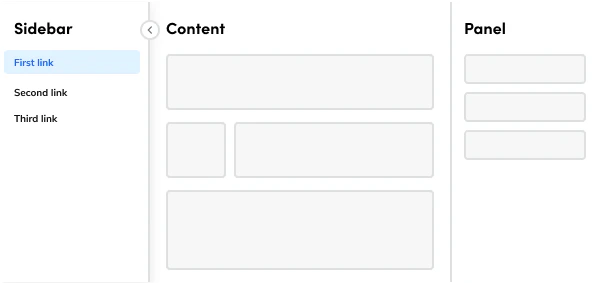
Anatomy
The Page consists of five primary elements that work together to create page layouts in Anvil2.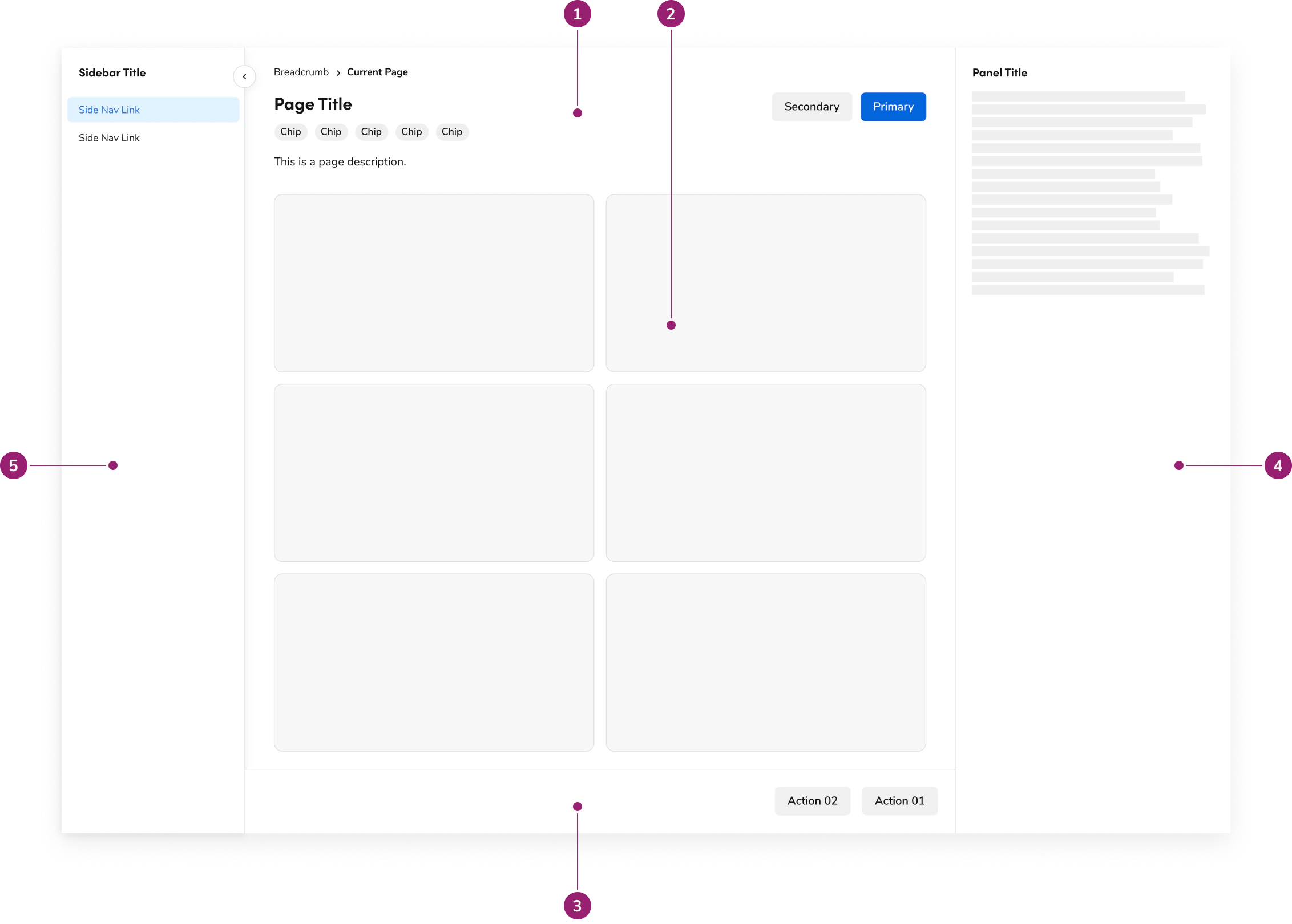
- Header - page title, and the optional description, breadcrumbs, status chips, and page actions
- Main content - primary page body, aligned with the header
- Footer (Optional) - sticky bar at the bottom of the main content for actions that stay in reach
- Panel (Optional) - supporting content beside the page, or stacked under it on smaller screens
- Sidebar (Optional) - in-page navigation that collapses on wide screens and becomes a menu on smaller screens
Options
The Page supports the following configurations to accommodate various page layout scenarios.Header
Title
With description
With breadcrumb
With chips
With actions
Main content
The main content area handles your primary content and, on its own, doesn’t have any specific options. You’ll always use it with a Layout component to get that consistent design you’re looking for. Plus, its padding dynamically adjusts based on available space for the best experience. A bare Flex or a lone table or Alert stretches past the header on wide screens. Wrap body content in a non-fluid Layout and Layout.Item, usingspan={12} for full width. Keep that Layout in sync with the header layout.
Place sections directly in the Layout Item. Introduce each section with a headline Text starting at h2 and separate sections with spacing. Do not wrap the main content, or each section, in a Card; reserve the Card for peer tiles, charts, and isolated groups without a section heading.
Footer
The Footer stays at the bottom of the main content so actions such as Save and Submit remain in reach while the page scrolls. It accepts the same layout utilities as other layout surfaces, which is how a row of actions is aligned.Panel
The Panel supports a persistent layout and a toggleable layout. Choose between them using the guidelines. Width is small, medium, or large, and medium is the default. Inner padding can be removed when the panel content supplies its own spacing. The panel also changes with screen size. The beta Page can divide a panel into a pinned header, one or more content regions, and a footer. A content region or the footer can stay pinned while the rest of the panel scrolls. Host a drill-down inside the panel when the supporting task has more than one step.Sidebar
The Sidebar houses SideNav and an optional heading. On wide screens it collapses, and the browser remembers that collapsed state between visits. On smaller screens the trigger shows the current page name, or Menu when no name is provided.Behavior
The Page responds to different screen sizes with responsive behaviors for header, panel, and sidebar while maintaining consistent layout structure.Header responsiveness
The Header is designed to conform to the width of your page content. By default, it uses the same fixedmax-width of 1280px as the Layout component; set it to fluid only when the content Layout is fluid. It will always fit within the padding provided by the Page component.
On larger screens, if content overflows, each section of the header will wrap as needed, but this happens after reaching a maximum of 6 columns.
Panel responsiveness
The Panel behaves differently in responsive mode depending on the option you choose. In persistent mode, the Panel moves below the main content, becoming a sequential part of the flow. However, in toggleable mode, its content shifts into a Dialog that appears on top of the page.Sidebar responsiveness
On smaller screens, the Sidebar adapts by transforming into a dropdown that appears at the top of the page. The trigger label is the current page name, or Menu when the page does not provide one. Choosing a link closes the dropdown.Scrolling
The Page scrolls with the window. At wide sizes, a scrollbar on the content stays aligned with that window scroll. The beta Page scrolls differently once the page is at least 1024px wide. Main content shares one scroll region inside the page, separate from the window. Below that width, the beta Page scrolls with the document.Usage Guidelines
How to Use
Sidebar
The Page sidebar is built to host navigation, specifically using a SideNav component, and can include a sidebar header for clear context. You aren’t strictly restricted from adding other content, but it’s highly recommended to keep it to navigation and titles only, to maintain a consistent experience and a recognizable purpose.Panel
The persistent panel is designed to be self-contained and doesn’t require any additional methods to be used. However, a toggleable panel must be opened through an action on the page’s main content, such as clicking a button or a specific item. This ensures the panel only appears when it’s directly relevant to the user’s task.Content
Content within the Page should name the page once, then put supporting detail in the region that owns it. Write the header title as a short noun phrase for the page. Keep the description to one or two lines of context, and keep primary actions in the header action area. Name those actions with verbs. Write sidebar link labels as destinations. On smaller screens, the menu trigger should name the current page so people can tell which section is open. Name a panel by the task it supports, such as Details or Activity. When the beta Page splits the panel into a header and footer, put the task name in the panel header and the commit actions in the panel footer.Keyboard Interaction
Users can navigate the Page using the keyboard.
The desktop sidebar toggle is named Open Sidebar or Close Sidebar. Collapsed navigation is removed from the tab order. Below 1024px, the sidebar trigger opens a menu, and choosing a link closes it.
A closed toggleable panel is hidden from assistive technology. Below 1024px, an open toggleable panel is a dialog and keeps focus inside itself. A persistent panel stays on screen. It is still marked hidden from assistive technology, so do not rely on it as the only place for required information until that is resolved.
On the beta Page at 1024px and wider, the main content region is a tab stop. Focus it, then use Page Up and Page Down to scroll.