


Anatomy
The Toolbar consists of four primary elements that work together to group a set of controls.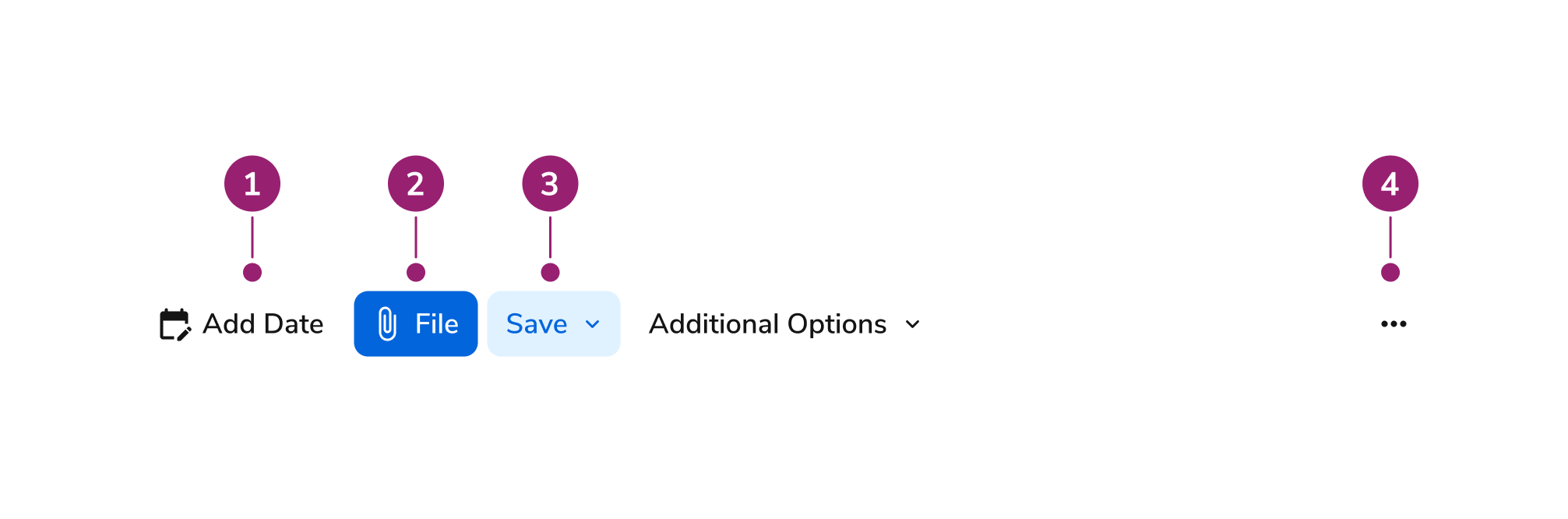
- Individual tools
- Button
- Select
- Additional tools overflow menu
Options
The Toolbar supports the following configurations to accommodate various control grouping scenarios.Direction
Horizontal Toolbar
Vertical Toolbar
Search Beta
Toolbar supports an optional search component that displays a Search Field for filtering or searching content. The Search Field should be placed on the left as the first item in the toolbar when used.Size
Toolbar supports four size options that control the dimensions of all child components. The size propagates to buttons, toggles, links, and selects within the toolbar via context.Behavior
The Toolbar responds to space constraints with wrapping and collapse behaviors while maintaining consistent control grouping.Wrapping
Toolbar with Wrapping Behavior
Toolbar with Collapse Behavior
Collapse Overflow
Overflow collapses in the same order as the DOM. The topmost item in the overflow menu is the first to reappear in the DOM when resizing to a wider width.Usage Guidelines
Content
Content within the Toolbar should provide clear, contextual actions through grouped controls.Keyboard Interaction
Users can navigate the Toolbar using standard keyboard controls.Accessibility
Accessibility
Keyboard interaction and aria guideline to follow WCAG Toolbar pattern. Since some ScreenReaders do not read disabled elements properly, we will enable focus for disabled controls usingdisabled as prop but internal assigning that to aria-disabled with style and function to block user interaction.
For more guidance on form field labels and context, see input field context association best practices.