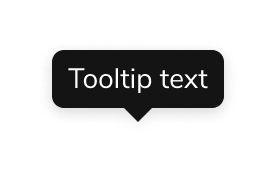
Anatomy
The Tooltip consists of three primary elements that work together to add quick clarity to an element.
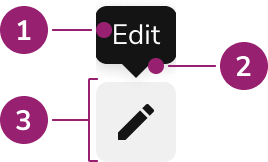
- Tooltip background, content
- Caret
- Trigger
Options
The Tooltip supports the following configurations to accommodate various supplementary information scenarios.Content
Text content
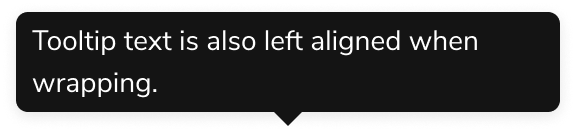
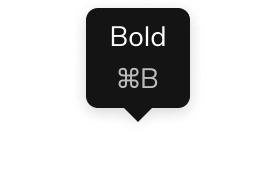
Custom content
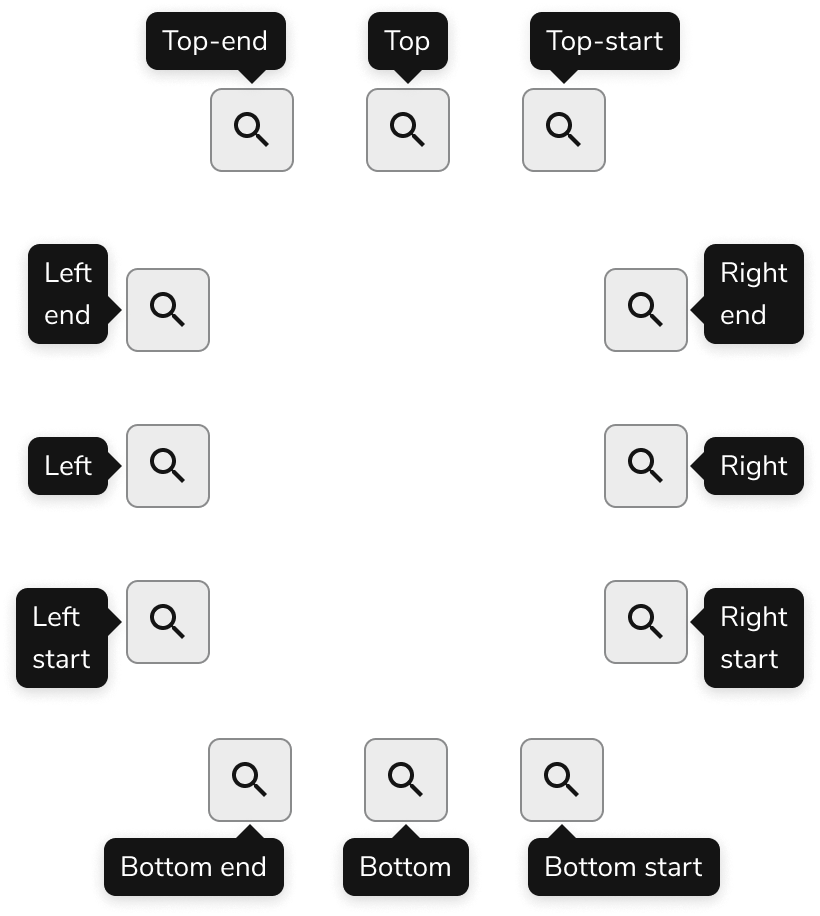
Placement
Visual States
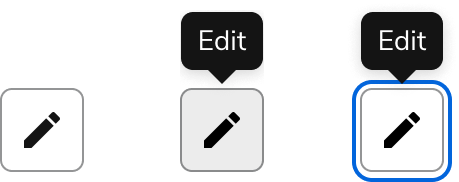
Tooltips open when the trigger element is in a hover or focus state. Avoid removing opening on focus, as this prevents keyboard-only users from viewing Tooltips.
Behavior
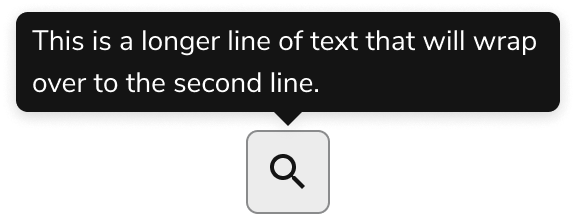
The Tooltip responds to space constraints with automatic positioning adjustments and overflow handling.Overflow handling
Usage Guidelines
Use the Tooltip as supplementary information for interactive elements on the page.Use Tooltips to describe Button Icons
The meaning behind icons is usually not universally understood. Adding a Tooltip can support the understanding of a Button Icon.
Do
Use Tooltips for supplementary information
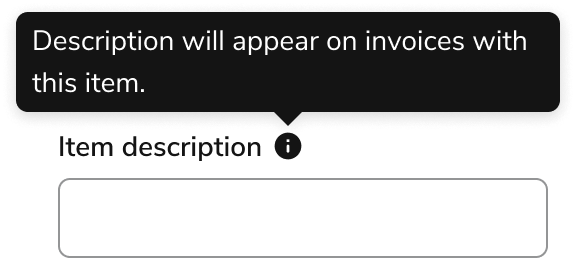
When space is constrained, use Tooltips for supplemental information such as definitions and contextual help. Consider inline text as an alternative in most cases.
Do
When not to use
Tooltips are generally difficult to both discover and use on the page, particularly for touch device users. Alternatives to Tooltips should generally be explored.Don’t use Tooltips for error messaging
Avoid using Tooltips for error messaging. Use inline error messages or Field Message components instead.
Don’t
Don’t use Tooltips for critical information
Information essential to the completion of the task should be visible on the page.
Don’t
Alternatives
Tooltip vs Popover
Tooltip is the component of choice for tips and other informational overlays. Popovers may be used in place of a Tooltip when actions are needed.| Usage | Tooltip | Popover |
|---|---|---|
| Can have a link? | Should not have interactive elements | Yes |
| Can have other interactive elements? | Should not have interactive elements | Yes |
| Open mechanic? | Hover or Focus | Click/Press, option for Hover or Focus |
| Can trap user focus? | No | Yes |
How to Use
Positioning a Tooltip
Tooltips automatically flip and shift to stay in view by default. Consider a defined starting position.- When elements are placed toward a screen edge, position Tooltips to open in the opposite direction.
- Position Tooltips to minimize obstruction of important elements.
- When the above considerations do not apply, use top position as the default placement.

Do

Don’t
Always apply a Tooltip to an interactive element
For a Tooltip to be accessible by keyboard and screen readers, the element it is tied to must be keyboard accessible. This typically means the element should be some form of button or link. Avoid adding Tooltips to disabled elements. Disabled elements are not keyboard accessible. Add the Tooltip information on the page itself, or provide a dedicated help Button Icon.Don’t

Do
Interactive elements within Tooltips
Limit interactive elements within Tooltips. If an overlay needs interactive elements, use the Popover instead. For other interactive elements, add this information on the page itself, or provide a dedicated help Button Icon.Do
Don’t
Content
Content within the Tooltip should be brief, clear, and supplementary to the trigger element.Keep content 1-2 lines
When content extends to 3+ lines, it is strongly encouraged to find another method of conveying the information.
Do
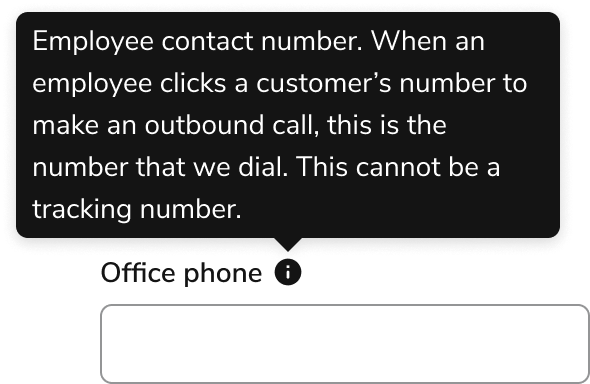
Don’t
Don’t repeat the content of the Tooltip’s trigger
Avoid repeating the trigger’s content in the Tooltip, even in UIs that heavily use Tooltips. Omitting a redundant Tooltip is preferred over consistent Tooltip usage in the UI.
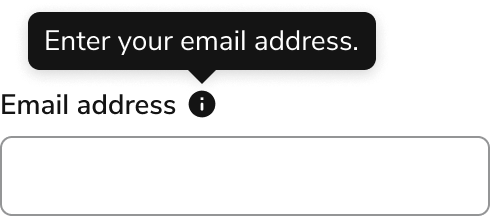
Don’t
Keyboard Interaction
Users can navigate the Tooltip using standard keyboard controls.| Key | Description |
|---|---|
| Tab | When focusing on the trigger, activates the Tooltip |
| Escape | Hides the Tooltip |