

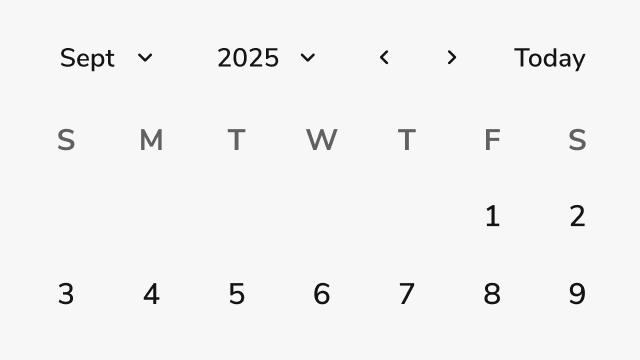
Anatomy
The Calendar consists of nine primary elements that work together to enable date viewing and selection.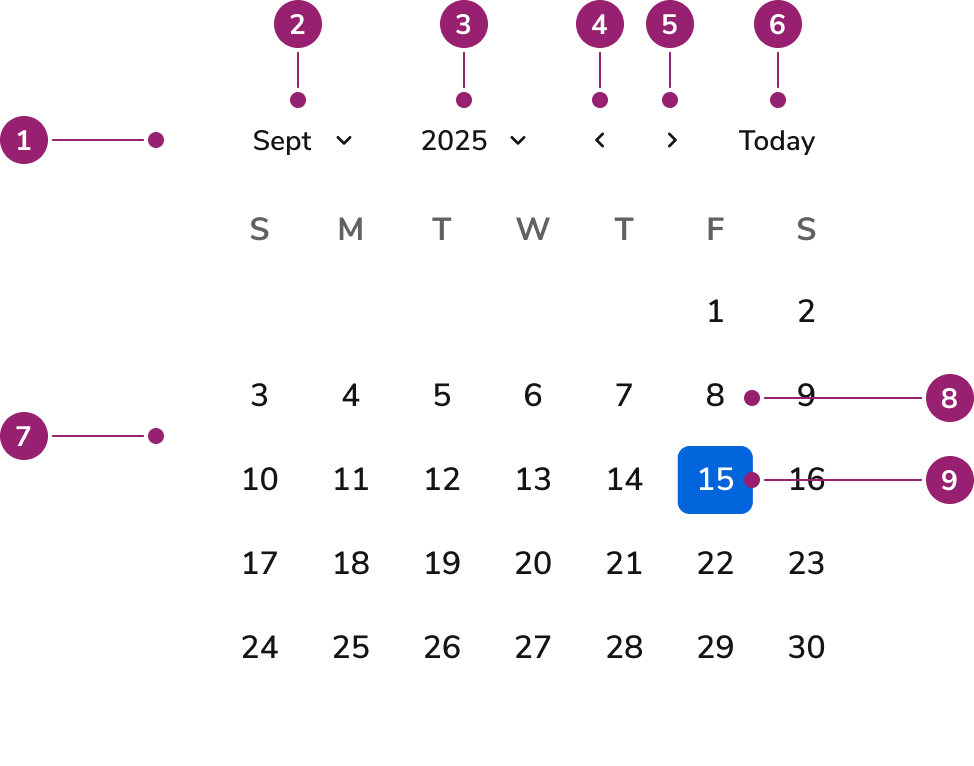
- Header - Navigation toolbar containing month and year controls
- Month button - Opens month selection view
- Year button - Opens year selection view
- Previous button - Navigates to the previous month
- Next button - Navigates to the next month
- Today button - Navigates to today’s date
- Month grid - Table displaying days in a month
- Day cell - A single cell in the month grid
- Selected day - Selected date
Options
The Calendar supports the following configurations to accommodate various date selection scenarios.Selection Mode
Calendar supports single date selection and date range selection modes. Single date mode allows selecting one date, while range mode enables selecting a start and end date.Start Day
Date Restrictions
Calendar supports date restrictions through minimum and maximum date boundaries. Dates outside the specified range are disabled and cannot be selected.Unavailable Dates
Mark specific dates or days of the week as unavailable when they cannot be selected. Unavailable dates are visually distinct and cannot be selected.Locale and Timezone
Calendar adapts to different locales for date formatting and week start days. Timezone configuration ensures dates are interpreted correctly across different regions.Behavior
The Calendar responds to user interaction with distinct visual states and navigation patterns.Selection States
Selected dates display with distinct visual styling. In range mode, the start date, end date, and dates within the range are visually indicated. Hover states provide feedback during date selection.Navigation
Users navigate between months using Previous and Next buttons. Month and Year buttons switch to selection views for faster navigation across longer time periods. The Today button quickly returns focus to the current date.View Transitions
Calendar transitions between day, month, and year selection views. The header controls adapt based on the current view, showing relevant navigation options for each context.Date Constraints
When date restrictions or unavailable dates are configured, disabled dates are visually distinct and cannot receive focus or selection. Navigation automatically skips unavailable dates when using keyboard controls.Usage Guidelines
Alternatives
Calendar vs DateField
DateField provides text-based date input with calendar popover support. Use DateField when space is limited or users prefer typing dates. Use Calendar when you need a persistent calendar view or when date selection is the primary interaction.How to Use
Choose single or range selection based on user needs
Use single date selection when users need to pick one specific date, such as a deadline, appointment date, or event date. Single selection provides clear focus and reduces cognitive load for straightforward date choices. Use date range selection when users need to define a period, such as vacation dates, report date ranges, or filtering time periods. Range selection helps users visualize the span and understand the relationship between start and end dates. Use single date selection for specific point-in-time selections. This pattern works well for scheduling, deadlines, and one-time events where users need clarity about a single date. Use date range selection when users need to define periods or spans. This pattern helps users understand duration and relationships between dates, making it ideal for filtering, reporting, and multi-day activities.Set date boundaries to guide user choices
Use minimum and maximum date boundaries to prevent invalid selections and guide users toward appropriate date choices. Boundaries help users understand constraints before they attempt invalid selections, reducing errors and frustration. Set date boundaries when business rules or data availability create constraints. Clear boundaries help users understand what dates are valid, preventing errors and reducing support requests.Mark unavailable dates to communicate constraints
Mark specific dates or recurring days as unavailable when they cannot be selected due to business rules, holidays, or system constraints. Visual distinction helps users understand why certain dates aren’t selectable and prevents confusion. Mark unavailable dates clearly to communicate constraints to users. This helps users understand why certain dates aren’t selectable and prevents frustration from attempting invalid selections.Content
Content within the Calendar should be clear and accessible, helping users understand date availability and navigate efficiently.- Use appropriate locale settings to format dates according to user expectations
- Ensure date restrictions are clearly communicated through visual styling
- Provide clear visual feedback for selected dates and date ranges
- Maintain consistent date formatting throughout the calendar interface