

Anatomy
The Chip consists of three primary elements that work together to visually label and organize information.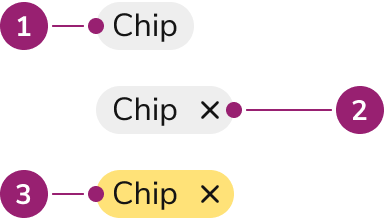
- Content
- Close action
- Custom background
Options
The Chip supports prefix icons, prefix avatars, clickable and closeable actions, and custom colors to accommodate various labeling scenarios.Clickable
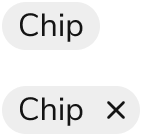
By default, a Chip is a non-clickable label. Use a clickable Chip for navigational contexts.Close
Chips can also have a close action, allowing a user to manually remove the Chip. Clickable and close can also be used together in a single Chip, but only when the size is set to medium.Prefix icon
Place an icon before the label to reinforce what the Chip represents. The icon uses the same color as the label. A Chip includes one prefix: an icon or an avatar.Prefix avatar
Place an avatar before the label to identify a person. Provide an image. When that image is unavailable, initials appear from the Chip label. Follow the Avatar initials guidance for how those initials are formed.Custom background colors
Chips provide one color by default. They can accept any color or Token value. Text color is auto-calculated to be the highest available contrast. It is suggested to use a Token value that supports theming.AI Mark
Chips can display an AI mark icon to indicate AI-generated content. By default, the AI mark uses a gradient treatment. When a custom background color is applied, the mark adapts to match the chip’s text color for visual consistency.When a Chip is clickable, the AI mark animates on hover to draw attention to the AI-generated content.
Sizes
Refer to the choosing a chip size section for more sizing recommendations.
Behavior
The Chip responds to user interaction with distinct visual states and flexible overflow handling.Visual States
With custom colors, the hover background is lighter when the text is white, and darker when the text is black.Without close
With close
Overflow handling
Truncation
By default, Chips will truncate, rather than wrap.Wrapping
Chips can be configured to individually wrap when there is not enough space.Suggested group overflow
The Chip on its own does not provide an opinion on grouping. Wrap groups first, prioritizing group wrapping before wrapping individual Chips.Usage Guidelines
Use the Chip when visually labeling and organizing statuses, metadata, and objects.When to Use
Use the Chip when:- Categorizing items – Items need a short label that categorizes them or adds context, such as a status or a tag.
- Groups of related labels – Several labels describe the same item or set, and they sit together as a Chip group.
- Navigational labels – A label also leads somewhere; use a clickable Chip for navigational contexts.
- Removable labels – Users need to remove a label themselves; add a close action to the Chip.
When not to use
Avoid using the Chip for:- Something requires attention – The indicator signals that something requires attention, such as a notification; use a Badge instead.
- Labeling everything on the page – Chips add visual noise to the page, so use them in moderation.
Alternatives
Chip vs Badge
Chips are used to categorize, label, and add context to items whereas Badges are used to indicate something requires attention, such as a notification. Additionally, Chips can be interactive while Badges are not.How to Use
Default
The default Chip visually highlights elements and provides user interaction.Chip group
Chips are frequently paired together to form a Chip group.Color
When implementing Chips, it is important to carefully consider what color is being used so that meaning and relationships are not implied when there is none. For example, green is often meant to indicate “success” and red is used to indicate “danger” or “failure”. Consistent usage is essential for helping users efficiently understand the status of something.Choosing a Chip size
Choose a Chip size based on its relative importance within the UI. Some general suggestions for Chips are provided below.Legend
✅ recommended ⚠️ use with caution ❌ do not useContent
Content within the Chip should be short and descriptive, helping users understand context at a glance.- Chips should be short and descriptive. Users should understand context at a glance.
- Use both color and text together to provide meaning so that color alone is not the only indicator of meaning.
- Use Chips in moderation as they add visual noise to the page.
- Chips may be used for both textual and numerical content.