

Beta FeatureThis feature is currently in beta, and needs to be imported from
@servicetitan/anvil2/beta.While we hope to minimize breaking changes, they may occur due to feedback we receive or other improvements. These will always be documented in the changelog and communicated in Slack.Please reach out in the #ask-designsystem channel with any questions or feedback!Anatomy
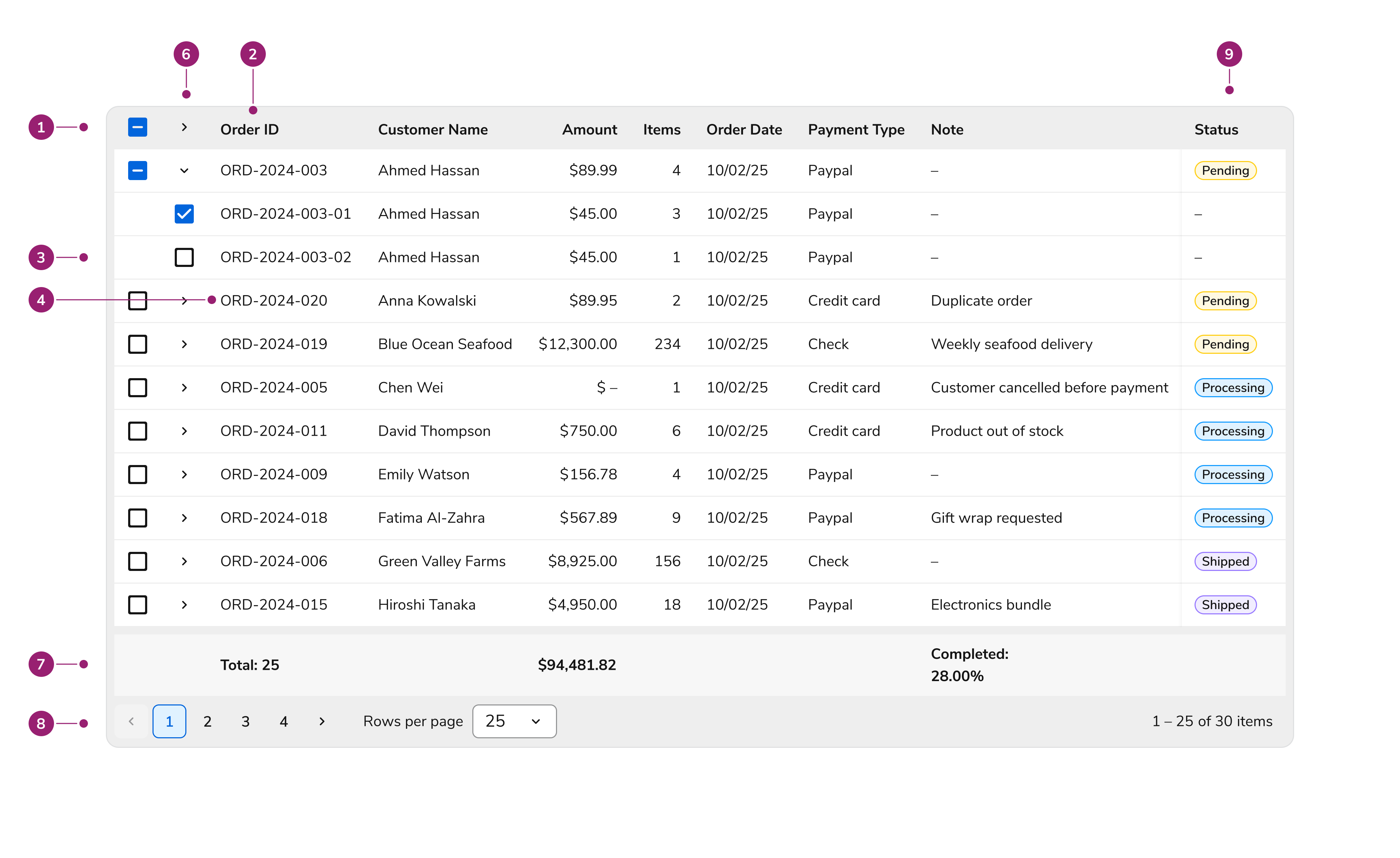
- Header row – Contains column labels with optional sort indicators
- Header cell – Individual column header with label and optional sorting control
- Body rows – Data rows containing cell content
- Body cells – Individual data cells with formatted content
- Selection column – Optional checkbox column for row selection
- Expansion column – Optional expand/collapse control for sub-rows or sub-components. Shifts with content
- Footer row – Optional summary or aggregate data
- Pagination controls – Navigation for paginated data sets
- Pinned/locked column – Column that stays in place as user scrolls
Options
Sortable Columns
Enable sorting on columns to let users click the header and sort data in ascending or descending order. A sort indicator shows the current sort direction. Clicking a sortable column header cycles through: ascending → descending → unsorted. Only one column can be sorted at a time.Resizable Columns
Columns can optionally be made resizable. When this is turned on, users can resize columns by dragging the column border. Configure minimum and maximum widths to constrain resizing.Pinned Columns
When tables have many columns requiring horizontal scroll, pin essential columns (like row identifiers or action columns). Pinned columns stay in place during horizontal scrolling, keeping important data visible.Grouped Columns
Group columns under a parent header to create a two-level header structure. Use this to organize related data. Please note that grouped columns cannot be pinned.Pagination
When enabled, pagination controls display at the bottom of the table showing:- Current page range (e.g., “1-25 of 100”)
- Navigation buttons for first, previous, next, and last page
Cell Types
The DataTable provides the following cell types:| Image | Type of Cell | Alignment |
|---|---|---|
  | Actions cell | Left |
  | Cell with chip/chips | Left |
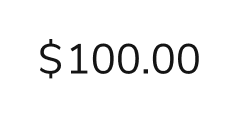  | Cell with currency | Right |
  | Custom cell | Left |
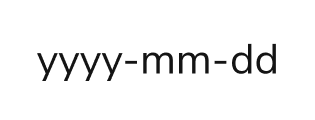  | Cell with date | Right |
  | Cell with date-time | Right |
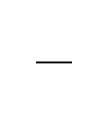  | Empty cell (used to represent an empty or missing cell value) | Left |
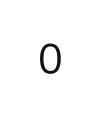  | Cell with number | Right |
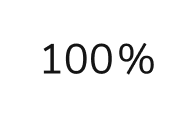  | Cell with percentage | Right |
  | Cell with text | Left |
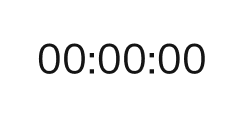  | Cell with time | Right |
Behaviors
Editing
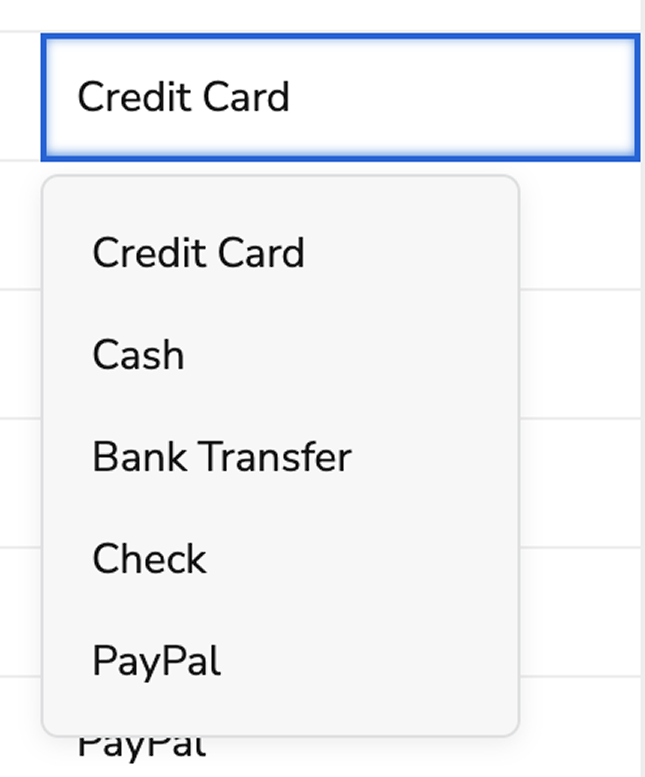
Columns can be made editable, which enables edit on hover per cell.Row Selection
When selection is enabled, a checkbox column appears as the first column. Users can select individual rows or use the header checkbox to select all visible rows.Bulk action bar
When a table has bulk actions, a bar replaces the toolbar above the table while rows are selected. The toolbar comes back, with its filters and search kept, once the selection clears. The bar isn’t sticky, so it scrolls with the page like the toolbar does. The bar holds, from left to right:- Selected count, such as “4 selected”. Screen readers announce it as it changes.
- Select all N items, when the table has more rows than fit on one page. The header checkbox selects only the current page; this button selects every page, including rows that haven’t loaded yet. Rows that can’t be selected are left out of the count, and the button reads “Select all N items of N” when some are excluded. Sub-rows count as items. Unchecking any row afterwards goes back to a regular selection.
- Cancel, which clears the selection and returns focus to the header checkbox.
- Secondary action, at most one.
- Primary action, a button, or an “Actions” menu when the table has more actions than fit.
Row Expansion
Expand rows to show additional content in two ways:- Sub-rows: Nested rows with the same column structure as the parent
- Sub-components: Custom content rendered below the parent row
Visual States
Header Cell States

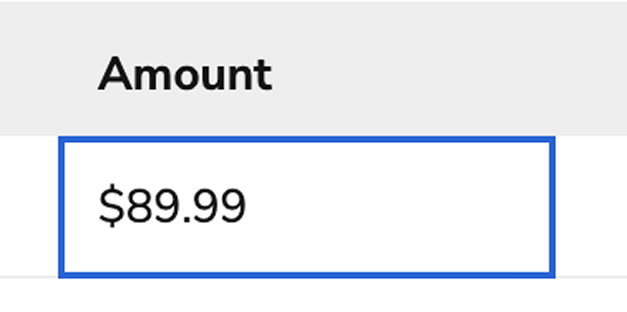
Body Cell States


Error States
DataTable supports two types of error indicators to highlight validation issues:
Cells with errors display with red text color and a red border. An error icon appears within the cell, and when the error includes a message, hovering over the icon displays a tooltip with the error details.
Row-level errors display an error icon in a dedicated column at the start of the row. This indicates that the entire row has a validation issue, rather than a specific cell.
When setting errors, prefer using a descriptive string message over simply marking the cell or row as having an error. Messages provide accessible context that screen readers announce, helping all users understand why a cell or row is in an error state.
Warning States
DataTable supports two types of warning indicators for non-blocking advisory issues:
Cells with warnings display with a yellow border and a warning icon. When the warning includes a message, hovering over the icon displays a tooltip with the warning details. Warning states use the same layout as error states but with yellow styling to distinguish non-blocking issues from blocking errors.
Rows with warnings display an icon in the first column, similar to row errors but with a warning icon.
When both an error and a warning exist on the same cell or row, the error takes priority and the warning is not displayed. Errors represent blocking issues that must be resolved, while warnings are advisory.
When setting warnings, prefer using a descriptive string message over simply marking the cell or row as having a warning. Messages provide accessible context that screen readers announce, helping all users understand why a cell or row is in a warning state.
Keyboard Interactions
Users can navigate the DataTable using the following keyboard controls:Accessibility
The DataTable implements accessibility features to ensure all users can interact with tabular data effectively:- Proper semantic HTML table structure (
table,thead,tbody,tr,th,td) - ARIA attributes for row and column counts
- Sortable headers announce sort state to screen readers
- Selection checkboxes include descriptive labels
- The bulk action bar announces the selected count, and Cancel returns focus to the header checkbox
- Expand/collapse buttons include
aria-expandedandaria-controls - Loading states announced via
aria-liveregions - Focus management maintains logical keyboard navigation
- Editable cells announce their editable state
Usage Guidelines
Use the DataTable for any set of tabular records; do not hand-roll rows with repeated Flex or Layout grids or a bordered grid.Column Organization
Do
Don’t
Batch Operations
Use row selection with bulk actions when users need to act on many rows at once, such as:- Bulk delete
- Bulk status changes
- Export selected items
Do
- - Use the bulk action bar for actions on selected rows
- - Put the most common action in the primary button
- - Group more than two actions in the primary “Actions” menu
- - Confirm destructive actions in a dialog before applying them
- - Offer “Select all N items” when users often act on every row
Don’t
- - Enable selection without providing actions that use the selection
- - Hide the selection column after users have made selections
- - Build a separate toolbar of batch-action buttons
- - Add more than one secondary action
- - Apply a destructive action without confirmation
Sorting
Enable sorting only on columns where it provides value to users.Do
- - Enable sorting on text columns users might want to alphabetize
- - Enable sorting on numeric columns for ranking or comparison
- - Enable sorting on date columns for chronological ordering
- - Provide default sorting when the data has a natural order
Don’t
- - Enable sorting on columns with identical values
- - Enable sorting on complex composite columns where sort order isn’t intuitive
Pagination
Choose Appropriate Page Sizes
Do
- - Use 25 rows as the default
- - Enable users to change page size with Pagination
- - Match page size to typical use cases (smaller for quick scans, larger for detailed review)
Don’t
- - Use very small page sizes (like 5 or 10) that require excessive navigation
- - Use very large page sizes that cause performance issues
Row Expansion
Sub-Rows vs Sub-Components
Keep Expanded Content Focused
Do
- - Show only relevant additional information in expanded areas
- - Keep expanded content scannable and organized
Don’t
- - Put entire page layouts in expanded rows
- - Require users to expand rows to see essential information
Custom Body Cells
When none of the existing body cell types fit a use case, render custom components to body cells.Adding Rows
Place an Add row button in a toolbar below the table when users create rows from the table. The button starts the flow and does not add a row itself. Open a dialog with form fields to collect the new row. A dialog fits fields that don’t fit in a table cell, and it is where validation and server checks belong. Close the dialog when the save succeeds so the new row appears in the table. For a table that can start empty, also show the Add button in the empty state, so the first action is next to the message.Do
- - Collect the new row in a dialog with form fields
- - Label the button for what it adds, such as “Add request”
- - Show the button in the empty state when the table can start empty
Don’t
- - Make users fill in a long form inside table cells
- - Add a row to the table before it has saved
Alternatives
DataTable vs ListView
Choose DataTable when data has multiple attributes that benefit from column structure.
Choose ListView when displaying a simple list of selectable items.