

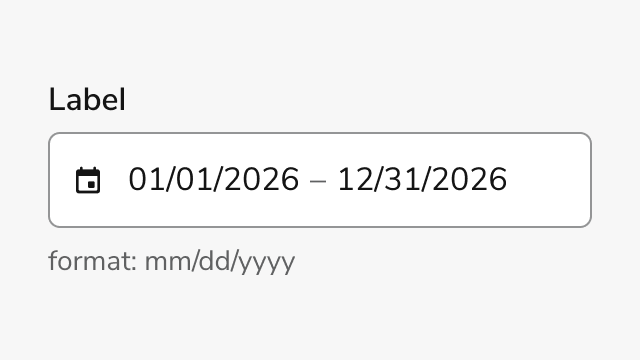
Anatomy
Date Field Range consists of four primary elements that enable users to select a start and end date in one masked field, with a calendar for visual selection.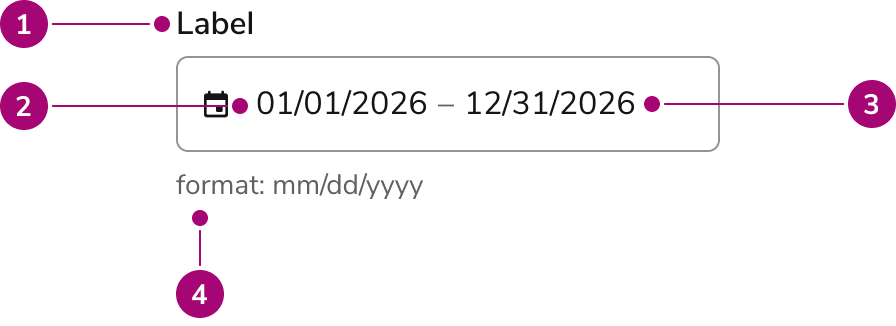
- Label - Identifies the field and its purpose
- Start date - First segment of the masked field
- End date - Second segment of the same field, after a hyphen
- Helper text (Optional) - Description, format hint, warning, or error message
Options
Date Field Range supports the following configurations to accommodate different use cases and regional preferences.Date Format Modes
Date Field Range supports two date format modes to match regional conventions. The default format ismm/dd/yyyy for US audiences, while dd/mm/yyyy is available for international users.
Sizes
Three size options accommodate different layout densities and visual hierarchies.Behavior
Date Field Range responds to user interaction with distinct visual states and validation feedback.Visual States
The component displays different visual states to communicate field status and interactivity. Default state shows the field ready for input. Focus state highlights the active field. Error state shows a message the product supplies. The field does not invent that message from the dates alone. Disabled state prevents interaction and closes an open calendar.Manual entry
Both dates are typed into one field. The mask showsmm/dd/yyyy - mm/dd/yyyy (or dd/mm/yyyy - dd/mm/yyyy when that mode is selected), with a space, hyphen, and space between the ends. A single digit followed by / is padded, so 1/ becomes 01/. The field does not swap an end date that falls before the start date. That order stays as typed, and the range fails constraint validation.
Calendar interaction
Clicking the field opens the calendar and leaves focus in the input. Arrow Down opens the calendar and moves focus to the first control inside it. Users can move between months and select each end of the range. The calendar highlights the selected span and closes after the end date is selected, returning focus to the field. Choosing a day before the current start restarts the range at that day instead of storing an inverted pair. Dates outside the minimum and maximum, and dates marked unavailable, are disabled in the calendar.Validation
Date Field Range checks the range as it changes and reports whether the text is complete and whether the range is allowed. It does not write an error message itself. The message under the field is the one the product provides. A range is complete when both ends are real dates. It is allowed when the last committed dates fall on available days, stay inside the minimum and maximum, and the start is not after the end. An empty range is allowed unless the field is required. An in-progress edit can still report the previous range as allowed, so wait until both dates are complete before showing a constraint error.Usage Guidelines
Alternatives
Date Field Range vs Date Field Yearless Range
Use Date Field Range when the year is essential to the date range selection, such as project timelines or reporting periods. Use Date Field Yearless Range when the year is irrelevant, such as recurring seasonal periods or annual date templates.How to Use
Labeling and Range Validation
Provide clear, descriptive labels that communicate the purpose of the date range selection. Labels should indicate what the range represents and establish the relationship between start and end dates. Implement validation that ensures logical date ranges and provides immediate feedback when constraints are violated.- Write labels that clearly communicate the purpose of the date range selection
- Keep the format hint visible when the date format might be unfamiliar
- Set minimum and maximum dates to block dates outside the allowed span
- Show an error when both dates are complete and the range still fails its constraints
- Explain that the end date must be on or after the start date
- Use the calendar when visual selection is helpful
Anti-pattern: Ambiguous Context and Invalid Ranges
Avoid creating confusion by omitting format guidance or allowing invalid date ranges without clear feedback.- Use Date Field Range for recurring annual periods where year doesn’t matter
- Hide the format hint when the date format might be unfamiliar
- Treat the first typed digit as a failed range
- Leave a finished, inverted range without an error message
- Use placeholder text to show the date format — the mask already fills the field, so a placeholder is never visible
- Create labels that don’t clearly indicate what date range is being selected
Content
Content within Date Field Range should be clear, concise, and actionable.- Labels should clearly indicate what date range is being selected
- Error messages should explain why a date range is invalid and how to fix it
- Format hints should match the selected mode (mm/dd/yyyy or dd/mm/yyyy)
- Descriptions should provide context without overwhelming the user