

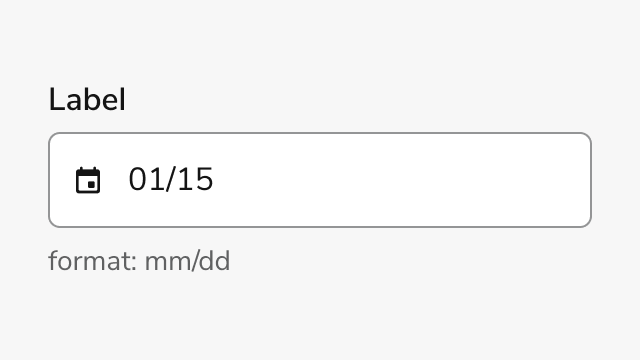
Anatomy
Date Field Yearless consists of five primary elements that enable users to select a month and day without year information.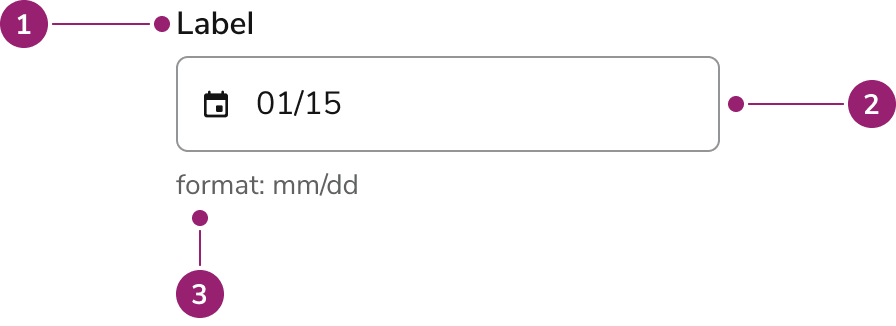
- Label - Identifies the field and its purpose
- Input field - Text input for manual month and day entry with format mask
- Helper text (Optional) - Description, format hint or error message
Options
Date Field Yearless supports the following configurations to accommodate different use cases and regional preferences.Date Format Modes
Date Field Yearless supports two date format modes to match regional conventions. The default format ismm/dd for US audiences, while dd/mm is available for international users.
Sizes
Three size options accommodate different layout densities and visual hierarchies.Date Picker
The date picker can be disabled when manual text entry is preferred or when the picker interface is not suitable for the use case.Behavior
Date Field Yearless responds to user interaction with distinct visual states and validation feedback.Visual States
The component displays different visual states to communicate field status and interactivity. Default state shows the field ready for input. Focus state highlights the active field. Error state displays validation messages when dates are invalid or required fields are empty. Disabled state prevents interaction while maintaining visual context.Date Picker Interaction
Clicking the input field opens a popover with two scrollable lists for month and day selection. Users can scroll through months and days and select values directly from the lists. The picker closes automatically after selection, and the selected month and day populate the input field.Validation
Date Field Yearless validates input in real time. The component checks for parseable month and day values, required field completion, date constraints (min/max dates), and unavailable dates. Error messages appear below the field when validation fails.Usage Guidelines
Alternatives
Date Field Yearless vs Date Field Single
Use Date Field Yearless when the year is irrelevant to the date selection, such as recurring annual events or template dates. Use Date Field Single when the year is essential, such as appointment scheduling or deadline setting.How to Use
Labeling and Yearless Context
Provide clear, descriptive labels that communicate the purpose of the date selection and indicate that year information is not required. Labels should clarify that only month and day are needed, helping users understand why year input is omitted. This pattern simplifies input for recurring annual events.- Write labels that clearly communicate the purpose and indicate year is not needed
- Include format hints to guide users on expected input format (mm/dd or dd/mm)
- Set appropriate date constraints (min/max dates) when applicable to prevent invalid selections
- Display validation errors immediately when they occur
- Use Date Field Yearless for recurring dates where year context is not needed
- Maintain consistency when using yearless dates alongside year-specific dates in forms
Anti-pattern: Ambiguous Context and Mixed Patterns
Avoid creating confusion by using Date Field Yearless for dates that require year information or mixing yearless and year-specific patterns without clear distinction.- Use Date Field Yearless for dates that require year information
- Omit format hints when the date format might be ambiguous to users
- Hide validation errors until form submission
- Use placeholder text to communicate date format instead of format hints
- Mix yearless dates with year-specific dates in the same form without clear visual or contextual distinction
- Create labels that don’t indicate year is not required
Content
Content within Date Field Yearless should be clear, concise, and actionable.- Labels should clearly indicate what date is being selected and that year is not required
- Error messages should explain why a date is invalid and how to fix it
- Format hints should match the selected mode (mm/dd or dd/mm)
- Descriptions should provide context without overwhelming the user