


Anatomy
The Link consists of two primary elements that work together to navigate users to another webpage, document, or section.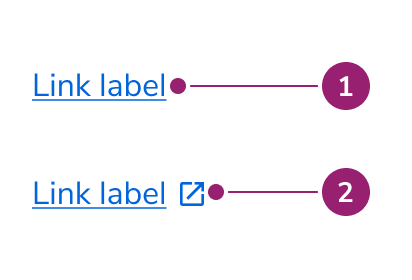
- Text label
- Open in new / external icon
Options
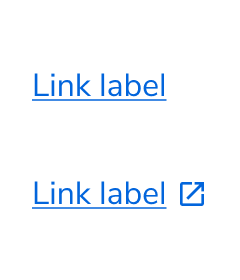
The Link supports multiple appearances and external link configurations to accommodate various navigation scenarios.
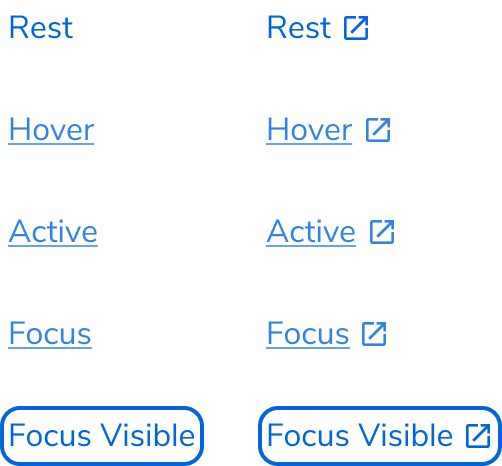
With open in new Icon
Link Button
The Link Button is a specialized Button component styled to look like a simple text link. It provides the visual appearance of a link with the correct HTML semantics of a button, making it ideal for actions that do not navigate to a new page. The Button Link is its reverse: a Button component that uses an anchor tag under the hood. Use it when an action involves navigation but you need a button’s visual style.Behavior
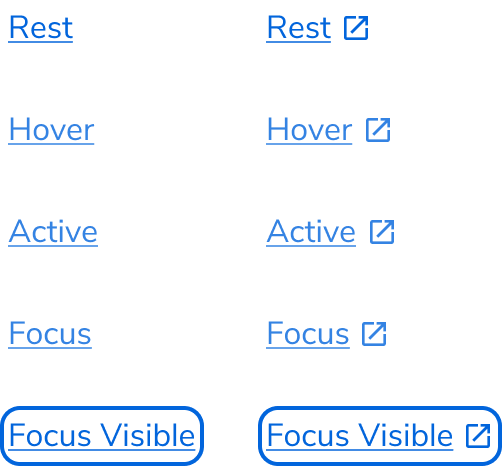
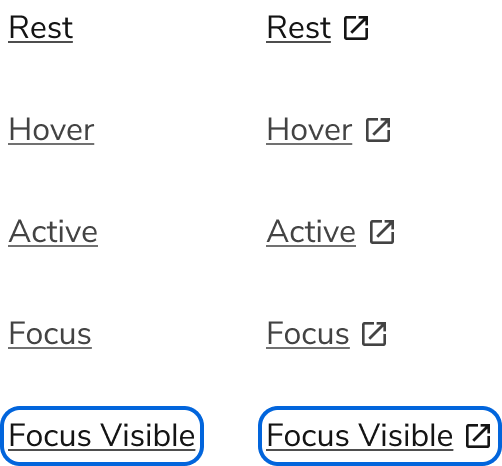
The Link responds to user interaction with distinct visual states for different appearances.Visual States
Primary link
Secondary link
Ghost link
Usage Guidelines
Alternatives
Link vs Button
In general, Buttons are used to denote an action, while a Link is used to denote navigation. This distinction in practice is sometimes blurry.When navigating
In general, Links are the preferred choice for navigating. Use a Button in these scenarios:- Use a Button when emphasis is needed. Sometimes a page’s call to action is navigating somewhere else.
- Use a Button when navigation is mixed with actions.
With Actions
In general, Buttons are the preferred choice for actions. Use a Link when the action priority is low and space is tight.With triggering overlays
Treat triggering an overlay UI like navigation.How to Use
External links
When a link goes to a site outside of the current domain, it should utilize the external icon, and also open in a new tab. This can be used with all link styles.Underline vs no underline links
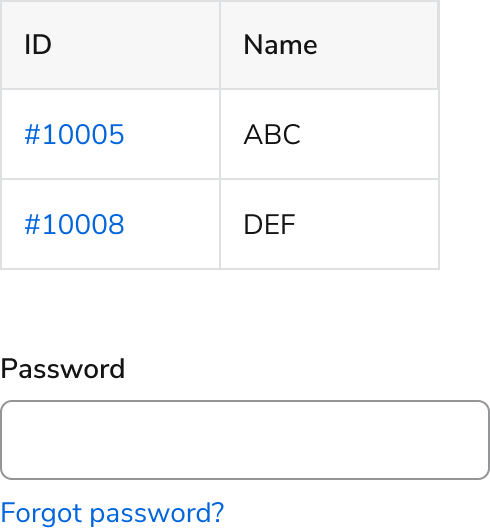
The underline variant of links is used when the link is part of a sentence or paragraph. When a link is a standalone element, omit the underline.
Do
Don’t
Do
Primary vs Secondary styling
Use the primary link style when attention should be called upon itself. Use the secondary link when there are many links on the page, or when less emphasis should be placed on the links. Use caution when mixing both styles in one area, and don’t use both in the same body of text.
Do
Do

Don’t
Content
Content within the Link should clearly communicate the destination and provide enough context for users to understand what to expect.Standalone links
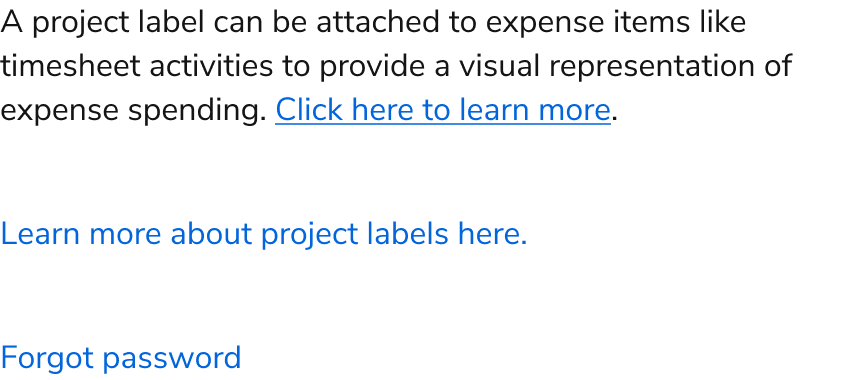
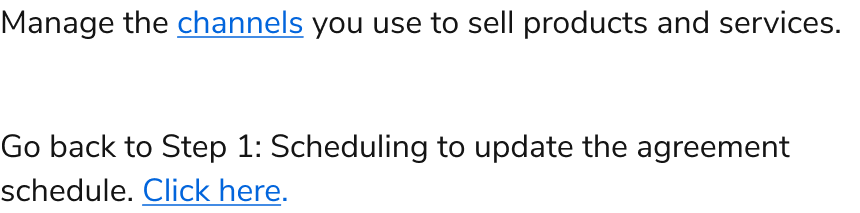
Standalone links are written similarly to calls to action: They are not full sentences, have no punctuation except question marks, and use short action-oriented phrases. Users typically see links as optional or supplemental content because they often appear at the end of a sentence or paragraph. Links should never use “click here” or “here” as link text.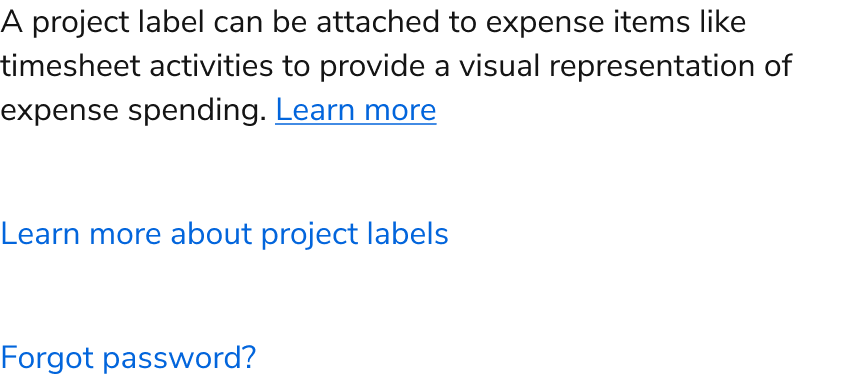
Do
Don’t
Links in sentences
The link should only include text that refers directly to the destination. Include enough context about the destination in the link text to allow the user to understand the value and know what to expect when they click. Links in sentences are part of a paragraph. Include enough context in the link text to communicate the value and expectation of the landing experience.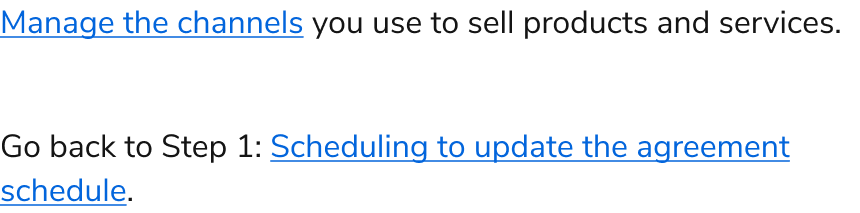
Do
Don’t
Keyboard Interaction
Users can navigate the Link using standard keyboard controls.Accessibility
Annotate generic links
It is generally preferable the link does not use generic labels. If it does, an annotation for the link should be made in handoffs, either to a heading if one is available or as a custom label if there is not one.
Annotate a generic link using a headline
When a link is generic and a headline (or table column) is available, associate it with the heading. In development, the link is given an aria-labelledby. Refer to W3C’s guidelines on how to implement this.