

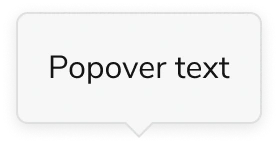
Anatomy
The Popover consists of three primary elements that work together to create floating containers that open on demand.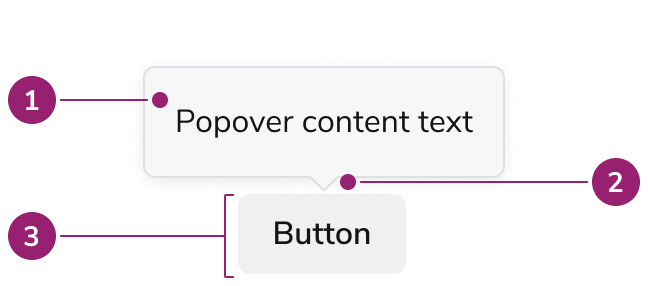
- Popover background, content
- Caret
- Trigger
Options
The Popover supports the following configurations to accommodate various overlay scenarios.Content
Popovers can accept both text and custom content.Placement
Note that placement of a Popover will adjust when not enough space is available.Behavior
The Popover responds to space constraints with automatic positioning adjustments and flexible opening/closing behaviors.Positioning Adjustments
The Popover makes automatic adjustments to its placement and dimensions when space is limited. It will:- Auto flip when not enough space in the viewport is present.
- Resize the Popover when not enough space is present.
- Shift the Popover when scrolling to keep it in view.
Opening a Popover
Popovers can be configured to open in multiple ways.Open on click
Open on hover
Closing a Popover
Popovers can be configured to close in multiple ways.Close on click outside
By default Popovers close on click outside. Override this behavior as needed.Close action in the Popover
An action inside the Popover can close it. The Popover itself does not provide a set style for showing this.Usage Guidelines
Alternatives
Popover vs Combobox
When a user needs to selects from many options, the Combobox should be used over the Popover. It is not recommended to recreate a combobox-like or select-like interaction with a Popover.Popover vs Dialog
Both Dialogs and Popovers overlay elements on the page. In general, Dialogs are preferable when a situation requires user attention, and for more complicated flows.Popover vs Menu
When a list of actions need to take place, the Menu should be used. It is not recommended to recreate menu-like interactions through a Popover.Popover vs Tooltip
Tooltip is the component of choice for tips and other informational overlays. Popovers may be used in place of a Tooltip when actions are needed.How to Use
Positioning a Popover
- Popovers will auto flip and shift by default in order to stay in view. Define a starting position based on element placement: when elements are near a screen edge, position the Popover to open in the opposite direction.
- Position Popovers in a way that minimizes obstruction of important elements.
- If the above are not relevant, a top position is considered the default placement.
Do
Don’t add Popovers to non-interactive elements
Popovers cannot be accessed by keyboard when behind a non-interactive element. Consider adding this information on the page itself, or providing a dedicated help Button Icon.Don’t
Content
Content within the Popover should clearly communicate the additional information or actions available.Keyboard Interaction
Users can navigate the Popover using standard keyboard controls.Accessibility
Trapping Focus
Popovers by default do not trap focus. Content of the Popover maintains the DOM order, unlike portaling, which allows natural tab behavior to work accessibly without trapping the focus. Enable focus trapping by using themodal prop.
For more guidance on managing focus with changing content, see changing content best practices.