

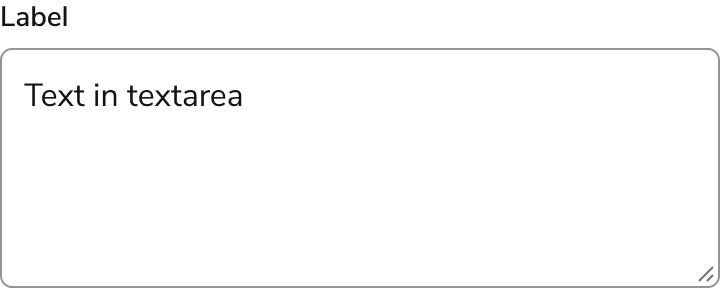
Anatomy
The Textarea consists of four primary elements that work together to allow users to type multiple lines of text.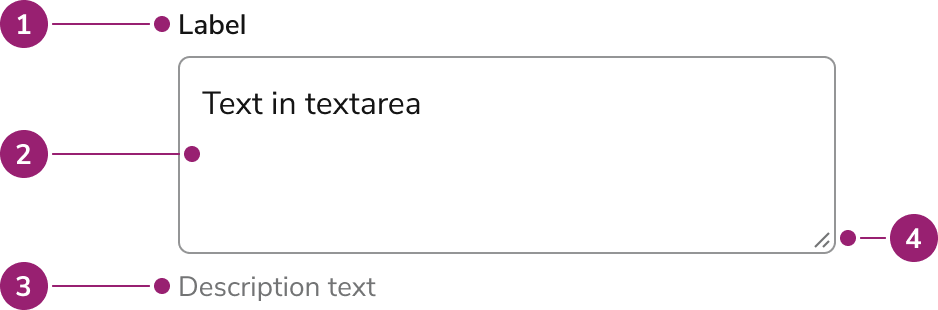
- Label
- Help text
- Field
- Resize element
Options
Textarea supports label, description text, counter, required, placeholder, and user resizing configurations to accommodate various multi-line text input scenarios.Label
A Textarea should almost always have a label, as it provides essential information about what to do with the Textarea.Description text
Description text provides information to help the user avoid errors.Counter
A counter can be displayed if there is a max length.Required
A visual indicator applied to the label.Placeholder text
While generally not recommended to use, the Textarea can utilize placeholder text if needed. Don’t use placeholder as a replacement for the label.User resizing
By default, a user can resize the Textarea in any direction, as is the standard for normal Textareas. This can also be turned off if there are problems with allowing a user to resize, such as in a tight layout.Behavior
Textarea responds to user interaction with distinct visual states, height control, and overflow handling.Visual States
Default
Disabled
Readonly
Readonly prevents edits to the Textarea, but still allows a user to copy text and focus the element, unlike with disabled styling.Error
The error message provided would replace any help text that might exist below the label.Height (Rows)
The height of the Textarea is controlled by the rows property native to the Textarea, and is by default 3 rows tall. See Overflow handling for additional row options.Overflow
The Textarea overflows like a typical html textarea. When the rows of text exceed the Textarea’s height or row count, it will scroll. A Textarea with 3 rows and no additional properties. A scrollbar appears with 4 or more row items.Usage Guidelines
Content
Content within Textarea should clearly communicate the expected input through labels and descriptions. Most of the content guidelines from Forms applies to Textareas.Use a label for all Textareas
A label is a short, meaningful description that clearly indicates what the user is expected to enter. Labels should be 1 to 3 words and written in title case. Labels should primarily be nouns. Avoid using labels as CTAs. A label is not inline help and shouldn’t be used to provide instruction.Avoid using placeholder text
Placeholder text has several accessibility issues:- Text has low contrast which makes the text hard to read
- Text disappears as soon as the user starts typing
- Can’t accommodate additional context due to limited space
- Unreliable for screen readers
- Use inline help to provide hints, formatting, and requirements
Show descriptions, formatting, and requirements
Description text should explain a feature or the outcome of the actions the user is about to take. The description should adapt to the situation and context. The guidance could be focused on what is needed, or it could describe how to enter it.Do
Don’t
Keep more info short, simple, and scannable
More info should be short and easily scannable, no longer than a single phrase or short sentence. Avoid repeating the UI text. Use sentence case, and only include period if more than one sentence is used. For more complex or important information, consider another method of presentation, e.g., description or a link to the knowledge base.Do
Don’t
Keyboard Interaction
Users can navigate Textarea using standard keyboard controls.Accessibility
- Placeholder text is not a substitute for a label.
- When the label is not directly used for whatever reason, an annotated label should still be provided.
- If the label exists, but is an element separate from the Textarea, these should be linked through aria-labelledby. Refer to W3C’s on how to implement this.
- If no label exists at all on the page, provide an annotated text label, which would utilize an aria-label. Refer to W3C’s on how to implement this.