


Anatomy
The Toolbar consists of four primary elements that work together to group a set of controls.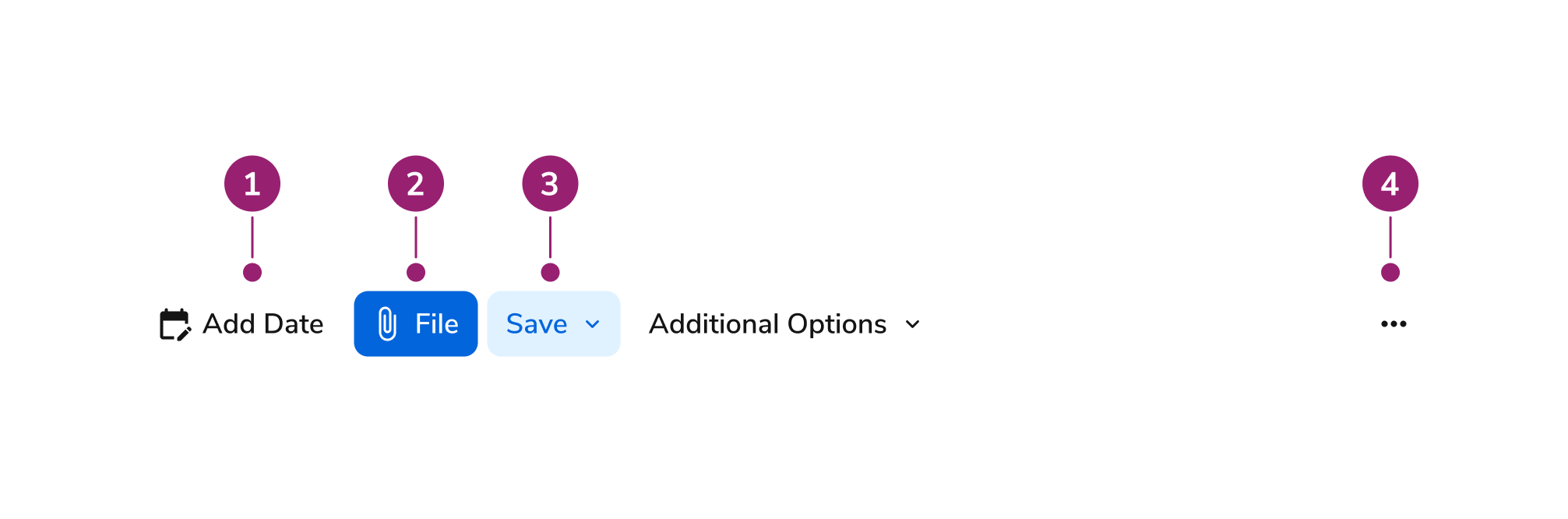
- Individual tools
- Button
- Select
- Additional tools overflow menu
Options
The Toolbar supports the following configurations to accommodate various control grouping scenarios.Direction
Horizontal Toolbar
Vertical Toolbar
Search Beta
Toolbar supports an optional search component that displays a Search Field for filtering or searching content. The Search Field should be placed on the left as the first item in the toolbar when used.Size
Toolbar supports four size options that control the dimensions of all child components. The size propagates to buttons, toggles, links, and selects within the toolbar via context.Behavior
The Toolbar responds to space constraints with wrapping and collapse behaviors while maintaining consistent control grouping.Wrapping
Toolbar with Wrapping Behavior
Toolbar with Collapse Behavior
Collapse Overflow
Overflow collapses in the same order as the DOM. The topmost item in the overflow menu is the first to reappear in the DOM when resizing to a wider width.Usage Guidelines
Content
Content within the Toolbar should provide clear, contextual actions through grouped controls.Keyboard Interaction
Users can navigate the Toolbar using standard keyboard controls.Accessibility
Accessibility
Keyboard interaction and aria guideline to follow WCAG Toolbar pattern. Since some ScreenReaders do not read disabled elements properly, we will enable focus for disabled controls usingdisabled as prop but internal assigning that to aria-disabled with style and function to block user interaction.
For more guidance on form field labels and context, see input field context association best practices.
Code
- Implementation
- Toolbar Props
- Toolbar.Select Props
- Toolbar.Search Props
Common Examples
Toolbar Components
The Anvil2 toolbar is made up a mainToolbar component and a few sub-components that can be used together to build simple or complex bars.Toolbar: The parent component to configure toolbars.Toolbar.Button: Used to create simple actions that need to be triggered via a button such as opening up a dialog.Toolbar.ButtonToggle: Used to create simple actions that rely on a boolean response such as text font styles for a rich text editor.Toolbar.ButtonLink: Used to create links to other sources such as download links.Toolbar.Select: Used to create a single select drop down for items such as heading size selection for a rich text editor.Toolbar.SearchBeta: Used to create a search input field for filtering or searching content.
Using Toolbar with FilterBar Beta
When a page needs both toolbar actions and filters, compose Toolbar and FilterBar as siblings in a horizontal Flex row. Constrain the Toolbar withstyle={{ flex: "0 0 auto", width: "fit-content" }} and give FilterBar flexGrow={1} so the Toolbar does not expand and collapse the filters.See the FilterBar code docs for the full layout and keyboard details.Using Toolbar.Search Beta
TheToolbar.Search component provides a search input field for filtering or searching content within the context of a toolbar.React Accessibility
- Keyboard interaction and aria guideline to follow WCAG Toolbar pattern.
- For controls that have the option to be icon only in view, aria-labels are required.
- The
Toolbarcomponent has a required prop ofassociatedContentto properly populate anaria-labelfor the component itself. Toolbar.Selecthas anaccessibleLabelprop to properly link the list of select items to the trigger.Toolbar.Searchuses a search input with a clear button that is keyboard accessible via arrow keys.
Testing
The toolbar’s leaf controls, overflow menu, and (in beta) search field carry a stabledata-anv-part attribute so end-to-end tests can target them directly. The library owns the part names; you supply the instance identifier.Attach your own data-* attribute (such as data-cy or data-testid) to the Toolbar. It is forwarded to the root element, letting you scope queries to a single instance:data-id matching the item’s id, so you can target a specific row with [data-anv-part="overflow-item"][data-id="…"]. Discriminate repeated item parts with aria-label, id, or a consumer data-* on the leaf control.Toolbar.ButtonLink and Toolbar.Select do not receive a library item part yet — pass your own data-* attributes on those components when you need to target them. Callers may override item (for example, FilterBar stamps trigger on boolean toggles).The overflow menu renders in the browser’s top layer (
menu and overflow-item parts), outside the Toolbar root. Descendant queries scoped to your wrapper attribute will not match those parts after the menu opens. Target them by their part attribute directly. Only one overflow menu is open at a time.