Anatomy
The Combobox consists of four primary elements that work together to allow users to filter and select values from a list.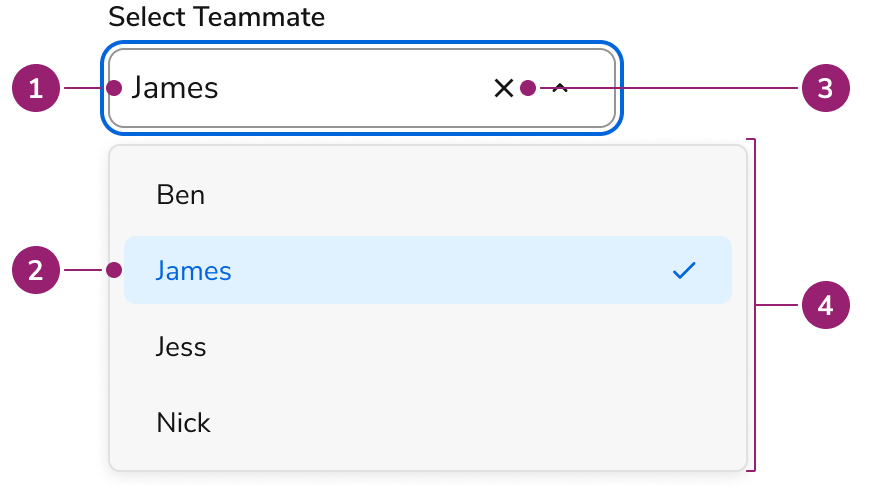
- Trigger
- Content
- Clear button (Optional)
- Popover
Options
The Combobox supports single and multi-select configurations to accommodate various selection scenarios.Multi Select
Behavior
The Combobox responds to user interaction with flexible selection methods and typeahead functionality.Single selecting
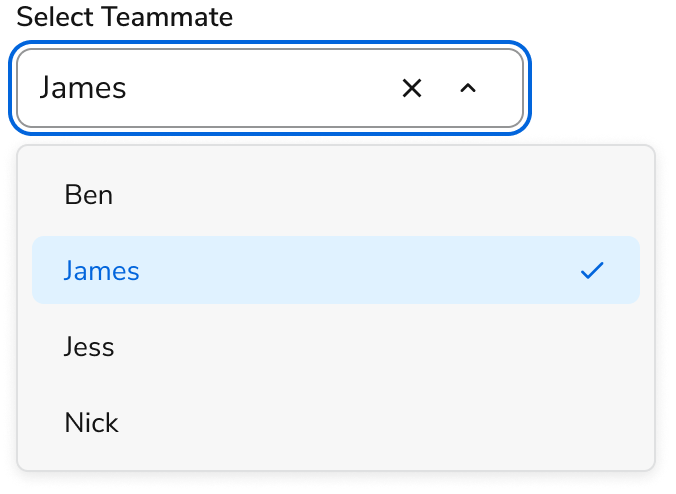
Clicking an option updates the text field value and closes the Combobox. When reopening the Combobox with a selected value, the option matching that value is selected.Multi Selecting
Continuous selection
Continuous selection refers to a multiselect that stays open while users keep making selections. Refer to the usage guide for when to use this variant.Select All
Multi-select Comboboxes support selecting all options at once.As Select-only
Configure the Combobox for scenarios requiring an HTML select-like experience.Typeahead
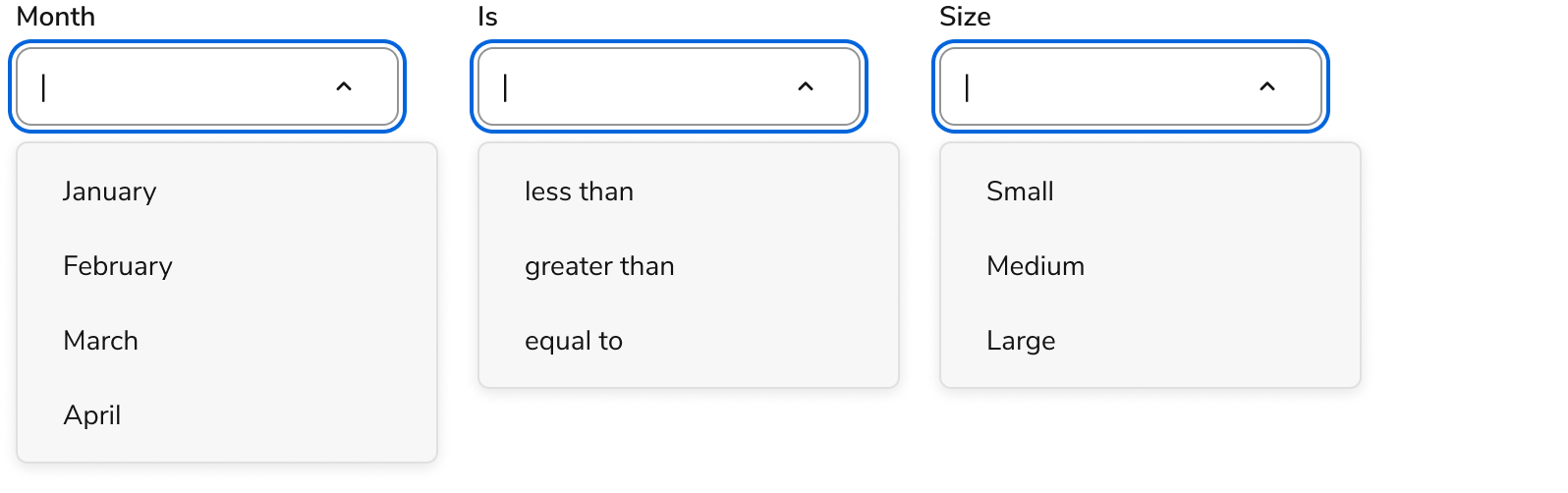
Combobox supports typeahead, narrowing options in the popup as users type.Rows
Comboboxes grow as the number of selections increases. Configure the maximum number of rows.Truncated Chip
When there are more Chips than rows allowed in the Combobox, a truncated Chip will appear.Usage Guidelines
Use the Combobox when users need to select from many options.Selection methods
The main selection method for Combobox supports searching for a particular entity to make the selection. This pattern appears in applications like Slack when adding a new member to a channel.Select-only
Use a Combobox as select-only in these scenarios:- Simple, static list: Short lists of options (e.g., countries, states, or categories) that users easily recognize and navigate without much effort.
- No need for search or filtering functionality: Lists short enough that users can easily scan through all available choices.
- Simple UX: Select-only experiences require less complex interactions.
Continuous multiselect
Combobox supports continuous multi-selection instead of closing after each selection. Use this pattern when users typically search for metadata to find multiple items.- An example would be using “designer” as a search term to filter down to all designers and selecting multiple designers from that list.
Select All
The Select All feature enables users to quickly select or deselect all available options within a multi-select Combobox. This pattern improves efficiency when working with large sets of items or when selecting most of the list is common.Complex selection alternatives
When the Combobox is insufficient for a use case, use an alternative UI. These primarily combine the Select Trigger with the Dialog, Text Field, Listbox, and List View components, and may include others depending on need. Rather than adding additional features to the Combobox, use the Select Trigger for scenarios such as:- Manual applying actions
- Needing secondary actions
- Tabbed division of options
- Multiple footer actions
Alternatives
When there are only a few items to choose from, a radio or checkbox group may be more appropriate. When a particularly complex selection interaction is needed, a Listbox in a special layout may be preferred.Combobox vs Checkbox
Checkbox groups and the Combobox both allow multi-selection of a set of items. Checkbox groups should be used when there are only a few options. For larger options, Checkbox groups can still be used when there is space available and discovery of options is important. Comboboxes are good for 8 or more options and also when conserving space.Combobox vs Menu
The Menu is used to perform actions on the page, and sometimes also a navigational context. The Combobox is used for choosing an option amongst a list, usually in the context of a Form.Combobox vs Popover
When users need to select from many options, use the Combobox instead of the Popover. Avoid recreating a combobox-like or select-like interaction with a Popover.Combobox vs Radio
Radio buttons and the Combobox both allow users to select a single option among a set. Use Radio buttons when there are between 2-7 options. Use a Combobox when there are 8 or more options available. Additionally, in a group of Radio buttons all options are equally represented whereas a Combobox highlights a single option more prominently.Combobox vs Search Field
Use the Combobox when selecting from options defined in an overlayed list, typically in the context of a form field. Use Search Field in situations requiring a traditional search experience, for filtering lists of items on the page, in tables, with large datasets, and for results requiring additional filtering.Combobox vs Select Field
Select Field is the eventual replacement for the Combobox component. Use Select Field when looking for features such as Dialog viewing, standardized content display, secondary actions, sectioning, or lazy loading. Consider using the Combobox if needing a stable component in your application.How to Use
Labels and help
For information around concepts like labels, placeholder, and help, refer to the Form pattern.Sorting options
The Combobox does not prescribe how choices are sorted. Common sorting types include alphabetical, time-based, and categorical. Use a sort that matches user expectations.