

Anatomy
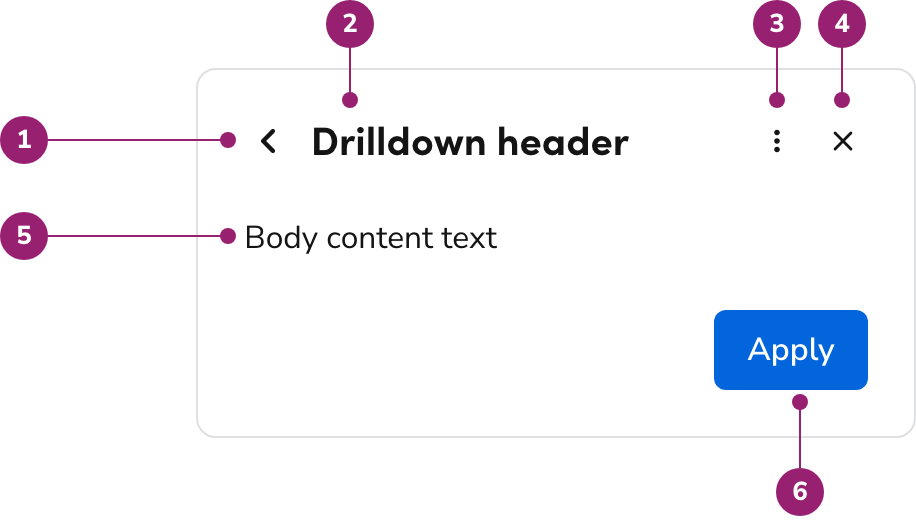
- Back action
- Drilldown header
- Header actions (optional, Drawer and Page Panel only)
- Close action (optional)
- Drilldown content
- Drilldown footer (optional)
Options
In a Dialog
In a Drawer
In a Page Panel
Header actions
Drilldown supports an optional overflow menu in the header for secondary operations related to the Drilldown content. Header actions appear to the left of the close action, or on their own when the Drilldown has no close action. Each Drilldown defines its own header actions. A Drilldown does not inherit the header actions of the Drawer it opens from.Behaviors
How the Drilldown gets opened
Drilldowns are opened by clicking on a trigger element within the parent UI.Dismissal
If the container is dismissed (e.g., clicking the backdrop or a close control), the entire UI closes. It does not step back; going back is reserved for the back action.Focus Management
Focus should mimic the corresponding UI which the Drilldown is present in. Refer to focus management documentation for Dialogs and Drawers for more information.Keyboard Interactions
Drilldown does not have any specific keyboard interactions. It should follow the keyboard conventions of the UI it is in.Usage Guidelines
An example of a Drilldown within a Drawer that allows the user to quickly edit individual values from the parent view.
Where Drilldown can be used
Drilldown is allowed in the following UIs:Where Drilldown cannot be used
Drilldown is explicitly not allowed in the following UIs: These are not allowed for a few reasons:- They are not easily accessible to implement in the component.
- They are an unstable place to interact with for users (e.g., accidental Popover closing, uncontrollable resizes that get cut off).
Fullscreen Drilldown + Dialog vs A1 Takeover
The A1 Takeover contained in its header a “back to” element. Open that reference from Visit Anvil1 after you request Vercel access. While on the surface this seems the same as a Drilldown in a fullscreen Dialog, there is a notable difference. An A1 Takeover can be triggered from any UI interaction. The Drilldown + Fullscreen Dialog can only be triggered from another fullscreen Dialog, consistent with how Drilldown works in all other scenarios. If looking for the closest approximation to the A1 Takeover, use the normal Fullscreen Dialog without a Drilldown.Keep Drilldown in its parent UI
Use the same container the Drilldown came from (e.g., a Drawer-triggered Drilldown remains in that Drawer).How to use
- Avoid using the confirmation pattern when using the Drilldown. If the actions being taken are important enough to warrant a confirmation, consider using a different UI pattern besides the Drilldown.
- If the Drilldown context is closed in some way, such as clicking on an x or a Backdrop, the whole UI is closed. It should not go back, that action is reserved for the back action. You may optionally remove these close actions in a Drilldown.
- Do not use Breadcrumbs within a Drilldown. Breadcrumbs create a competing hierarchy with the Drilldown’s back action. Breadcrumbs are not traditionally used in Panels, Drawers, or Dialogs either.
Actions within a Drilldown
When using a Drilldown, it is recommended to adjust the actions to the following: Header- Always include the back action provided by Drilldown.
- Optionally remove the close action to reduce ambiguity.
- Optionally add header actions for secondary operations that apply to the current Drilldown, in a Drawer or Page Panel.
- Use Apply or similarly a named action when users modify content within the Drilldown.
- Omit Cancel, as its scope is ambiguous in this context.